Updated: August 24, 2026
Wix powers millions of websites, and unlike some page-builder platforms, its blog feature does generate a real, standards-compliant RSS feed — it's just not advertised prominently, and it comes with a couple of real limitations worth knowing before you build an automation workflow around it. This guide covers exactly where to find your Wix RSS feed, what it can and can't do, and how to connect it to PostRSS so every new blog post automatically reaches 66 networks, including Facebook, X, LinkedIn, Pinterest, Threads, Bluesky, Mastodon, Telegram, Discord, Tumblr, VKontakte, Matrix, Webhook and Instapaper.
Yes — every Wix Blog automatically generates a working RSS feed, no plugin or workaround required. The simplest way to find it: open your published blog's main page, look for the RSS icon (usually near the top of the blog page), and click it to reveal the feed URL in a pop-up window you can copy directly. If you don't see the icon, the feed still exists at a predictable URL pattern you can construct manually.
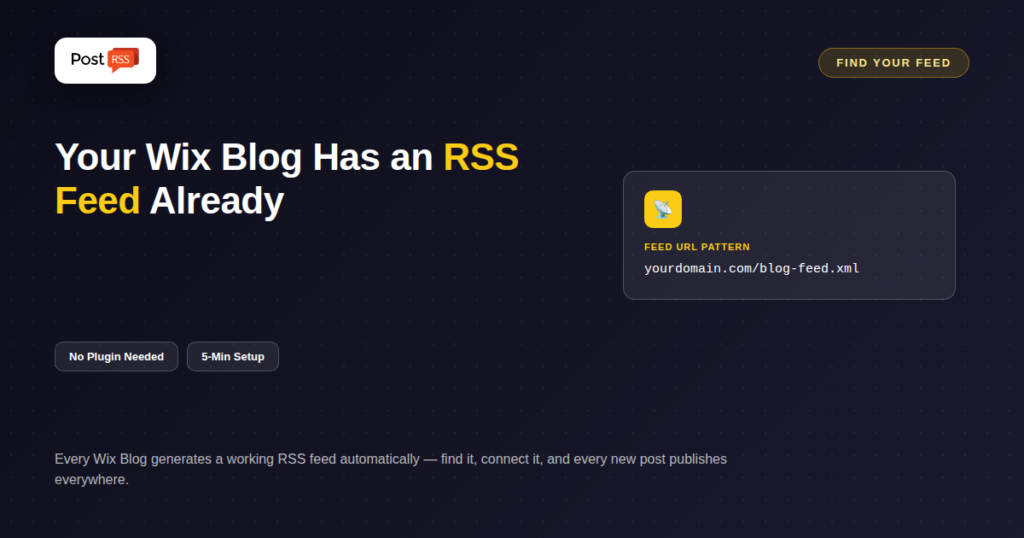
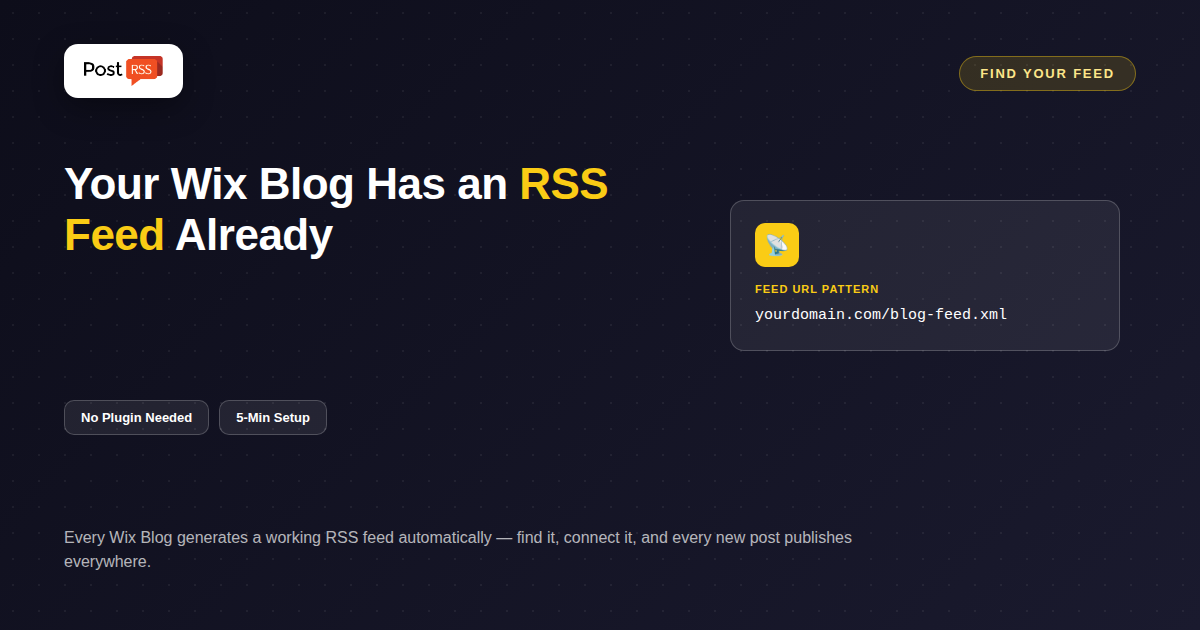
Wix blog feeds typically follow this structure: https://www.yourdomain.com/blog-feed.xml. Depending on how your Wix site's blog is set up, you may see a variation like https://www.yourdomain.com/blog/blog-feed.xml if the blog lives under a /blog subpath. Try opening either URL directly in a browser — if it's correct, you'll see raw XML content rather than a styled webpage. If neither works immediately, using the RSS icon on your live blog page remains the most reliable way to get the exact URL for your specific site.
Neither limitation prevents reliable automation for the vast majority of Wix blogs — they just mean a Wix-based workflow looks slightly different from a WordPress-based one, where per-category feeds and unlimited feed length are standard.
/blog-feed.xml pattern directly in a browser to confirm it works.Occasionally a Wix site's privacy or SEO settings can restrict crawler access in ways that also affect feed accessibility. If your feed URL returns an error or empty content when tested in an incognito browser window, check your site's SEO and indexing settings inside the Wix dashboard, since a site set to block search engines can sometimes also block the automated feed check PostRSS relies on. Most standard Wix blogs, published normally with default settings, don't run into this issue.
Wix offers both its original Editor and the newer Wix Studio platform, and both generate blog RSS feeds using the same underlying blog-feed.xml pattern, since the blog application itself is shared infrastructure across both editors. If you've built your site in Wix Studio specifically, the same feed-discovery steps apply — look for the RSS icon on your published blog, or test the standard URL pattern directly.
Once your Wix blog's feed is connected to PostRSS, every new post you publish automatically triggers distribution to every platform you've configured — no manual cross-posting, no remembering to share on social media after hitting publish in Wix. This matters especially for small business owners and solopreneurs who chose Wix specifically for its simplicity and don't want to add a complex marketing stack on top of it; the automation runs quietly in the background using infrastructure Wix already provides for free.
Wix's blog RSS feed covers blog posts specifically, not product catalog updates from Wix Stores. If you're running a Wix-based online store and want new product announcements distributed automatically, the practical workaround is publishing a short blog post whenever a significant new product launches — a title, a link to the product page, and a brief description — which then flows through the same blog feed automation covered above. This adds a small manual step (writing the announcement post) but keeps the distribution itself fully automated once that post is published.
Wix's native, no-plugin RSS feed puts it ahead of several other page-builder platforms that require a third-party app or workaround to generate a feed at all. Squarespace offers similarly straightforward built-in RSS support for its blog feature, while some other builders in the same category either lack RSS entirely or bury it behind a paid add-on. For a small business or creator choosing a website platform partly based on how easy automated distribution will be later, Wix's out-of-the-box RSS support is a genuine, if under-marketed, advantage worth knowing about before assuming a workaround will be necessary.
Businesses running several Wix sites — a main site plus a few landing pages, or separate sites for different brands or locations — can connect each site's individual blog feed to PostRSS as its own independent source, each routed to its own set of social accounts. Since each Wix site generates its own feed at its own domain, there's no cross-contamination risk between sites; a post published on one Wix blog only ever triggers automation for the platforms specifically connected to that site's feed.
Finding your Wix feed URL and confirming it works typically takes under five minutes. Connecting it to PostRSS and choosing target platforms takes another five to ten minutes. From that point forward, every new blog post distributes automatically with zero ongoing manual work — a fifteen-minute one-time setup replacing what would otherwise be a recurring manual task every time you publish.
Once you've confirmed your Wix blog feed URL, connecting it to PostRSS follows the same process as any other RSS source. See our setup guide for the full connection walkthrough, and our pricing breakdown if you're deciding which plan fits your platform mix, starting with a genuine free plan for testing.
If PostRSS reports it can't read your Wix feed after connecting it, a few quick checks resolve most cases. First, confirm the feed URL loads as raw XML directly in a browser rather than redirecting to your styled blog page — a redirect usually means the URL pattern needs adjusting slightly for your specific site structure. Second, check that your Wix site is fully published (not just saved as a draft in the editor), since an unpublished site's feed generally isn't publicly accessible. Third, if you recently changed your site's domain or moved from a Wix subdomain to a custom domain, the feed URL changes accordingly and needs reconnecting in PostRSS with the new address.
Some Wix blog layouts hide it by default or place it in a less obvious spot; trying the /blog-feed.xml URL pattern directly is a reliable fallback if you can't locate the icon visually.
No — since automation only needs to detect new posts as they're published, the 20-post window is far larger than what's needed for real-time distribution. It only matters if you were trying to backfill or archive older content, which isn't automation's typical use case.
Not natively — Wix's RSS feed covers the entire blog. If category-specific automation is essential, that's a genuine platform limitation worth weighing against WordPress, which supports per-category feeds directly.
Yes — the feed URL pattern is based on whatever domain your site is actually published under, whether that's a Wix subdomain or your own custom domain connected through Wix's domain settings.
Wix's feed typically includes the post title, a description/excerpt, the featured image, and a link back to the full post — the same excerpt-and-link format that works well for automated social distribution without duplicating full article text elsewhere.
Wix built its reputation on making website creation approachable without technical overhead, and its RSS feed follows that same philosophy — it's already there, already working, and just needs to be found and connected. Once linked to PostRSS, a Wix blog gets the same reliable, automatic multi-platform distribution as any other content source, without requiring a plugin, a developer, or any change to how you already publish.
What changed in the networks, what broke, and how to fix it before it costs you reach.
Built by Internet Solutions, the team behind PostRSS. Each product saves you time in its own way.
 English
 Lietuviškai
 Deutsch
 Français
 Русский
 Español
 Polski
 Italiano
 Українська
 Čeština
 Português
 日本語
日本語 Latviešu valoda
 Eesti
Eesti Magyar
 Bahasa Indonesia
 Türkçe
 हिन्दी
 Ελληνικά
 العربية
 ไทย
ไทย Tiếng Việt
 Română
 Bahasa Melayu
 বাংলা
বাংলা