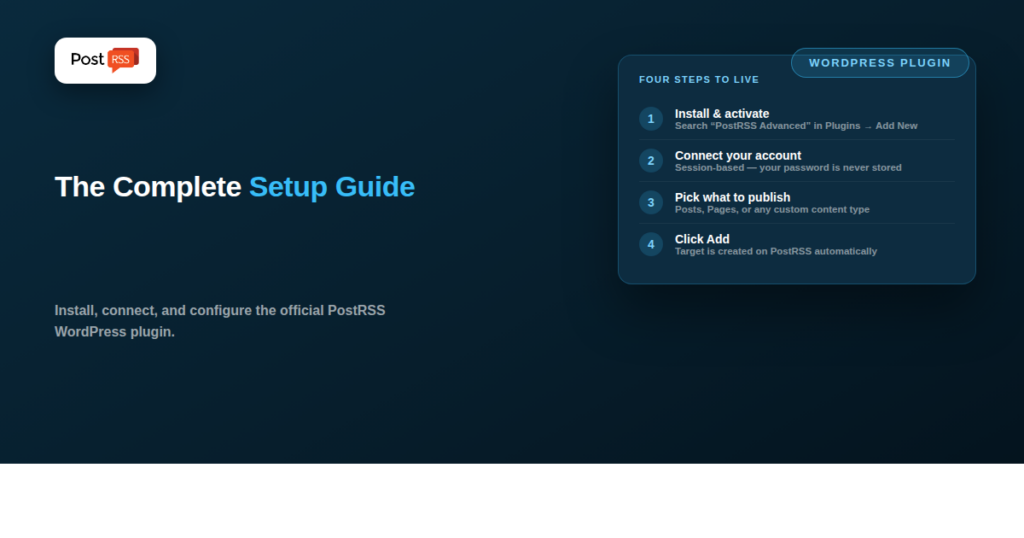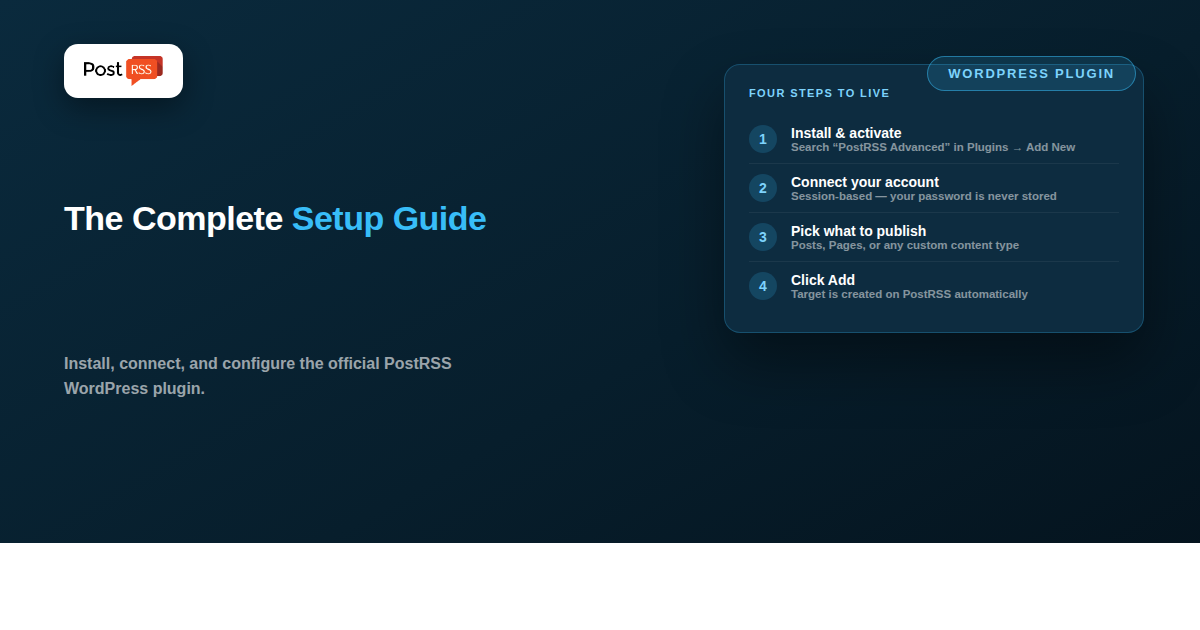
PostRSS Advanced Dashboard Integration is the official PostRSS plugin for WordPress — it connects your PostRSS account directly to your dashboard, lets you pick exactly which posts, pages, or other content should go out automatically, and creates the matching PostRSS target for you with a click. This is the full setup and usage walkthrough, page by page.
From your WordPress dashboard, go to Plugins → Add New Plugin, search for “PostRSS Advanced Dashboard Integration,” and click Install Now, then Activate. You can also download it directly from its WordPress.org plugin page and upload the zip file under Plugins → Add New Plugin → Upload Plugin if you’d rather install manually. Either way, a new PostRSS menu appears in your dashboard sidebar once it’s active.
Under PostRSS → Settings, enter the email and password for your PostRSS account and click Connect to PostRSS. Your password is sent directly to postrss.com to start a session and isn’t stored by the plugin — only the resulting session is kept, so your site can manage feeds and targets on your behalf until you click Disconnect. If you don’t have an account yet, the Settings page also links directly to registration and password recovery on postrss.com, so you’re never stuck without a way in.
The Feeds page is where the actual setup happens. Pick a content type — Posts (optionally filtered down to specific categories), Pages, or any other public content type your theme or other plugins register — then choose which connected PostRSS destination to post to: a Type dropdown (Facebook, LinkedIn, X, Pinterest, VK, and so on) followed by a second dropdown scoped to that platform’s connected accounts, matching the layout of PostRSS’s own desktop app. For Facebook Pages and VK Pages with a linked personal account, a “Publish as” choice lets you decide whether posts go out as the page itself or as the linked account.
Each source gets full schedule control: check on a fixed Frequency (from every minute up to weekly) or at specific Exact times of day, optionally limited to particular weekdays, with your account’s timezone shown alongside so the times you pick have a clear frame of reference. You can also set a daily posting window, publishing order (newest first, oldest first, or randomly with duplicates allowed), how many posts to publish per run, and the post text format — matching the item’s title, description, or a static line of your own, with nine total formatting options mirroring PostRSS’s own app exactly.
Once your content type, destination, and schedule are set, clicking Add automatically creates the matching target on PostRSS, pointed at a feed of your own site’s content filtered to your selection — a normal WordPress RSS feed URL for Posts (the same kind WordPress already exposes publicly), or the plugin’s own filtered feed endpoint for Pages and other content types. Nothing is uploaded ahead of time; PostRSS simply polls that feed URL like any other RSS source.
Every target you’ve created from the plugin shows up in a list on the Feeds page with Edit, Pause/Resume, Report, and Remove actions. Edit opens the same schedule and destination controls used when adding it. Pause/Resume flips the target on or off without touching its saved schedule. Report loads the target’s posting history — what went out and when — right inside your dashboard, using the same session as everything else, instead of opening postrss.com in a separate tab.
Beyond Feeds, the plugin adds an Account page showing your profile and subscription usage at a glance, plus the full list of available PostRSS plans with Upgrade/Downgrade buttons for when you’re ready to change plans (payment itself happens on postrss.com, since that’s where billing actually lives). Statistics shows this month’s and past months’ posting activity by destination type, Orders shows your billing history, and Affiliate shows your referral stats if you’re enrolled — all pulled from your connected PostRSS account.
The plugin decides what gets published; your posts decide how good each social post looks. A few WordPress habits make a visible difference:
og:image) is what turns a plain link into a visual post.To see what each network brings, add your own query parameters, such as utm_source=postrss, to every link, and compare the results in your analytics. All options are listed on the features page.
No — it only adds admin dashboard pages and a single extra RSS feed endpoint that’s requested only when PostRSS (or you) actually load it. Public front-end visitors never load any of this code.
No. Your email and password are sent directly to postrss.com over HTTPS to start a session, exactly like logging in on postrss.com itself. Only the resulting session — never your password — is stored, so the site can manage feeds on your behalf until you disconnect.
The Settings page includes a direct link to manage your feeds at postrss.com instead, if you’d prefer to keep the two accounts entirely separate.
Yes — click Edit on any existing target in the Feeds list to reopen its full destination and schedule controls, including the Publish As choice and Exact-times list, and save changes without recreating it.
PostRSS Advanced Dashboard Integration brings the same content-picking, scheduling, and target-management PostRSS’s own web app offers, directly into wp-admin, plus a WordPress-specific shortcut: pick what to publish, click Add, and the matching PostRSS target gets created for you automatically — no separate feed-URL copying required.
What changed in the networks, what broke, and how to fix it before it costs you reach.
Built by Internet Solutions, the team behind PostRSS. Each product saves you time in its own way.
 English
 Lietuviškai
 Deutsch
 Français
 Русский
 Español
 Polski
 Italiano
 Українська
 Čeština
 Português
 日本語
日本語 Latviešu valoda
 Eesti
Eesti Magyar
 Bahasa Indonesia
 Türkçe
 हिन्दी
 Ελληνικά
 العربية
 ไทย
ไทย Tiếng Việt
 Română
 Bahasa Melayu
 বাংলা
বাংলা