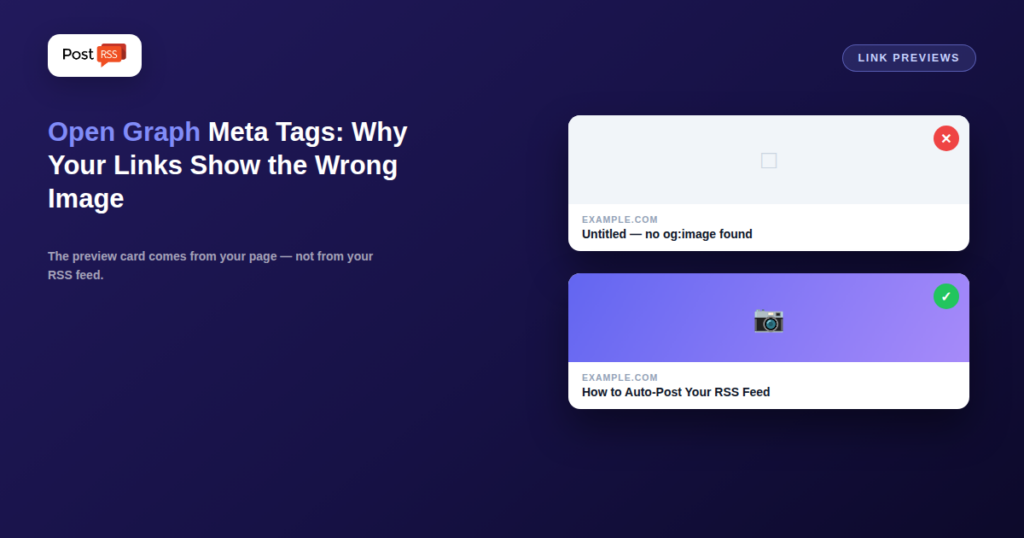
You publish a new blog post, your automation pushes it to Facebook and LinkedIn, and the link preview shows your logo instead of the article image — or worse, no image at all, a truncated title, and a description pulled from your cookie banner. This is one of the most common and most frustrating problems in automated content distribution, and almost every instance traces back to the same root cause: Open Graph meta tags. This guide explains exactly what those tags do, why social platforms rely on them instead of your RSS feed, how to set them correctly, and how to fix a link preview that’s already showing the wrong thing.
When your auto-posting tool sends a link to Facebook, LinkedIn, X, or almost any other platform, the platform does not read your RSS feed to build the preview card. It visits the URL itself with its own crawler and reads the HTML of that page — specifically, a set of meta tags in the <head> section called Open Graph tags. Your RSS feed determines when the post goes out and what the caption text says. The Open Graph tags on the destination page determine what the preview card looks like.
This distinction explains a huge share of “my automation is posting the wrong image” complaints. The automation isn’t wrong. The page it’s linking to is telling the platform to show that image.
Open Graph is a protocol originally introduced by Facebook in 2010 that lets a web page describe itself to social platforms in a structured, predictable way. Instead of each platform guessing which image on your page is the “main” one and which text is the summary, the page declares it explicitly with meta tags. The protocol was adopted far beyond Facebook — LinkedIn, Pinterest, WhatsApp, Slack, Discord, Telegram, and many others read the same tags, which is why getting them right fixes previews across nearly every destination at once.
Open Graph defines many optional properties, but for content distribution, five carry nearly all the weight:
| Tag | What it controls |
|---|---|
og:title | The bold headline on the preview card. Not necessarily the same as your page’s <title> tag. |
og:description | The grey summary line beneath the title. |
og:image | The preview image. The single most common source of wrong-looking auto-posts. |
og:url | The canonical URL of the content. Prevents duplicate-looking shares from tracking parameters. |
og:type | Usually article for blog posts, website for pages, product for shop items. |
A complete, correct block in the <head> of a blog post looks like this:
<meta property="og:type" content="article">
<meta property="og:title" content="How to Auto-Post Your RSS Feed">
<meta property="og:description" content="A step-by-step guide to turning your blog feed into automatic social posts.">
<meta property="og:image" content="https://example.com/images/auto-post-guide.jpg">
<meta property="og:url" content="https://example.com/blog/auto-post-rss-feed/">
Note that og:image and og:url must be absolute URLs, starting with https://. A relative path like /images/photo.jpg is one of the most frequent reasons an image silently fails to appear.
X reads Open Graph tags as a fallback, but it prefers its own Twitter Card tags when they’re present. If your previews look right everywhere except X, this is usually why. Adding two extra tags resolves it:
<meta name="twitter:card" content="summary_large_image">
<meta name="twitter:image" content="https://example.com/images/auto-post-guide.jpg">
The summary_large_image value is what produces the full-width image card rather than the small square thumbnail. If your X posts show a cramped little icon instead of a proper banner, a missing or incorrect twitter:card value is the likely cause.
An og:image tag that points to a real image can still fail to render. The recurring causes, roughly in order of how often they bite:
This is the second-biggest source of confusion after the RSS-versus-page misunderstanding. Social platforms aggressively cache the Open Graph data they scrape. Once Facebook has fetched your page and stored its preview data, it may keep serving that cached version for days or weeks — even after you’ve corrected the tags. So you fix the problem, share the link again, and see exactly the same broken preview, which makes it look like the fix didn’t work.
The solution is to force a re-scrape using each platform’s own debugging tool:
These tools are also the fastest way to see what a platform actually reads from your page, rather than what you assume it reads. If the debugger reports a missing og:image, the problem is on your page, not in your automation tool.
Understanding the division of responsibility makes troubleshooting dramatically faster:
| Element | Comes from |
|---|---|
| When the post goes out | Your automation tool’s schedule |
| The caption text above the link | Your RSS feed item / automation tool’s formatting |
| The preview card image | og:image on the linked page |
| The preview card headline | og:title on the linked page |
| The preview card summary | og:description on the linked page |
So if your caption is wrong, adjust your feed or your tool’s caption settings. If the card is wrong, fix the page’s Open Graph tags. Tools like PostRSS handle the timing and caption side; the card itself is rendered by the destination platform from your page’s own markup, which is why no auto-posting tool can override a bad og:image on your behalf.
WordPress. Most SEO plugins (Yoast, Rank Math, SEOPress, All in One SEO) generate Open Graph tags automatically and let you set a per-post “social image” that overrides the featured image. If previews are wrong on WordPress, check whether two plugins are both emitting tags — duplicate og:image tags are a classic cause of unpredictable results, because the platform may pick either one.
Shopify. Themes typically output Open Graph tags for products using the product’s first image. If a product shows the wrong preview, the fix is usually reordering the product images rather than editing theme code.
Ghost. Has built-in Facebook and X card settings per post under the post settings menu, with a site-wide default fallback.
Squarespace and Wix. Both generate tags automatically, with a per-page social image setting in the page’s SEO or social sharing panel.
Custom or headless sites. You control the <head> directly, which means full control and full responsibility. Server-side rendering matters here: if your Open Graph tags are injected by client-side JavaScript after page load, many social crawlers will never see them, because they typically don’t execute JavaScript the way a browser does.
This deserves its own section because it’s the hardest version of the problem to diagnose. On a single-page application built with a client-side framework, the initial HTML the server sends may contain no Open Graph tags at all — they get added by JavaScript once the app boots. When you view source in your browser after the page loads, everything looks correct. When Facebook’s crawler requests the page, it receives the bare initial HTML and finds nothing.
The test that reveals this: fetch your page the way a crawler would, without executing JavaScript, and look at the raw response. If the Open Graph tags aren’t in that raw HTML, they need to be server-rendered, pre-rendered at build time, or handled by whatever meta-tag mechanism your framework provides for server output. This is a common issue on modern React, Vue, and Angular sites, and it affects nothing else about the site’s behavior — which is exactly why it goes unnoticed until someone asks why the link previews look empty.
Technically valid isn’t the same as effective. A few practical habits make preview cards perform better:
og:title do meaningful work; the image should support them, not replace them.When a preview looks wrong, work through this order — it resolves the overwhelming majority of cases:
og:image is an absolute HTTPS URL.Not directly. Google’s ranking systems do not use Open Graph tags as ranking signals, and Google generates its own search snippets from page content and its own meta description handling. The connection is indirect but real: better-looking preview cards tend to earn more clicks when your content is shared, more clicks bring more traffic and engagement, and those downstream signals are the ones that matter. Treat Open Graph as social presentation infrastructure rather than an SEO tactic, and set expectations accordingly.
Because the platform builds the preview card from the og:image tag on the linked page, not from your RSS feed or your automation tool. Fix the tag on the page, then force a re-scrape with the platform’s debugging tool.
Generally no. The destination platform renders the card from the page’s own Open Graph markup. Automation tools control the timing and the caption text, not what the platform’s crawler reads from your site.
The platform is serving a cached version. Run the URL through the Facebook Sharing Debugger and click “Scrape Again”, or use LinkedIn’s Post Inspector, to force a fresh fetch.
1200×630 pixels is the safest target. Stay above 200×200 as an absolute minimum, keep the file well under a few megabytes, and use JPEG or PNG rather than WebP or SVG.
X falls back to Open Graph if Twitter Card tags are absent, but adding twitter:card with the value summary_large_image is what reliably produces a full-width image card rather than a small thumbnail.
Different platforms cache independently and have slightly different requirements for image size, format, and crawler access. A tag set that satisfies the strictest requirements — absolute HTTPS URL, JPEG or PNG, roughly 1200×630, publicly fetchable — works consistently across all of them.
Not necessarily, and on most blogs the featured image is used automatically. A dedicated social image becomes worthwhile when your featured images are portrait-oriented or heavily cropped by the 1.91:1 card ratio.
Open Graph tags are the layer that decides how your content looks the moment it lands in someone’s feed, and they live on your page rather than in your feed or your automation tool. Get five tags right, make sure the image is a publicly reachable absolute HTTPS URL at roughly 1200×630, confirm they’re present in server-rendered HTML, and clear the platform cache when you change them. Do that once, and every automated post from that point forward arrives looking the way you intended — without touching your automation setup at all.
What changed in the networks, what broke, and how to fix it before it costs you reach.
Built by Internet Solutions, the team behind PostRSS. Each product saves you time in its own way.
 English
 Lietuviškai
 Deutsch
 Français
 Русский
 Español
 Polski
 Italiano
 Українська
 Čeština
 Português
 日本語
日本語 Latviešu valoda
 Eesti
Eesti Magyar
 Bahasa Indonesia
 Türkçe
 हिन्दी
 Ελληνικά
 العربية
 ไทย
ไทย Tiếng Việt
 Română
 Bahasa Melayu
 বাংলা
বাংলা