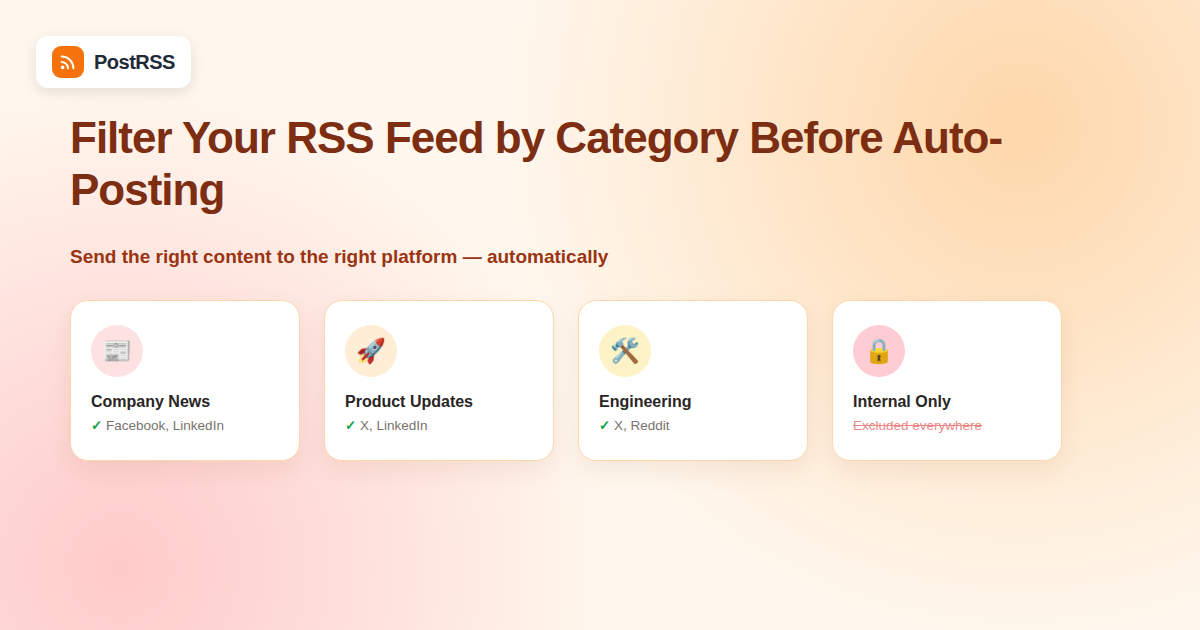
Not every item in your RSS feed belongs on every social channel. A company blog that covers product updates, press releases, and internal culture posts probably shouldn’t push all three to LinkedIn with equal weight — and a lot of publishers only realize this after their feed has already auto-posted something off-brand or irrelevant to a channel where it landed badly. Category filtering solves this at the source, letting only the right subset of posts reach each destination.
This guide walks through the actual mechanics of category-based filtering: how it works at the feed level, how it works inside auto-posting tools that support it, and the fallback techniques available when your CMS or automation tool doesn’t offer built-in filtering. It also covers the troubleshooting steps worth running through before assuming a filter is broken, since most “the filter isn’t working” reports turn out to be a caching delay or a mismatched slug rather than an actual configuration bug.
Three practical reasons come up constantly:
The cleanest and most reliable method doesn’t require any special feature in your auto-posting tool at all — it uses a capability most CMS platforms already build in. WordPress, for example, automatically generates a separate feed URL for every category:
https://yoursite.com/category/announcements/feed/
Instead of pointing your auto-posting tool at your site’s main feed (/feed/), you point it at the category-specific feed URL. The tool then only ever sees items from that category — filtering happens before the automation layer even runs, which means there’s no filtering logic to configure, maintain, or get wrong later.
This same pattern exists across most major platforms:
/category/{slug}/feed/ and /tag/{slug}/feed//tag/{slug}/rss/?format=rss/feed/tag/{tag}If you need different categories going to different platforms — announcements to LinkedIn, product news to X, culture posts to Instagram — the practical setup is running multiple separate auto-posting connections, each pointed at its own category feed URL, rather than one connection trying to sort mixed content after the fact.
Some auto-posting platforms support filtering rules directly in their own interface — include/exclude by category, tag, keyword, or author, applied after the tool reads your full feed. This is useful when your CMS doesn’t expose clean category-specific feed URLs, or when you need filtering logic more complex than “this category only” (for example, “this category, except items also tagged internal”).
The tradeoff is that in-tool filtering depends on the RSS feed correctly carrying category data in the first place — usually via <category> tags inside each item. Not every feed generator includes these consistently, so it’s worth checking your raw feed XML before assuming filtering rules will have anything to match against.
| Factor | Category-Specific Feed URL | In-Tool Filtering Rules |
|---|---|---|
| Setup complexity | Low — just point at a different URL | Moderate — requires configuring rules per connection |
| Reliability | High — filtering happens at the source | Depends on feed’s category metadata being accurate |
| Flexibility (complex logic) | Low — one category per feed URL | Higher — can combine include/exclude conditions |
| Works without CMS support | No — requires CMS to expose category feeds | Yes — works on any single feed with category tags |
Before configuring anything, open your feed’s raw XML directly in a browser (usually at /feed/) and look for a <category> element inside a sample <item>:
<item>
  <title>New Feature: Bulk Scheduling</title>
  <category>Product Updates</category>
  <link>https://yoursite.com/bulk-scheduling</link>
  ...
</item>
If that tag is missing entirely, in-tool category filtering has nothing to work with, and a category-specific feed URL (Method 1) becomes the only reliable path forward.
A common real-world need is “everything except this one category” rather than “only this one category.” A few approaches:
?category_name=news,updates for a merged feed of just those two categories.?cat=-5 (negative category ID) to exclude a specific category from the main feed.This is a common gap: authors sometimes forget to assign a category before publishing, and an uncategorized post typically still appears in the main, unfiltered feed but not in any category-specific feed URL. If you’re relying entirely on category-specific feeds for auto-posting, uncategorized posts will silently never get auto-posted anywhere — worth adding a simple editorial checklist step confirming category assignment before publish, so nothing falls through the gap.
Before connecting a category feed to a live, auto-posting social account, load the feed URL directly and confirm: (1) it returns items, (2) every item actually belongs to the intended category, and (3) recently published posts show up promptly. A feed that’s cached too aggressively by the CMS can lag behind actual publish times, which looks like a filtering bug but is really a caching delay — worth ruling out separately as part of general feed monitoring.
Here’s how the category-URL approach plays out for a typical SaaS company blog with three content categories — Product Updates, Company News, and Engineering — each suited to a different audience:
| Category | Feed URL Pattern | Best-Fit Platform | Why |
|---|---|---|---|
| Product Updates | /category/product-updates/feed/ | X (Twitter), LinkedIn | Short, frequent, customer-facing news that benefits from fast distribution |
| Company News | /category/company-news/feed/ | Facebook, LinkedIn | Announcements, hires, funding — content aimed at a broader, less technical audience |
| Engineering | /category/engineering/feed/ | X (Twitter), Reddit | Technical deep-dives that perform well with a developer-heavy audience but add noise elsewhere |
Each row becomes its own independent auto-posting connection. If Engineering posts twice a month and Product Updates posts three times a week, each channel gets a cadence appropriate to its own audience instead of everything blending into one firehose.
Category filtering handles the broad sort, but sometimes a single category still contains the occasional post that shouldn’t go out — a correction notice, an internal-only update mistakly tagged the same as public content, or a placeholder post used for testing. Layering a keyword-based exclusion rule on top of category filtering (where the auto-posting tool supports it) catches these edge cases: for example, excluding any item whose title contains “[draft]” or “[internal]” even if it technically sits inside an otherwise-public category feed. This two-layer approach — category feed for the coarse filter, keyword rule for the fine filter — covers the vast majority of edge cases without requiring a fully custom feed just for exceptions.
| Symptom | Likely Cause | Fix |
|---|---|---|
| Category feed returns zero items | Wrong slug used in the URL, or category has no published posts | Confirm the exact slug from the category admin page and check for at least one live post in it |
| New post missing from category feed for several minutes | CMS or CDN feed caching | Check your caching plugin’s feed cache TTL setting; most allow a shorter TTL for feed URLs specifically |
| Feed includes posts from an unrelated category | A shared parent/child category relationship, or a plugin merging taxonomies | Inspect the raw XML for the actual category tags attached to the unexpected items |
| Uncategorized posts never get auto-posted | No category assigned before publish | Add a pre-publish checklist step, or set a default category in your CMS settings |
Yes, but it requires setting up a separate auto-posting connection per category-platform pairing — one connection watching the announcements feed pointed at LinkedIn, another watching the product-news feed pointed at X, and so on, rather than one connection trying to route mixed content intelligently.
No, filtering by a category-specific feed URL doesn’t add any delay — the tool checks that narrower feed on the same polling schedule it would check the main feed.
This is rare among major platforms, but if it applies to you, in-tool filtering rules (Method 2) become the only option, provided your feed items carry category tags in their XML.
Yes, most platforms that generate category-specific feeds generate tag-specific feeds the same way, using the same URL pattern with tags instead of categories.
No — RSS feed filtering only affects what your auto-posting tool sees. Your actual site pages, sitemap, and search engine indexing are unrelated to which categories appear in a given RSS feed URL.
Since you can’t create a custom category feed URL for a feed you don’t own, in-tool filtering rules based on keywords in the title or description become the practical fallback, even without formal category tags.
This depends entirely on the auto-posting tool’s own plan limits on number of feed connections, not on RSS itself — RSS supports an unlimited number of category-specific feed URLs from a single site.
Typically yes — most tools count each connected feed URL as a separate feed source against your plan’s limit, whether that’s your main feed or a category-specific one, so factor this in when deciding how many categories to split out individually versus grouping into a combined feed URL.
Category filtering is almost always better solved at the source — using your CMS’s built-in category-specific feed URLs — than by adding filtering logic downstream. It’s simpler to set up, more reliable, and doesn’t depend on category metadata surviving the trip through your feed’s XML. Reserve in-tool filtering rules for the cases your CMS genuinely can’t handle on its own, and always verify a new category feed manually, on a freshly published test post, before wiring it into a live auto-posting connection.
What changed in the networks, what broke, and how to fix it before it costs you reach.
Built by Internet Solutions, the team behind PostRSS. Each product saves you time in its own way.
 English
 Lietuviškai
 Deutsch
 Français
 Русский
 Español
 Polski
 Italiano
 Українська
 Čeština
 Português
 日本語
日本語 Latviešu valoda
 Eesti
Eesti Magyar
 Bahasa Indonesia
 Türkçe
 हिन्दी
 Ελληνικά
 العربية
 ไทย
ไทย Tiếng Việt
 Română
 Bahasa Melayu
 বাংলা
বাংলা
