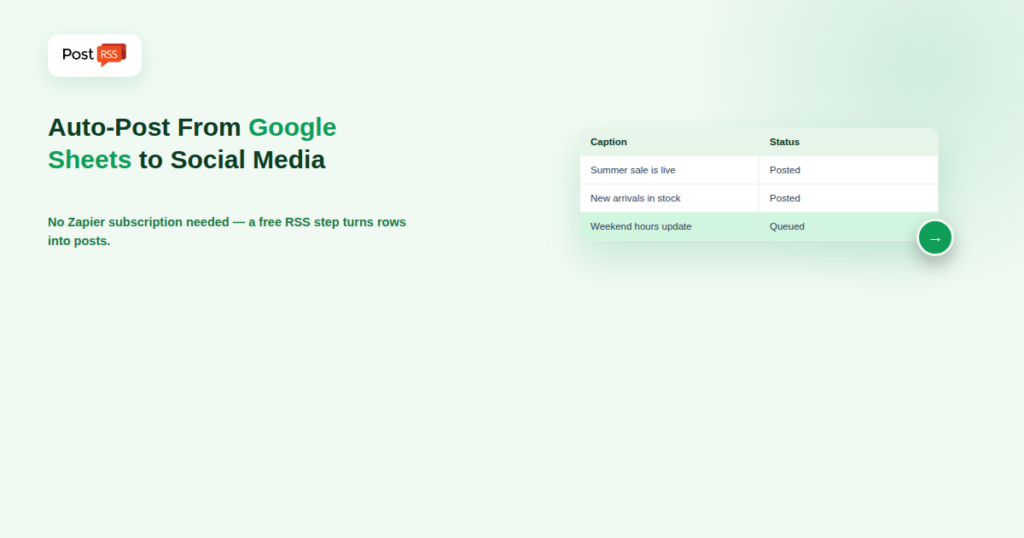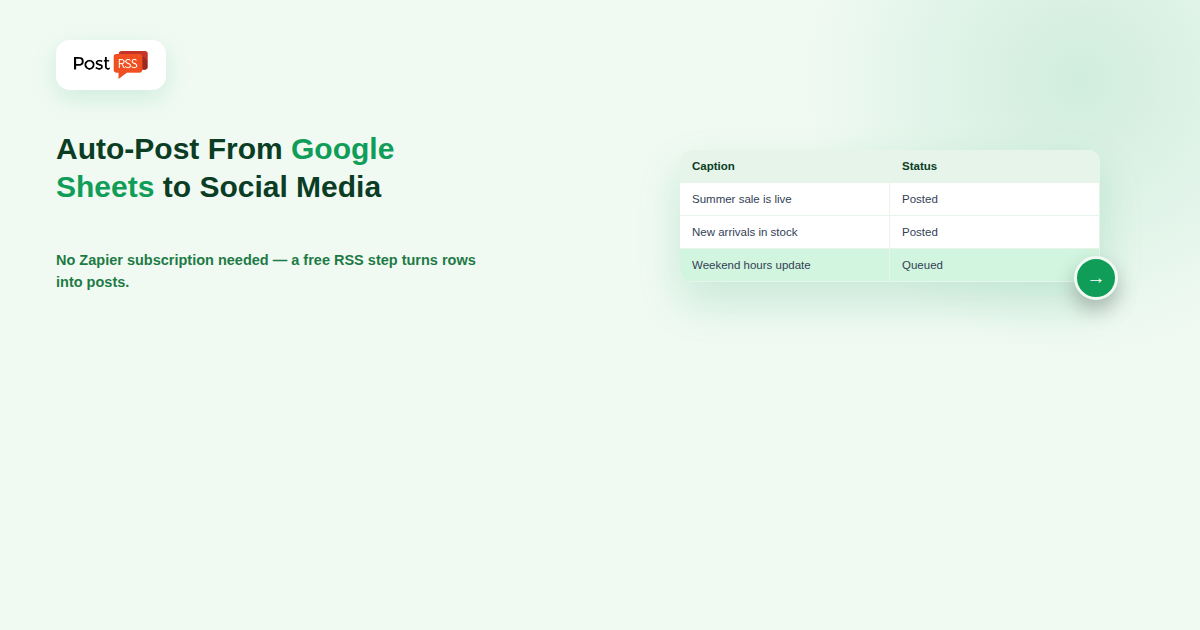
A spreadsheet is one of the most common places content actually lives before it ever reaches social media — a content calendar someone built in Google Sheets, a list of product launches a merchandising team tracks row by row, a batch of announcements a marketing team drafted together in one shared tab. The gap has always been getting that spreadsheet data out into actual social posts without a person manually copying each row by hand. This guide covers the real ways to close that gap, including the RSS-based route that needs no Zapier subscription and no per-task automation billing.
Spreadsheets are where non-technical teams naturally organize structured content — a row per post, columns for the caption, the image, the publish date, maybe a status column tracking what’s already gone out. It’s a format marketing teams, small business owners, and content planners already understand without any new tool to learn. The problem has never been organizing the content in Sheets; it’s been the disconnect between “the content exists in this spreadsheet” and “the content is now live on Facebook, X, or LinkedIn” — a gap that historically required either manual copy-paste or a paid automation platform charged per task.
The most direct, cost-free route uses Google Sheets’ own built-in publishing feature combined with a free feed-generation step. Here’s the general approach:
From that point, new rows added to your spreadsheet flow into the feed, and from the feed into your connected social accounts automatically, without a Zapier account, without per-task pricing, and without anyone manually copying content out of the spreadsheet.
If your actual need is more complex than “new row becomes a post” — conditional branching based on column values, posting to different platforms depending on a category column, or triggering non-social actions alongside the post (updating a different sheet, sending a Slack notification) — a dedicated automation platform like Zapier or Make genuinely earns its place here, since that kind of branching logic sits outside what a simple RSS pipeline is built to handle. The tradeoff is real: both platforms charge per task or per automation run past a limited free tier, which adds up quickly for anything posting at real volume, and both require you to actually build and maintain the automation logic yourself rather than getting a ready-made pipeline.
| Sheets → RSS → PostRSS | Zapier / Make | |
|---|---|---|
| Cost past setup | Free feed conversion + PostRSS’s own low starting price | Per-task/per-run billing, scales with volume |
| Setup complexity | A few one-time steps, no logic to build | Requires building and maintaining the actual automation |
| Conditional logic (branching by column value) | Not supported — straightforward row-to-post mapping only | Fully supported |
| Best for | Straightforward content calendars, product lists, announcement batches | Complex, multi-branch workflows beyond simple posting |
A few practical habits make the RSS-based route work more reliably: keep one row per intended post rather than batching multiple posts’ worth of content into a single cell; use a dedicated column for the exact caption text you want posted rather than relying on the feed generator to construct one from scattered fields; and if your sheet mixes already-posted content with new content, keep a status column so you can visually track what’s gone out, even though the underlying feed itself doesn’t need that column to function (PostRSS tracks what it’s already posted independently, using each item’s own identifier, not your spreadsheet’s status column).
A common real-world pattern: a small marketing team meets weekly, drafts a batch of five to ten posts directly into a shared Google Sheet during that meeting, then wants those posts trickling out across the week rather than all going live simultaneously. This works cleanly with the RSS route as long as the auto-posting tool’s own scheduling (check frequency, posting window, max posts per run) is configured to space out delivery rather than posting everything the moment it’s detected — the spreadsheet becomes the content source, while PostRSS‘s own scheduling settings control the actual pacing, keeping the two concerns cleanly separated rather than requiring pacing logic inside the spreadsheet itself.
It’s worth being direct about the limitations: image content referenced only as a file attached somewhere other than a public URL generally won’t carry through cleanly, since RSS items need an actual accessible URL for any image field — a filename or a Google Drive link that isn’t set to public sharing won’t work as expected. Rich formatting (bold text, line breaks styled a specific way) also doesn’t always survive the trip from spreadsheet cell to RSS field to social post cleanly, since plain text is the safest, most reliably-transmitted format through this whole pipeline. For teams whose spreadsheet workflow genuinely depends on rich media or complex formatting, testing the full pipeline with a few sample rows before relying on it for real content is worth the ten minutes it takes.
It’s worth understanding what this step actually does, since it’s the foundation the whole pipeline rests on. When you publish a sheet to the web, Google generates a stable public URL that serves your sheet’s data in a format other tools can read programmatically — separate from the regular sharing link you’d send a colleague to edit the sheet, and separate from your sheet’s private editing URL. This published version updates automatically whenever you edit the underlying sheet, which is exactly what makes the pipeline work without any manual “re-publish” step every time you add a row. One thing worth double-checking: publishing to the web does make that specific data publicly readable by anyone with the link, so avoid publishing a sheet that contains anything sensitive alongside your post content — keep your content-calendar sheet separate from anything containing internal notes, pricing, or other information you wouldn’t want technically accessible via a public URL.
If you’re also managing content in Notion or Airtable, the same underlying logic applies — both platforms can be bridged to RSS through similar publish-and-convert approaches, letting a single PostRSS setup pattern work across whichever tool your team actually uses to organize content, rather than needing a completely different automation approach per tool. The core idea stays consistent regardless of the source: get your structured content into a URL a feed-generation step can read, convert that into standard RSS, then let PostRSS handle the distribution side the same way it would for a blog or any other feed. Teams that use Sheets for one project and Airtable for another don’t need two different automation strategies — just two RSS sources feeding into the same PostRSS dashboard.
If new rows aren’t showing up in your generated feed: confirm the sheet is still actually published (Google occasionally requires re-confirming publish settings after certain structural changes to a sheet, like renaming a tab) and that your feed-conversion tool’s cache has had time to refresh, since some free converters check for updates on their own interval rather than instantly. If posts are going out with missing or garbled captions: check for stray formatting, line breaks, or special characters in the source cell that may not be surviving the conversion cleanly — plain, simple text in the caption column is the most reliable format start to finish. If the same row seems to post more than once: this usually traces back to the feed-conversion tool changing an item’s identifier between refreshes (similar to the GUID-stability issue that affects any RSS feed, not something specific to spreadsheets) — if it persists, check whether your specific conversion tool offers a way to pin a stable identifier per row, often by referencing a fixed column like a row number.
No — publishing your sheet to the web and running it through a free sheet-to-RSS converter, then connecting that feed to PostRSS, accomplishes straightforward row-to-post automation without any Zapier subscription at all.
When you need conditional logic beyond simple row-to-post mapping — branching based on a column’s value, posting to different platforms depending on category, or triggering non-social actions alongside the post — since that kind of logic is genuinely outside what a straightforward RSS pipeline handles.
Once the pipeline is set up, new rows flow through automatically — PostRSS checks the feed on your configured schedule and posts new items without any manual trigger needed.
Yes, indirectly — PostRSS’s own scheduling settings (check frequency, posting window, max posts per run) control the pacing of what gets posted and when, independent of how the rows are ordered in your spreadsheet.
Only if the image is available at a genuinely public URL — a filename alone or a private Drive link won’t carry through; the image column needs an actual accessible web address for the image to appear in the resulting social post.
It makes that specific sheet’s data publicly readable by anyone with the link, so keep your content-calendar sheet separate from anything containing sensitive information — internal notes, pricing, or private data shouldn’t live in the same sheet you’re publishing for this pipeline.
Turning a Google Sheet into automatic social posts doesn’t require a Zapier subscription for the common case of straightforward row-to-post content — publishing the sheet, converting it to RSS with a free tool, and connecting that feed to PostRSS covers most content calendar and product list workflows at a fraction of what per-task automation billing would cost. Save Zapier or Make for the specific cases that actually need conditional branching logic; for everything else, the RSS route gets spreadsheet content onto social media with less setup and less ongoing cost.
What changed in the networks, what broke, and how to fix it before it costs you reach.
Built by Internet Solutions, the team behind PostRSS. Each product saves you time in its own way.
 English
 Lietuviškai
 Deutsch
 Français
 Русский
 Español
 Polski
 Italiano
 Українська
 Čeština
 Português
 日本語
日本語 Latviešu valoda
 Eesti
Eesti Magyar
 Bahasa Indonesia
 Türkçe
 हिन्दी
 Ελληνικά
 العربية
 ไทย
ไทย Tiếng Việt
 Română
 Bahasa Melayu
 বাংলা
বাংলা