Drupal site owners tend to hit a specific wall when they decide to automate their social media: they know RSS auto-posting is possible in principle, but they can’t find the actual feed URL. Someone on the team tried the obvious /feed or /rss.xml address, got a 404 or a blank page, and gave up. That confusion is reasonable. Unlike WordPress, which bakes a single universal feed into every install whether you use it or not, Drupal treats RSS as a configurable output of the Views system — which means the feed’s existence, its URL, and what content it includes all depend on how the site was built. This guide walks through where Drupal feeds typically live, how to confirm one is actually working, what to do when none exists, and how to wire whatever you find into an auto-posting workflow.
In Drupal 7 and earlier, there was a genuinely default site-wide feed. Core shipped an “RSS Publishing” settings page at admin/config/services/rss-publishing where you could set the feed description, choose how many items to include, and decide whether teasers or full content appeared. That configuration powered a feed at /rss.xml automatically, pulling in the most recently published, promoted-to-front-page content. If you’re still running a legacy Drupal 7 site, that’s the first place to look.
Drupal 8 and every version since (9, 10, 11) changed the model. RSS Publishing as a standalone core settings page was dropped, and feed generation moved fully into the Views module, which ships in core. A View is a configurable query against your content — the same system that builds your “Recent articles” block or your blog listing page — and one of the display types you can attach to a View is “RSS Feed.” So instead of one guaranteed feed, modern Drupal sites have zero, one, or several feeds, each tied to whatever Views someone configured. A site built from the Standard installation profile typically gets a working /rss.xml out of the box, because that profile includes a default “Frontpage” View with an RSS Feed display attached. A site built from Minimal, or one where the default Views were deleted, may have no feed at all until someone adds one.
Before assuming nothing exists, check the handful of URLs that show up across most Drupal installs. None are guaranteed on every site, but they cover the majority of setups you’ll encounter.
| Feed Type | Typical Path | Notes |
|---|---|---|
| Site-wide default feed | /rss.xml | Comes from core’s Standard install profile Frontpage View (D8+) or RSS Publishing settings (D7 and earlier) |
| Legacy front-page feed | /rss.xml (config at admin/config/services/rss-publishing) | Drupal 7 and earlier only; configurable item count and description |
| Taxonomy term feed | /taxonomy/term/{tid}/feed | Auto-generated per term in many setups; good for a single category or tag |
| Content-type or blog listing feed | /blog/feed or /node/feed | Depends entirely on how the listing View was built; not guaranteed to exist |
| Custom View feed | Whatever path was set on the View’s RSS Feed display | Site builders can put this anywhere — check Structure > Views |
Start by typing your domain followed by /rss.xml directly into a browser. If you get well-formed XML with a channel title, description, and a list of item entries, you have a working feed and you can skip straight to hooking it up to an auto-posting tool. If you get a 404, a permission-denied page, or a page that clearly isn’t XML, move to checking the Views configuration before concluding no feed exists.
Because feeds in modern Drupal are just another View display, the fastest way to find every feed on a site — including ones nobody documented — is to go into the admin interface directly. Navigate to Structure > Views (typically /admin/structure/views). Each row shows the displays attached to that View as small tags: Page, Block, Feed, and so on. Any View with a “Feed” tag has an RSS output, and clicking into that View shows the exact path under its RSS Feed display settings, along with which fields get mapped into the feed’s title, link, and description.
This matters because it’s common for a site to have an RSS Feed display attached to a View that isn’t obviously about “the blog.” A “Latest News” View or one scoped to a single content type or taxonomy term can each carry their own separate feed, and none will show up if you only check /rss.xml. If your goal is to auto-post only certain content — published articles but not press releases, say — hunting through Views for a feed already scoped that way saves you from building filtering logic elsewhere. Also check for contributed modules like Views RSS, which extend feed formatting; if a feed’s output looks unusual (missing images, extra XML namespaces), a module may be reshaping the default output.
One Drupal feature worth calling out is the taxonomy term feed. Many Drupal sites, particularly those using the Standard install profile with the default Tags vocabulary, automatically expose a working RSS feed for every taxonomy term at /taxonomy/term/{tid}/feed, where {tid} is the term’s numeric ID, found by visiting the term page and checking the URL. This is genuinely convenient if you only want to auto-post one category — product updates, say, rather than internal announcements — since it skips building a custom View just to scope a feed to one term. Not every site has this enabled by default, but it’s worth testing before assuming a custom build is needed.
Finding a URL that doesn’t 404 isn’t the same as finding a working feed. Before connecting anything to an auto-posting tool, confirm the output is genuinely valid RSS or Atom XML. Load the URL directly in a browser — most will either render it as raw XML with visible tags or redirect to a feed reader view. What you’re looking for is a well-formed <rss> or <feed> root element, a channel title, and at least one <item> or <entry> with a title, link, and publish date. If the page instead shows Drupal’s default theme, an access-denied message, or an empty channel, the View exists but isn’t outputting anything usable yet. If unsure, view the page source rather than the rendered output, since some browsers silently fail to render malformed XML. Also confirm the feed updates when new content is published: publish a test node, wait a few minutes, and reload the URL. A delay is usually a caching issue rather than a broken feed, covered in the troubleshooting section below.
If you’ve checked /rss.xml, scanned the taxonomy term feeds, and confirmed nothing exists in Structure > Views, you’ll need to build one — a normal, well-supported part of Drupal that doesn’t require custom code. Go to Structure > Views > Add new view. Give it a name, choose “Content” as the “Show” type, and filter by whatever criteria matters — content type equals Article, published equals yes, sorted by “Newest first” is the standard combination for a blog-style feed. Add a display and choose “Feed” from the display type dropdown, set the feed’s path (something like /articles/feed), choose the RSS format under Format settings, and configure which fields populate the item title, link, and body/teaser.
Save the View, then test the resulting URL the same way described above. This typically takes under ten minutes, and it’s a one-time setup: once the View exists, every new matching node automatically appears in the feed.
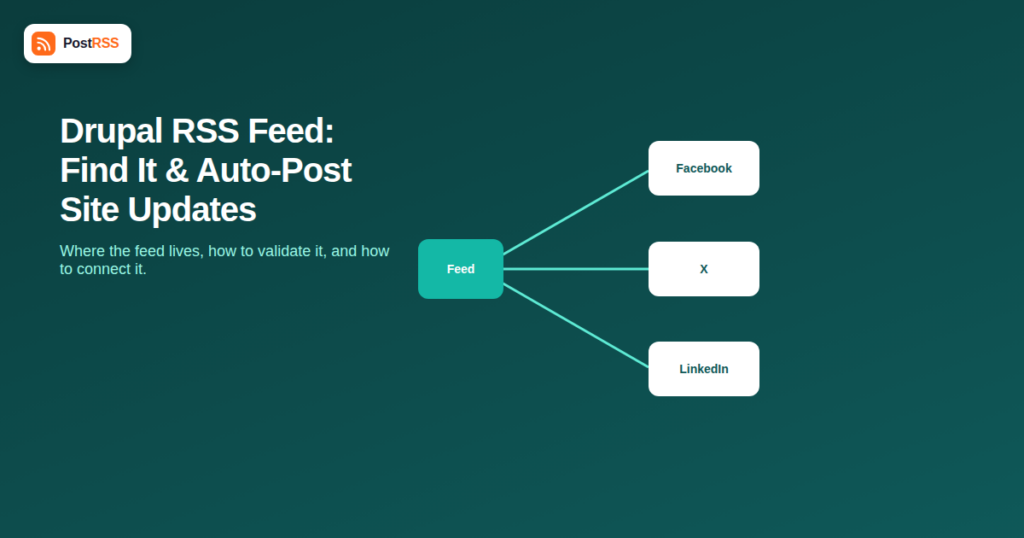
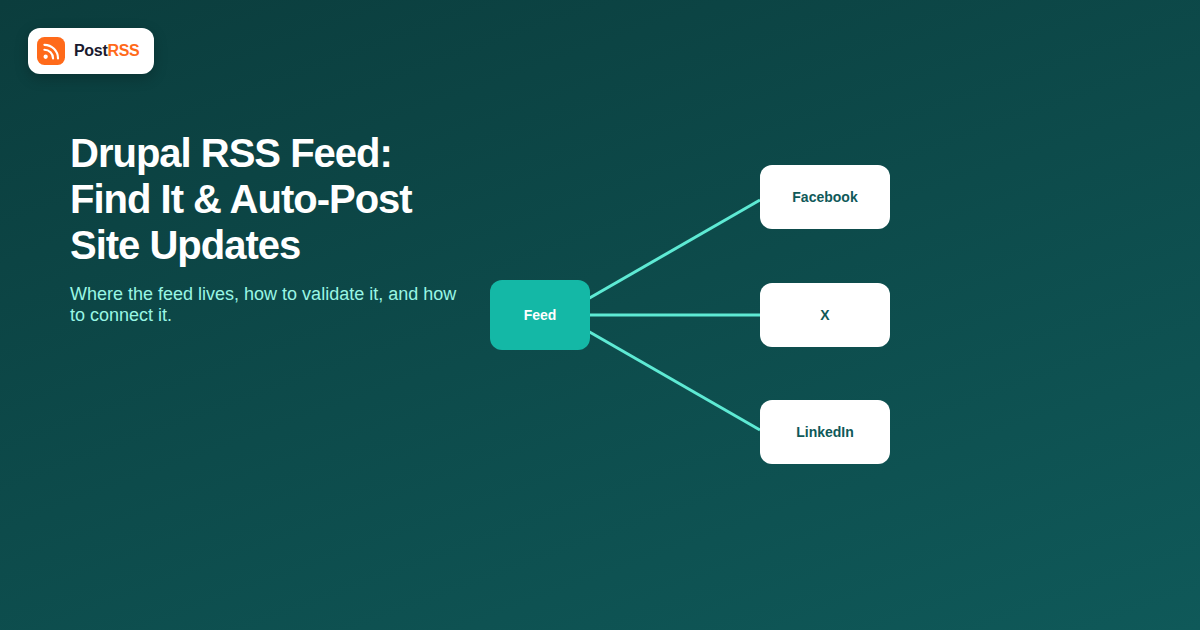
Once you have a confirmed, valid feed URL — whether it’s the default /rss.xml, a taxonomy term feed, or one you just built — the auto-posting setup is the same regardless of which path you found. You paste the feed URL into a tool built to monitor RSS/Atom feeds and push new items out to social accounts, connect the social profiles you want to post to (Facebook Pages, X, LinkedIn, Instagram, Pinterest, and others depending on the tool), and the tool checks the feed on a schedule, picks up anything new, and formats a post from the item’s title, link, and sometimes an image pulled from the content. RSS auto-posting tools work this way specifically because they don’t need any direct integration with Drupal itself — they only need a feed URL that returns valid, regularly-updated XML.
One practical tip: since Views lets you fully control which content lands in a feed, you can build separate feeds for separate posting purposes without extra tooling. A feed scoped to “Article” content can drive one auto-posting connection tuned for blog-style captions, while a taxonomy term feed for “Product Updates” can drive a separate connection with a different platform mix, all from the same site.
| Manual Posting | RSS Auto-Posting |
|---|---|
| Someone has to remember to post every time content is published | New feed items are detected and posted automatically on a schedule |
| Captions and links are written by hand for each platform | Post text is generated from the feed item’s title, link, and image |
| Easy to fall behind during busy weeks or when the site owner is unavailable | Publishing cadence stays consistent regardless of who’s available |
| Cross-posting to 66 networks means five separate manual actions | One feed connection can distribute to multiple connected accounts at once |
| No systematic way to catch missed posts after the fact | The feed itself acts as a queue, so nothing gets silently skipped |
If you’re evaluating options rather than committing to one specific setup, it’s worth reading through general platform guides that cover how different CMS platforms expose their feeds, since the underlying logic — find the feed, verify it, connect it — carries over even when the exact admin screens differ from Drupal’s.
A few issues come up repeatedly with Drupal feeds, and most have straightforward fixes.
New content doesn’t appear in the feed right away. Drupal’s internal page cache and, on many sites, an external caching layer (Varnish, a CDN, or a hosting provider’s edge cache) can serve a stale copy of the feed for minutes or hours after a new node is published. Clearing the Drupal cache manually (Configuration > Performance > Clear all caches, or drush cache:rebuild) usually resolves this; if the delay comes from a CDN, adjust its cache TTL for that path or exclude the feed URL from aggressive caching rules.
The feed returns a 403 or is missing items for anonymous visitors. Auto-posting tools fetch feeds as anonymous, unauthenticated requests. If the View’s content is restricted, or node access modules (Content Access, Domain Access, or similar) are filtering what anonymous users can see, the feed may come back empty even though it looks fine to a logged-in administrator. Test the feed URL in a private browser window, logged out, to see what an external tool actually receives.
The feed shows the wrong content or stops updating after a module update. Contributed modules that touch node access, content moderation, or Views itself can change what a feed’s query returns after an update. If a feed that worked fine suddenly goes stale, check whether modules were recently updated and re-verify the View’s filter criteria — moderation status filters can silently exclude newly published content if a workflow state changed.
Feed items are missing images or truncated descriptions. This is a Views RSS formatting issue rather than a broken feed. Check the Feed display’s row style field mapping — the RSS format needs a field mapped to the description/body and an image field mapped for enclosures. Some auto-posting tools can pull an image from the linked page as a fallback, but it’s more reliable to have the feed carry the image itself.
Multiple feeds conflict or overlap. If a site has both a legacy /rss.xml and newer custom Views feeds, it’s easy to end up auto-posting the same content twice from two different connections. Audit Structure > Views for every display tagged Feed, and pick one authoritative feed per content stream.
Not necessarily. Sites built from the Standard installation profile usually get a working /rss.xml from a default Frontpage View with an RSS Feed display attached. Sites built from the Minimal profile, or where that default View was deleted, may have no feed until one is created through Views.
Drupal 7 had a dedicated core settings page (admin/config/services/rss-publishing) that configured one site-wide feed with adjustable item count and description. Drupal 8 and later removed that page and moved feed generation entirely into Views, so feeds are defined per-View and a site can have any number of them.
Yes. Build a View filtered to a specific content type, taxonomy term, or other field condition, and attach an RSS Feed display to it. Taxonomy term feeds at /taxonomy/term/{tid}/feed also exist automatically on many sites without extra configuration.
Visit the taxonomy term’s listing page and check the URL in the address bar — it typically follows the pattern /taxonomy/term/123. That number is the term ID (tid); appending /feed to that path usually produces the RSS feed for content tagged with that term.
This usually means a View with that path exists but its query returns zero results — often because the filter criteria don’t match any existing nodes, or the feed display was created but never had its row fields configured. Check the View’s filter criteria and confirm at least one node satisfies them.
Yes. Auto-posting tools don’t care how a feed was generated — they only need a URL returning valid RSS or Atom XML with the standard title, link, and item structure, which a correctly configured custom Views feed provides just as well as the default /rss.xml.
Only if the View behind the feed is scoped correctly. Because feeds are fetched anonymously, any View used for a feed should filter to genuinely public, published content. If unsure, test the feed URL logged out to see exactly what an external service would receive.
Drupal doesn’t hand you one guaranteed RSS feed the way some simpler platforms do, but the tradeoff is real flexibility: because feeds are just Views with an RSS Feed display attached, you can scope one precisely to the content you want distributed, whether that’s every article, one taxonomy term, or a custom filtered set. The process is the same three steps regardless of version — check the obvious default paths like /rss.xml and taxonomy term feeds first, look through Structure > Views for anything tagged Feed if those come up empty, and build a new View with an RSS Feed display if nothing exists yet. Once you’ve confirmed a feed returns valid, regularly updating XML, connecting it to an auto-posting workflow is a matter of pasting the URL into a tool and linking your social accounts — worth exploring further through general auto-posting tools resources, since the setup effort is a one-time task while the payoff keeps paying off indefinitely.
What changed in the networks, what broke, and how to fix it before it costs you reach.
Built by Internet Solutions, the team behind PostRSS. Each product saves you time in its own way.
 English
 Lietuviškai
 Deutsch
 Français
 Русский
 Español
 Polski
 Italiano
 Українська
 Čeština
 Português
 日本語
日本語 Latviešu valoda
 Eesti
Eesti Magyar
 Bahasa Indonesia
 Türkçe
 हिन्दी
 Ελληνικά
 العربية
 ไทย
ไทย Tiếng Việt
 Română
 Bahasa Melayu
 বাংলা
বাংলা