Updated: August 24, 2026
Ghost and Webflow have both grown into serious publishing platforms — Ghost as a modern, developer-friendly alternative built around newsletters and membership content, and Webflow as a design-first CMS favored by agencies and brands that need precise visual control. Both handle RSS differently enough from WordPress that it's worth covering them together. This guide covers exactly where to find your feed on each platform and how to connect it to PostRSS for automatic multi-platform distribution.
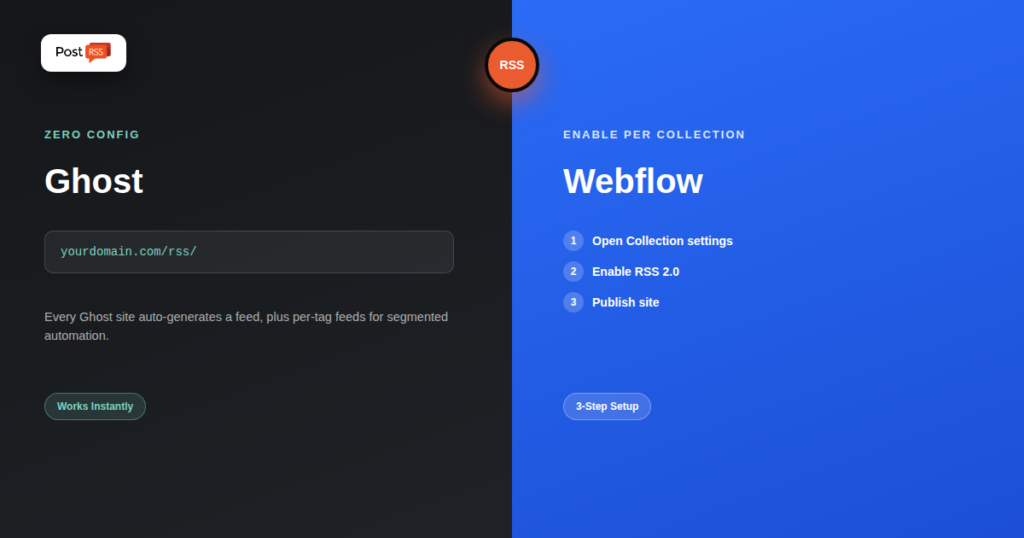
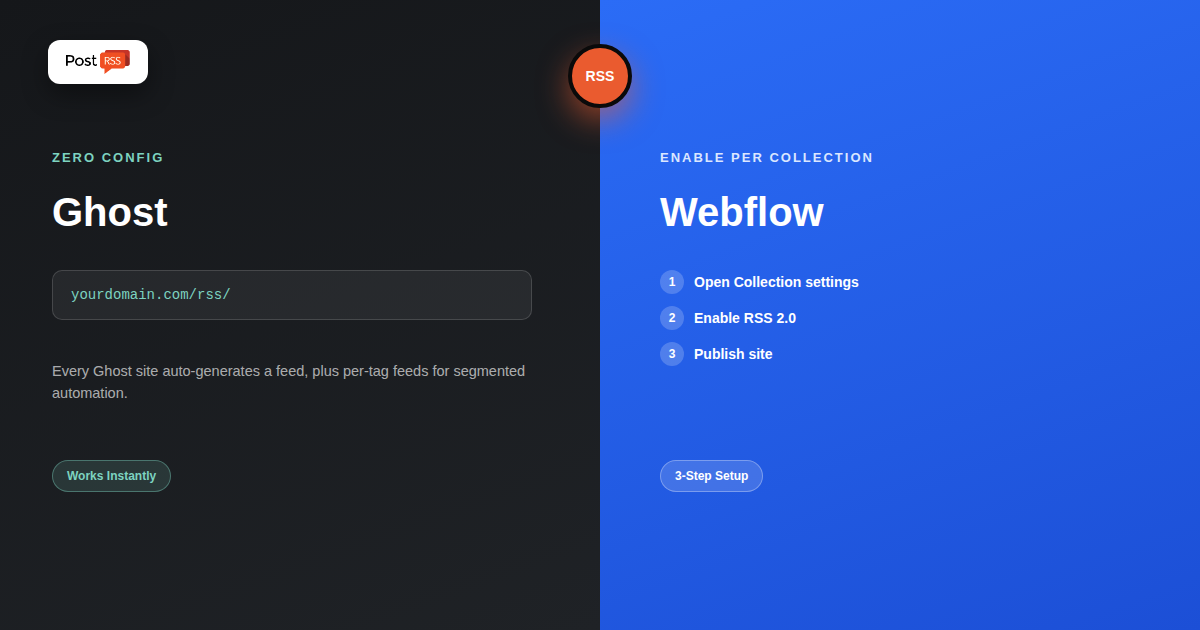
Ghost automatically generates a fully-featured RSS feed for every site with zero configuration required — it's one of the platform's core, developer-friendly design decisions, reflecting Ghost's roots as a tool built specifically for independent publishers and newsletter creators. Your site-wide feed lives at a single predictable URL, and Ghost goes further than most platforms by also generating per-tag feeds automatically.
Your site-wide Ghost feed is simply your domain plus /rss/: https://yourdomain.com/rss/. If you want to automate only a specific content category, Ghost supports per-tag feeds using the pattern https://yourdomain.com/tag/[slug]/rss/, substituting your actual tag slug. This means a publication covering several distinct topics can run separate PostRSS automations per tag, each routed to different social accounts, without needing any custom development work — the segmentation is native to Ghost.
Webflow's approach differs meaningfully from Ghost's zero-configuration model: RSS 2.0 support exists natively for CMS Collections, but it isn't automatically active — you need to enable it per Collection inside your site settings. Once enabled, Webflow generates a working feed from that Collection's items, though with one notable limitation worth knowing: Webflow's native RSS output includes titles, summaries, an optional image, and a date, but not full Rich Text field content. For automation purposes where PostRSS pulls a title, short description, and image to build a social post, this limitation doesn't actually matter — it's only relevant if you needed the feed to carry complete article text for a different purpose, like full-content syndication.
Once enabled and published, a Webflow Collection's feed is typically accessible at a URL pattern like https://yourdomain.com/[collection-slug]/rss.xml, though the exact path depends on how your Collection is configured within your site's URL structure. Checking your Collection's RSS settings panel directly after enabling it usually surfaces the exact generated URL, which is the most reliable way to confirm the correct address for your specific site.
/rss/ directly; for Webflow, use the URL shown in your Collection's RSS settings after publishing.Publications running multiple distinct content categories — say, a newsletter platform covering both product updates and industry commentary — can take direct advantage of Ghost's per-tag feed support by running separate PostRSS automations for each tag, each targeting the social accounts most relevant to that specific content type. Product updates might route to a company's main Facebook and LinkedIn presence, while industry commentary routes additionally to X, without any manual filtering required — Ghost's tag-based feed segmentation handles the split automatically at the source.
Some Webflow users worry that RSS output excluding full Rich Text content means automation will miss something important, but for social distribution specifically this isn't a real constraint. PostRSS builds social posts from a feed item's title, short description, and image — exactly what Webflow's native RSS output already provides. The Rich Text limitation only becomes relevant for a different use case entirely: feeding full article content into a separate content-syndication or content-aggregation tool that specifically needs complete text, which is outside what RSS-to-social automation requires in the first place.
A Webflow site with several CMS Collections — blog posts, case studies, product listings — can enable RSS on each Collection independently and connect each resulting feed to PostRSS as a separate automation, similar to Ghost's per-tag model. This lets a business route blog content to one set of platforms while case studies or product announcements route elsewhere, all from feeds Webflow generates natively without any custom code.
For Ghost, a non-working /rss/ URL almost always means the site itself isn't publicly accessible yet (still in a private preview or password-protected state) — check your site's publish status first. For Webflow, the most common issue is simply forgetting to publish after enabling the RSS setting, since changes made in the Designer don't go live until a site publish is triggered explicitly. Both platforms' feeds work reliably once the underlying site is properly published and public.
Ghost tends to attract independent writers, newsletter creators, and small publishing teams who want a fast, distraction-free writing experience with membership and subscription tools built in — its zero-configuration RSS reflects that same philosophy of things working correctly by default. Webflow tends to attract agencies, design teams, and brands where precise visual control over every page matters as much as the content itself, and its RSS implementation reflects that too: powerful and flexible once configured, but requiring a deliberate setup step rather than working automatically out of the box. Neither approach is better in the abstract; they reflect what each platform optimizes for.
Publishers moving from WordPress to Ghost, or from another CMS to Webflow, don't need to rebuild their PostRSS automation from scratch — the underlying connection is just a feed URL, and switching platforms simply means updating that URL to the new site's feed once the migration is complete. The social accounts already connected to PostRSS stay connected; only the source feed address changes. This makes platform migrations considerably less disruptive to an existing distribution workflow than most people expect going in.
Once you've confirmed your Ghost or Webflow feed URL loads correctly, connecting it to PostRSS follows the same straightforward process as any other RSS source. See our setup guide for the full connection walkthrough, and our pricing breakdown for choosing a plan, starting with a genuine free tier for testing.
No — every Ghost site generates a working RSS feed automatically the moment it's published, with no configuration needed.
The most common cause is not publishing the site after enabling the RSS setting; Webflow requires an explicit publish action before the feed becomes live and accessible.
Yes — Ghost supports per-tag feeds natively at /tag/[slug]/rss/, letting you automate specific content categories to different social accounts without custom development.
No — PostRSS only needs a title, short description, and image to build a social post, all of which Webflow's native RSS output already includes.
Yes — enable RSS on each Collection independently and connect each feed to PostRSS as its own automation, routing different content types to different social accounts as needed.
Ghost's RSS feed generally reflects publicly available content; members-only or paywalled posts typically aren't exposed through the public feed in the same way, which is worth checking against your specific membership tier settings if that distinction matters to your automation.
RSS feed generation itself is included at the CMS feature level on both platforms rather than gated behind a specific pricing tier, though your overall plan still needs to support the CMS Collections or publishing features the feed is built from.
Whether you're publishing on Ghost's zero-configuration feed or Webflow's per-Collection RSS setting, both platforms give you everything needed to automate social distribution without a plugin, a workaround, or custom development. Once connected to PostRSS, new content on either platform reaches every configured social account automatically, the same reliable outcome as any other feed source PostRSS supports.
What changed in the networks, what broke, and how to fix it before it costs you reach.
Built by Internet Solutions, the team behind PostRSS. Each product saves you time in its own way.
 English
 Lietuviškai
 Deutsch
 Français
 Русский
 Español
 Polski
 Italiano
 Українська
 Čeština
 Português
 日本語
日本語 Latviešu valoda
 Eesti
Eesti Magyar
 Bahasa Indonesia
 Türkçe
 हिन्दी
 Ελληνικά
 العربية
 ไทย
ไทย Tiếng Việt
 Română
 Bahasa Melayu
 বাংলা
বাংলা