Updated: August 24, 2026
Most Facebook automation setup guides assume your Page is already properly configured inside Meta Business Suite and jump straight to authorizing a third-party app. That assumption trips up more people than it should — a Page that isn't cleanly set up in Business Suite first can cause authorization failures, missing permissions, or confusing errors when connecting PostRSS or any other automation tool. This guide covers the prerequisite step most articles skip: getting Meta Business Suite properly configured before you ever try to connect an automation tool.
Meta Business Suite (accessible at business.facebook.com) is the control center where Facebook Pages, Instagram business profiles, and connected apps are all managed together, and it's also where the permissions that let a third-party tool post on your behalf actually get granted. A Page connected loosely to a personal profile without being properly added to a business portfolio can still work for manual posting, but third-party automation tools generally need the cleaner permission structure Business Suite provides to get reliable, lasting API access. Setting this up correctly once avoids a category of authorization headaches later.
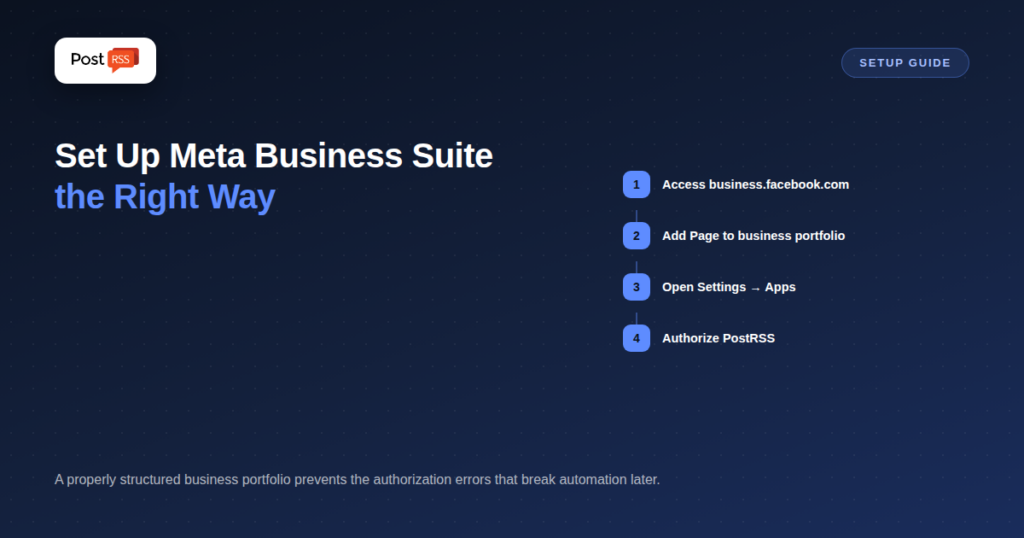
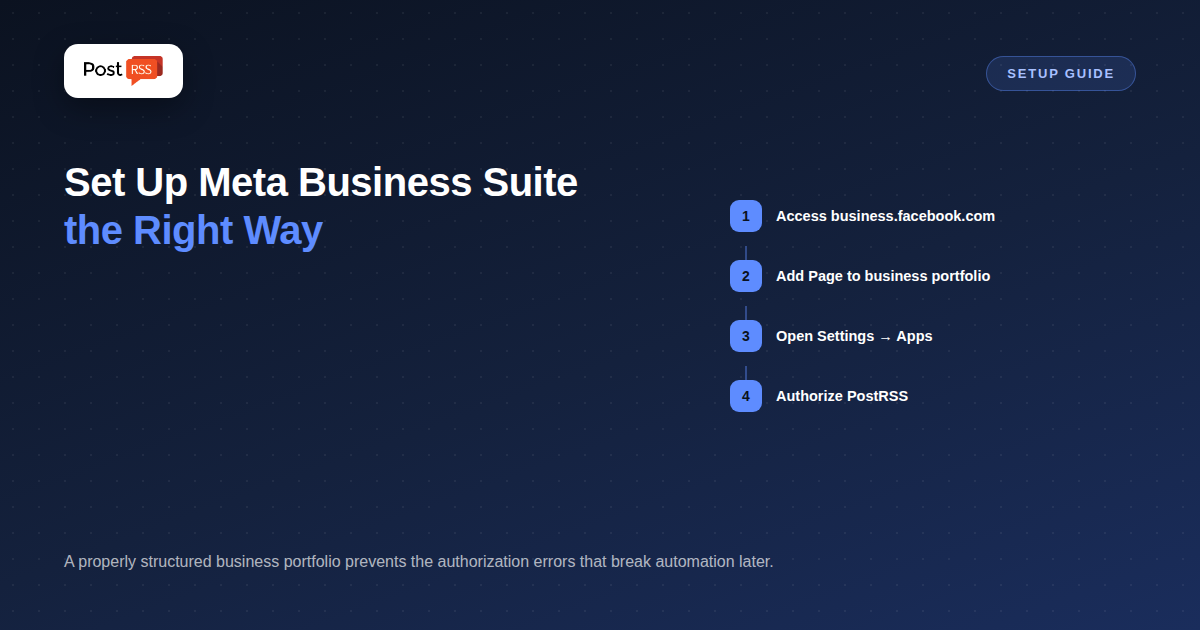
Log into Facebook with the account that manages (or should manage) your business Page, then navigate to business.facebook.com. You'll need a Facebook account already connected to at least one business Page or Instagram business profile to get started; if you don't have a Page yet, Business Suite will prompt you to create one as part of the setup flow.
There is a fuller setup walkthrough on our auto-post RSS to Facebook page.
Once your Page is properly added to your business portfolio, third-party app connections are managed from a dedicated area: inside Meta Business Suite, go to Settings, then under Accounts, find Apps. This is specifically where app IDs get added and managed for your business portfolio, and it's the area PostRSS's authorization flow interacts with when you connect your Page.
With your Page cleanly added to a business portfolio, connecting PostRSS follows Meta's standard authorization flow: you'll be prompted to log in and grant PostRSS's app permission to post to your specific Page. Because the Page is already properly structured inside Business Suite, this authorization step tends to go smoothly and produce a stable, lasting connection rather than one prone to unexpected permission errors.
The payoff for doing this correctly once isn't visible immediately — it shows up later, as the difference between a Page connection that just keeps working reliably versus one that mysteriously loses authorization every few weeks. A cleanly structured business portfolio with proper admin roles and app permissions tends to produce the stable, long-lasting connections that make automation actually hands-off, rather than something that needs periodic manual re-authorization.
Agencies and multi-brand businesses often need several Facebook Pages connected to automation at once. Meta Business Suite supports adding multiple Pages to the same business portfolio, each with its own admin structure and app permissions, which means you can manage authorization for several Pages from one central Business Suite account rather than juggling separate personal-profile connections for each. This becomes especially relevant if you're also setting up multi-Page automation in PostRSS (covered in our dedicated guide on agency automation across multiple accounts), since a clean portfolio structure makes managing many Pages considerably less error-prone.
Meta has increasingly tied certain advanced features to business verification status, but for the core task of connecting a Page to a third-party posting tool, standard Page ownership and app authorization through Business Suite generally cover what's needed. Business verification becomes more relevant for advertising features, certain API access tiers, and features requiring a higher level of platform trust. If you hit an unexpected permission wall during setup, checking your business verification status inside Business Suite settings is a reasonable troubleshooting step, though it's not a universal prerequisite for basic automated posting.
If PostRSS reports it can't successfully connect to your Page after following these steps, a few things are worth checking in order: confirm the Page actually appears inside your Business Suite's list of managed Pages (not just your personal profile's Pages list), confirm your account has full admin rather than editor-level access, and try disconnecting and reconnecting the authorization from PostRSS's side after confirming the first two. Most connection failures trace back to one of these three issues rather than anything wrong with PostRSS itself.
It's worth understanding why Meta separates business portfolio management from personal profile Page ownership in the first place, since the distinction is the root of most setup confusion. A Page can technically be created and managed directly from a personal profile with no business portfolio involved at all — this is common for very small, informal Pages. But that structure was never designed with third-party API access in mind; it's a legacy path that predates the current permissions model Business Suite was built around. Moving a Page into a proper business portfolio isn't changing who owns it, just formalizing its structure into the system that third-party automation tools are actually built to work with.
If you already have PostRSS or another tool connected to a Page that wasn't properly set up in Business Suite, adding that Page to a business portfolio afterward generally doesn't break the existing connection outright, but it's worth re-verifying the connection once the migration is complete. Check your automation tool's Target status after the change, and if anything looks disconnected, a quick re-authorization through the now-properly-structured Page typically resolves it and often results in a noticeably more stable connection going forward than the pre-migration setup had.
For a Page that's never been added to a business portfolio before, the full process — accessing Business Suite, adding the Page, confirming admin access, and connecting PostRSS — typically takes fifteen to twenty minutes for a first-time setup. For a Page already properly structured inside an existing business portfolio, connecting a new automation tool takes just a few minutes, since the harder prerequisite work is already done.
Once your Page is properly set up inside Meta Business Suite, connecting it to PostRSS follows our standard setup guide. See our pricing breakdown if you're evaluating plans — Facebook Page automation is available starting on the Free plan.
A Page can sometimes connect to a third-party tool without full Business Suite setup, but authorization tends to be considerably less stable; properly structuring your Page inside Business Suite first is the more reliable path for lasting automation.
You'll need the existing admin to grant you admin-level access inside Business Suite before you can add third-party app permissions; editor or lower-level roles typically aren't sufficient for authorizing posting tools.
Yes — Business Suite supports managing several Pages under one business portfolio, and each can be connected to PostRSS as a separate Target.
No — Meta Business Suite itself is free to use; it's a management interface, not a paid product tier.
A Page properly added to a business portfolio with full admin access and correctly configured app permissions is generally stable; periodic re-authorization is more common for Pages connected outside that structure or after an account-level change like a password reset.
No — adding a Page to a business portfolio changes its management structure, not its public content, followers, or posting history, which all remain exactly as they were.
Most Facebook automation frustration traces back to a Page that was never properly set up inside Meta Business Suite in the first place, not a flaw in the automation tool itself. Spending fifteen minutes getting the business portfolio structure and admin permissions right before connecting PostRSS turns automation from something that occasionally needs troubleshooting into something that genuinely runs itself.
What changed in the networks, what broke, and how to fix it before it costs you reach.
Built by Internet Solutions, the team behind PostRSS. Each product saves you time in its own way.
 English
 Lietuviškai
 Deutsch
 Français
 Русский
 Español
 Polski
 Italiano
 Українська
 Čeština
 Português
 日本語
日本語 Latviešu valoda
 Eesti
Eesti Magyar
 Bahasa Indonesia
 Türkçe
 हिन्दी
 Ελληνικά
 العربية
 ไทย
ไทย Tiếng Việt
 Română
 Bahasa Melayu
 বাংলা
বাংলা