RSS vers 66 réseaux sociaux : Facebook, Instagram, X, LinkedIn, Telegram et plus Blog Affiliation Contacts
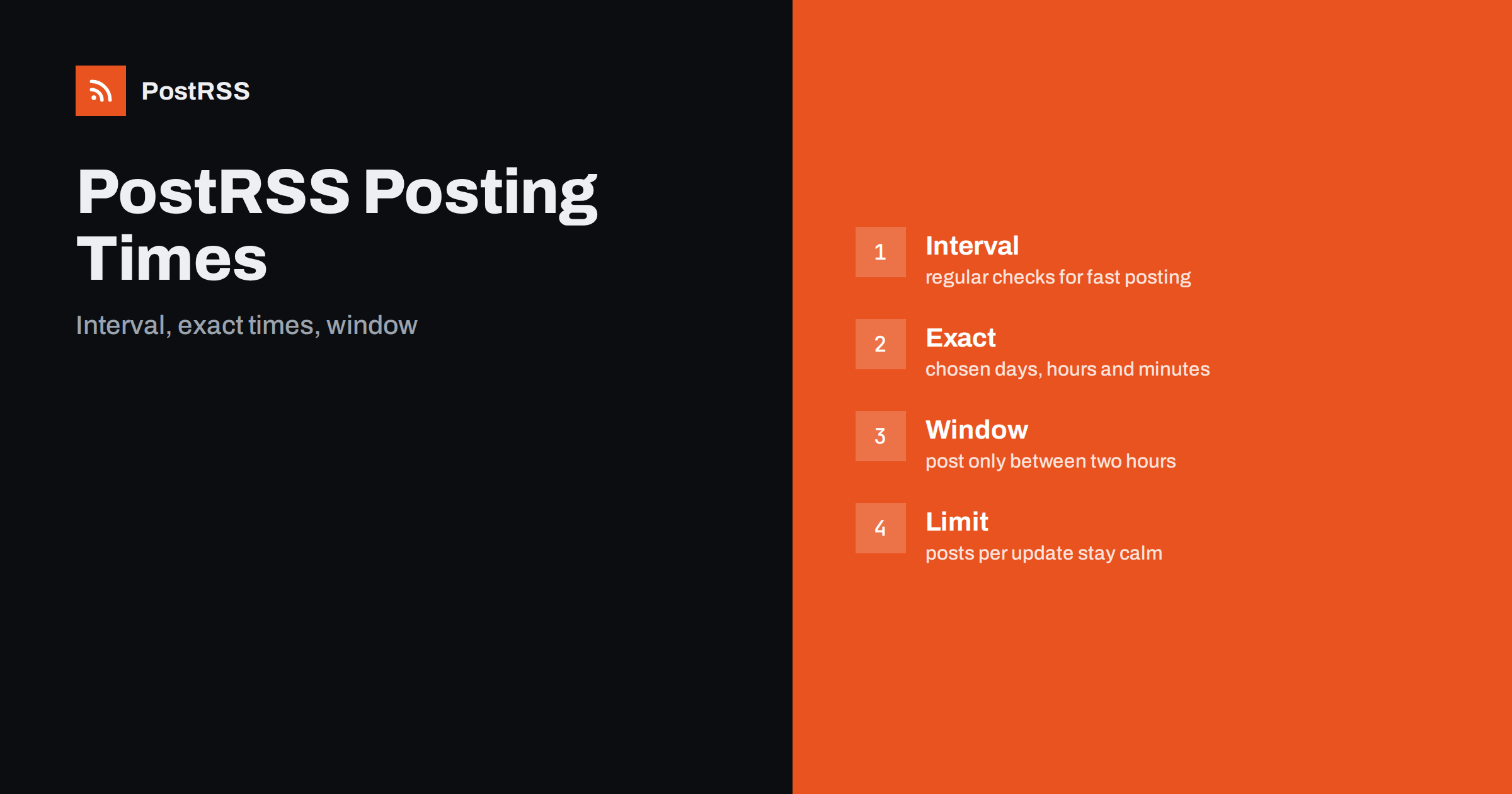
Short answer: PostRSS can run each source in one of two ways: at a regular interval, where the feed is checked every so often, or at exact times on chosen days, where you list the moments when PostRSS should check the feed and publish. Exact times and posting windows are available on paid plans and follow your time zone. Use an interval for steady, fast publishing and exact times when you want posts to appear at predictable moments, such as a morning slot on weekdays.
Not every feed should be posted the moment a new item appears. A news site wants speed. A small business that publishes a blog post at midnight does not want it to hit its social page at midnight. A store that adds twenty products in an afternoon does not want twenty posts in ten minutes. PostRSS gives you control over timing through a few related settings: how the source is checked, the days and times of exact runs, a posting window between two hours and the number of posts per update. This guide explains each option as described in the live features page and the API documentation, shows how they combine and offers practical schedules for common situations.
Every source has a processing type. The first type is frequency: PostRSS checks the feed at a regular interval that you choose, from as often as your plan allows up to once a week. The second type is exact: you list specific times on specific days, and PostRSS checks the feed at those moments. Both types publish only items that are eligible and have not been posted before. The difference is in the rhythm.
The frequency type is the default choice for most feeds. It is simple, and it keeps the delay between publication and posting short. The exact type trades speed for predictability, which is what many brands prefer.
With the frequency type you choose the number of seconds between checks. The value cannot be lower than the minimum allowed by your plan; the features page says PostRSS can check a feed as often as every minute, and the plan list shows the minimum interval for each plan, so check the current plan details on the pricing page. A feed that publishes a few times a day does not need a check every minute. A check every hour or two is enough and gives the same result. A news feed may justify the shortest interval your plan allows.
With the exact type, you add a list of times. Each entry has a day, an hour and a minute. The day is a weekday, or every day. If you want posts on Monday, Wednesday and Friday at nine in the morning, you add three entries with those days and the same time. If you want a daily post at noon and another at six in the evening, you add two entries for every day. PostRSS checks the feed at each of those moments and posts what is eligible.
The times are interpreted in your time zone, so a nine o’clock entry means nine o’clock where you are, including after a change between winter and summer time. Exact times are a paid-plan feature, according to the features page.
The window is a different tool. Instead of listing moments, you choose two times of day, a start and an end, and PostRSS posts only between them. Use it with the interval type to say: check regularly, but publish only during business hours. Outside the window, new items wait until it opens again. This is a convenient way to avoid night-time posts without writing a long list of exact times.
The window and the exact times can both be used, but they answer different needs. The window is a gate for an interval. The exact list is a schedule in itself.
The maximum number of posts per update controls how many items are published at each check. With an interval, it prevents bursts; with exact times, it decides how many posts go out at each slot. If your blog published five articles overnight and you have a morning slot with a limit of one, the first article goes out at the slot and the others wait for the following slots. Combined with the publishing order, which can put newer or older items first, or choose randomly, this gives precise control over the story your page tells.
A local business with a blog that updates weekly might choose exact times on three weekdays at an hour when its customers browse, with one post per update. A news site would use an interval at the minimum of its plan, no window and a high limit. An online shop that bulk-uploads products could use an interval with a window during the day and a low limit, so that a hundred new products spread across several days. An agency posting for a client who wants a strict calendar would use exact times with a limit of one and a clear publishing order.
If an article is published on Wednesday evening, it waits until Thursday at ten. If three articles appear in the same week, one is posted on Tuesday and one on Thursday, and the third waits for the following Tuesday.
An eligible item that is not posted at a given check is not lost. It stays eligible and is posted at a later check, subject to the limit and the order. The reports show the status of each item, including the ones that waited because the maximum number of posts per update was reached. This is a useful way to see how your schedule behaves. If items wait for too long, add more slots or raise the limit. If your page feels crowded, reduce the slots.
The best moments depend on who reads you. Business audiences are active at the start of the working day and during lunch breaks. Consumers browse in the evening and at weekends. Parents look at their phones early in the morning and after bedtime. Look at your analytics to see when visitors arrive and choose slots a little before those peaks. Adding your own query parameters to the links shows which network and which time of day bring visits, so that after a few weeks you can improve the schedule with evidence.
One feed can be connected to several targets, each with its own settings. A company may want its LinkedIn page to post in the morning on weekdays and its Telegram channel to post in the evening at weekends. Because the schedule belongs to the source configuration, you can create separate sources for the same feed when you need different rhythms. Keep a short note of which source feeds which target, so that you do not forget why two sources point to one feed.
Keyword filters decide which items are eligible, and timing decides when they go out. Together they let you build calendars such as: product news on Tuesday morning, tutorials on Thursday morning and nothing else. Filtered items are not posted and do not count against your allowance. This is a way to turn one general feed into several focused streams without changing the website.
Plans differ in the minimum interval, the number of posts per month and the number of targets, and exact times are available on paid plans. Open the pricing page and compare the current numbers before you build a complicated schedule, because a plan that allows only a few posts per month cannot support a schedule of three posts a day. The numbers on the pricing page are the live source of truth, and they can change.
A fixed schedule is easy to forget until a holiday arrives. If your audience is inactive on a national holiday, or if you run a campaign that needs extra posts for a week, change the schedule in advance and change it back afterwards. Write the dates in a calendar you actually look at. For a campaign, a temporary second source with its own exact times and a keyword filter for the campaign articles is often cleaner than editing the main schedule, because you can switch it off in one step when the campaign ends.
Exact times are interpreted in your time zone, which is convenient when your audience lives nearby. If your readers are spread across continents, no single hour is perfect, and a few slots that cover different regions work better than one. When clocks change in spring and autumn, the same local time keeps its meaning for you, but your readers abroad may see the post an hour earlier or later than before. That is normal, and it is a reason to keep schedules simple and to check the reports after a clock change.
Before you apply a new rhythm to an important page, test it on a quiet target. Connect the same feed to a test account, set the exact times a few minutes ahead and watch what happens at each slot. Check that the right number of posts goes out, that the order is the one you chose and that items beyond the limit wait as expected. When it behaves as planned, copy the settings to the real source. A ten-minute test is cheaper than an awkward burst of posts on a page with real followers.
PostRSS lets you choose between a regular interval and exact times on chosen days, and you can add a posting window and a limit on posts per update. Use the interval for speed, exact times for predictability and the window to keep posts out of the night. Match the schedule to your audience and your plan, read the reports after the first runs and adjust. The details of plans and options are on the features page and the pricing page.
Yes. On paid plans you can list exact times on chosen days, and PostRSS checks the feed and posts at those moments in your time zone.
Exact times are a list of moments when PostRSS runs. A window is a pair of hours between which posting is allowed while the feed is checked at an interval.
They wait and are posted at a later check, subject to the posts-per-update limit and the publishing order.
As often as every minute, with the minimum interval depending on your plan, and as slowly as once a week. Check the pricing page for the current limits.
Yes. Schedules are part of the source settings, so you can create separate sources of the same feed for different rhythms.
What changed in the networks, what broke, and how to fix it before it costs you reach.
Conçus par Internet Solutions, l'équipe derrière PostRSS. Chaque produit vous fait gagner du temps à sa façon.
 English
 Lietuviškai
 Deutsch
 Français
 Русский
 Español
 Polski
 Italiano
 Українська
 Čeština
 Português
 日本語
 Latviešu valoda
 Eesti
 Magyar
 Bahasa Indonesia
 Türkçe
 हिन्दी
 Ελληνικά
 العربية
 ไทย
 Tiếng Việt
 Română
 Bahasa Melayu
 বাংলা