RSS tới 66 mạng xã hội: Facebook, Instagram, X, LinkedIn, Telegram và nhiều mạng khác Blog Tiếp thị liên kết Liên hệ
Craft CMS has a loyal following among developers and design-focused agencies precisely because it doesn’t force opinions on you the way many platforms do — including on something as basic as RSS. Unlike WordPress, which ships an RSS feed automatically at install, Craft treats RSS as something you (or your developer) explicitly build using its templating engine. That’s great for control, but it means the question “where’s my Nguồn cấp RSS?” doesn’t have a single universal answer on Craft the way it does on more opinionated platforms. This guide explains why, how to find or add one, and how to connect it to auto-posting once it exists.
If you’re a marketing or content team working on top of a Craft site someone else built, this uncertainty is usually the entire problem — the platform itself has no limitation worth worrying about, but knowing where to look, and what to ask a developer for if nothing exists yet, saves a lot of back-and-forth.
Craft CMS is built around Twig templating and a highly flexible content model — entries, sections, and fields are all custom-defined per project rather than following a fixed “post” structure like WordPress. That flexibility is Craft’s core selling point for agencies building bespoke sites, but it also means there’s no single, predictable content type Craft can assume you want turned into a feed. A blog section, a news section, a press-release section, and a products section might all exist on the same Craft site, each potentially needing its own feed, so the platform leaves feed generation to the template layer rather than baking in one default.
In practice, this means: if your Craft site was built by a developer who included an RSS template, you likely already have a working feed at a conventional URL. If it wasn’t part of the original build, there’s no feed until someone adds the template — but adding one is usually a small, well-documented task, not a major development project. It’s worth treating this as a checklist item during any Craft site audit, alongside things like sitemap generation and structured data, rather than assuming its absence means the platform can’t support it.
yoursite.com/feed hoặc yoursite.com/rss.xml.<head> HTML for an autodiscovery link — view page source and search for type="application/rss+xml", which is the standard way sites advertise their feed URL to browsers and readers.feed.twig hoặc rss.twig.If no feed exists, adding one is a standard, well-trodden Craft pattern. At a high level, it involves:
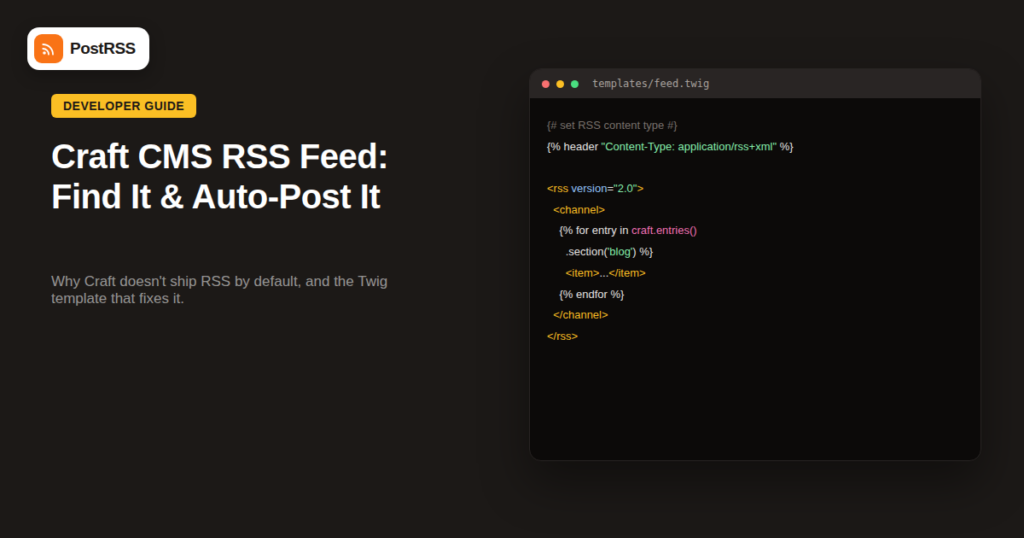
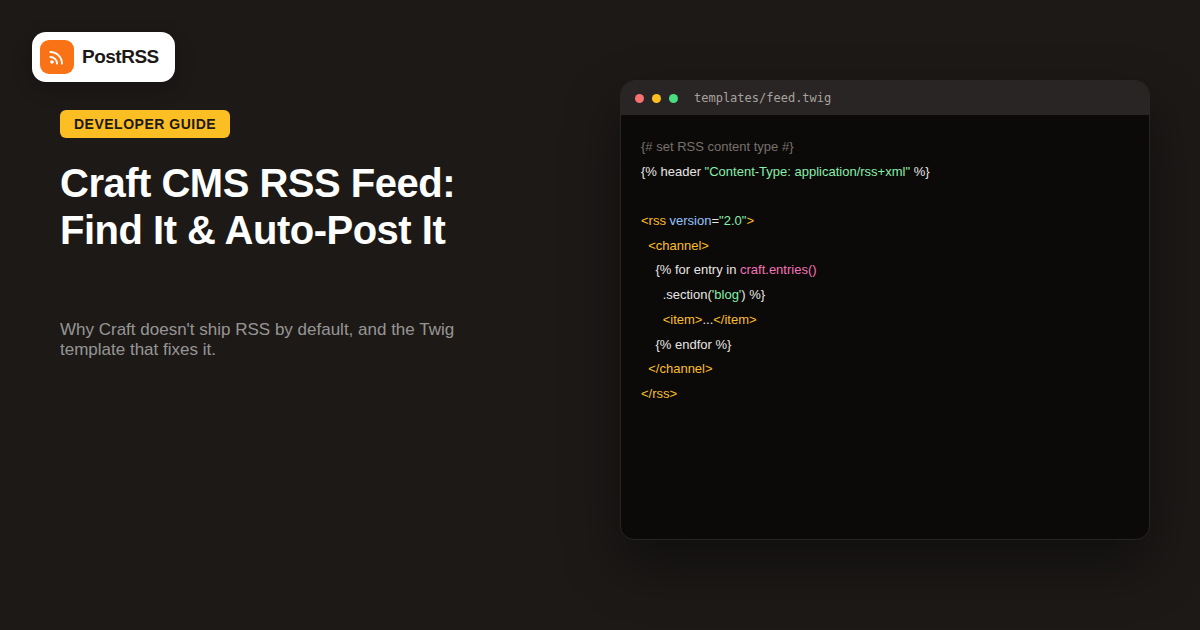
templates/feed.twig) that sets the response content type to application/rss+xml.craft.entries() Twig function, filtered to the section you want in the feed and ordered by post date descending.<item>, <title>, <link>, <pubDate>, <description> — using Twig’s templating syntax./feed) through Craft’s routing configuration.Craft’s own documentation includes a reference RSS feed template that covers this exact pattern, and most Craft-focused agencies have a version of this they reuse across projects, so it’s rarely built from scratch. If you’re not the developer, this is a quick, low-cost request to hand to whoever maintains your site — expect it to take an hour or two of development time rather than a multi-day project, since none of the underlying pieces (querying entries, formatting dates, outputting XML) require custom logic beyond what Craft’s templating layer already provides out of the box.
| Platform | RSS Feed by Default? | Customization Effort | Best For |
|---|---|---|---|
| WordPress | Yes, automatic | Low — plugin-based tweaks | Non-technical publishers |
| Craft CMS | No — built via template | Moderate — requires Twig template | Custom, developer-led sites |
| Webflow | Yes, for CMS Collections | Low | Design-first teams |
| Shopify | Yes, for blog | Low | E-commerce |
Craft’s approach trades a bit of upfront setup effort for far more control over exactly what appears in the feed and how it’s structured — useful if you’re combining multiple content types into one feed, or need custom fields (like a subtitle or category) included as feed metadata that a default WordPress feed wouldn’t easily support.
Once your feed URL is confirmed and returns valid XML, connecting it to a social media auto-posting workflow is identical to any other platform:
<enclosure> hoặc media:content tag.| Symptom | Likely Cause | Fix |
|---|---|---|
| Feed URL returns a 404 | No feed template exists yet | Add a feed.twig template following Craft’s documented pattern |
| Feed loads but browser shows raw Twig errors | Template syntax error or missing content type header | Check the template’s {% header %} tag sets the correct MIME type |
| Feed items missing images | Template doesn’t include an enclosure/media tag | Add image field output to the Twig loop explicitly |
| Multiple sections needed in one feed | Default query only pulls one section | Adjust the craft.entries() query to include multiple section handles |
Craft CMS has carved out a specific niche: agencies and studios building custom, design-led websites for clients who need more structural flexibility than WordPress’s post-and-page model comfortably provides, without the full complexity of a headless-only setup. That audience tends to be comfortable with — and often prefers — the “nothing ships by default, everything is explicit” philosophy that also shapes how RSS works on the platform. If you inherited a Craft site built by an agency, it’s worth explicitly asking whether feed generation was part of the original scope, since some agencies include it as a standard component of any blog/news build and others only add it on request.
This is different from platforms like WordPress, where RSS is such a baseline expectation that its absence would be considered a bug. On Craft, it’s simply one more template decision among many, no more unusual than deciding whether a section needs pagination or a custom sort order.
Because Craft feed templates are just Twig templates like any other page, they’re subject to the same caching layers your site uses elsewhere — page caching, CDN caching, or Craft’s own template caching tags if the developer used them. If your auto-posting tool seems to be missing recently published entries, check whether the feed template itself has a cache duration set (a common pattern is wrapping the entry query in a {% cache %} tag for performance), since a long cache window can delay new items from appearing in the feed by longer than your auto-posting tool’s polling interval would otherwise explain.
Yes — Craft fully supports generating standard RSS/Atom feeds, but unlike WordPress, it doesn’t create one automatically. A developer needs to add a template, which is a common, well-documented pattern rather than a limitation of the platform itself.
Try common URL patterns like /feed hoặc /rss.xml first, and check your page’s HTML source for an autodiscovery link tag, which many Craft sites include even if the feed URL isn’t linked anywhere visible in the navigation.
No — it’s typically a small, well-understood task for a Craft developer, often completed in under an hour using Craft’s own documented reference template as a starting point.
Yes — since feeds are built through custom templates and queries, you can create as many separate feeds as you need (one per section, or a combined feed across several), which is actually more flexible than most platforms with a single default feed.
Yes, as long as the feed follows standard RSS 2.0 or Atom XML structure — which Craft’s documented templates do — any RSS-compatible auto-posting tool, including PostRSS, can read it the same way it reads a WordPress feed.
This is a common gap since image inclusion has to be explicitly coded into the feed template — ask your developer to add an enclosure or media tag pulling from your entries’ featured image field.
Generally no, since feed templates use standard Twig and Craft’s stable querying API, but it’s good practice to verify the feed still loads correctly after any major version upgrade, the same way you’d check any custom template.
Yes, if social distribution or content syndication is part of the marketing strategy — since it’s a small, well-understood development task rather than a structural limitation, it’s usually easy to prioritize once someone identifies it as a genuine need rather than an afterthought during a larger redesign project.
Yes, using the same underlying pattern — since Craft Commerce products are just another entry type in Craft’s content model, a developer can build a product feed template using the same craft.entries() or Commerce-specific query functions, structured however your catalog needs.
Yes — this is one of the genuine advantages of Craft’s approach. A single feed template can query across multiple section handles and merge the results by date, something that typically requires a plugin on more rigid platforms.
For developers who want a starting point, a minimal Craft feed template generally follows this shape: set the response header to application/rss+xml, open the standard RSS 2.0 XML envelope with channel metadata (title, link, description), then loop through craft.entries().section('blog').limit(20).all() and output each entry’s title, absolute URL, formatted publish date, and a trimmed summary field inside individual <item> blocks. Craft’s own documentation maintains an up-to-date reference version of this template, which is the safest starting point rather than writing one from scratch, since it stays aligned with current Twig syntax and any changes to Craft’s templating API across versions.
Craft CMS doesn’t generate an RSS feed automatically the way WordPress does, but that’s a deliberate design choice reflecting its flexible, developer-driven content model rather than a missing feature — the platform fully supports RSS once a template is in place. Check the common URL patterns and page source first; if nothing exists, adding a feed template is a quick, well-documented task. Once the feed is live, connecting it to social media auto-posting works exactly the same as it would for any other CMS — the extra setup step upfront doesn’t carry over into any extra ongoing maintenance once the feed exists and is properly polled by your automation tool.
What changed in the networks, what broke, and how to fix it before it costs you reach.
Do Internet Solutions, đội ngũ đứng sau PostRSS, phát triển. Mỗi sản phẩm giúp bạn tiết kiệm thời gian theo một cách riêng.
 English
 Lietuviškai
 Deutsch
 Français
 Русский
 Español
 Polski
 Italiano
 Українська
 Čeština
 Português
 日本語
日本語 Latviešu valoda
 Eesti
Eesti Magyar
 Bahasa Indonesia
 Türkçe
 हिन्दी
 Ελληνικά
 العربية
 ไทย
ไทย Tiếng Việt
 Română
 Bahasa Melayu
 বাংলা
বাংলা