RSS в 66 социальных сетей: Facebook, Instagram, X, LinkedIn, Telegram и другие Блог Партнерская программа Контакты
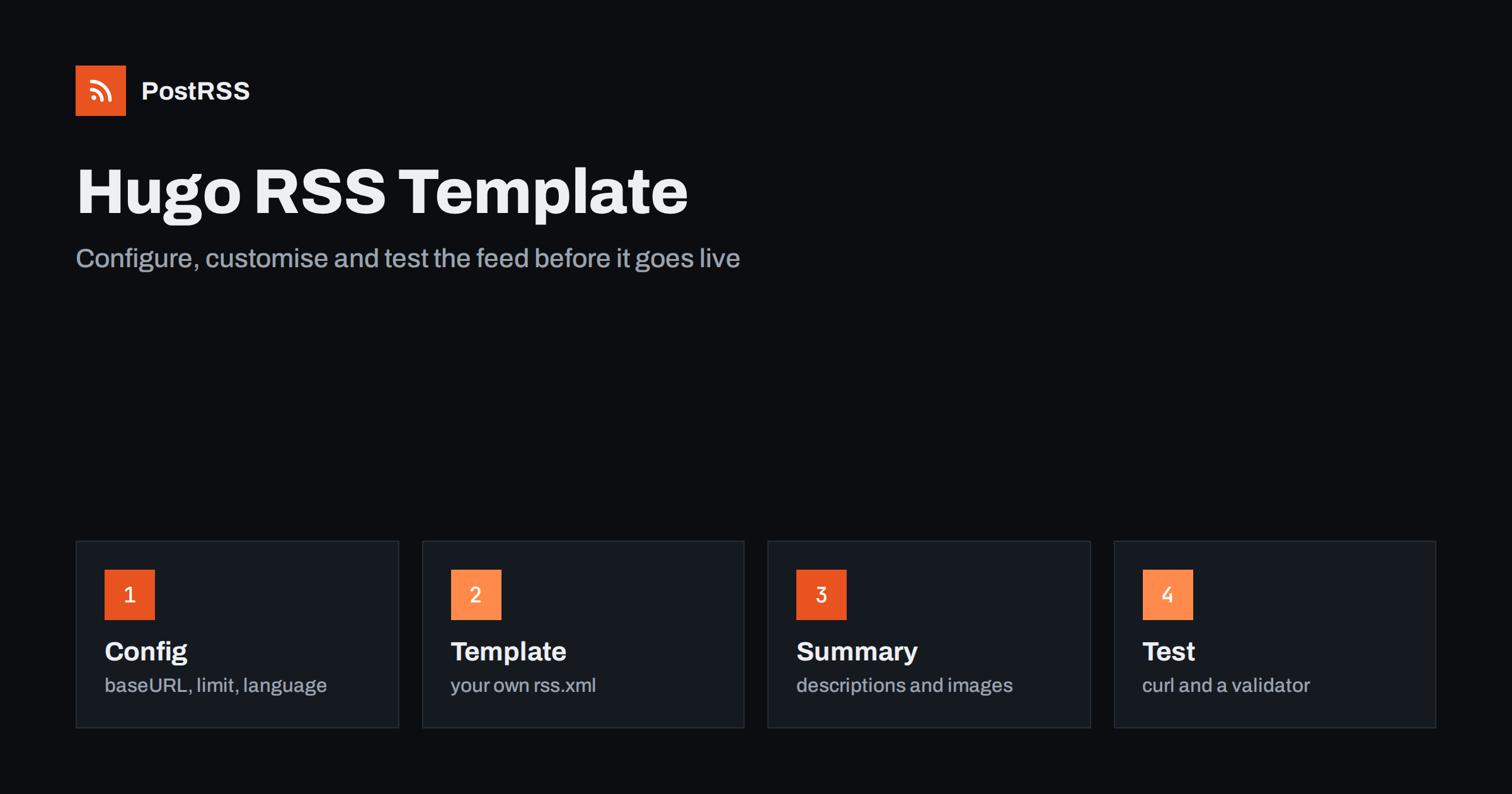
Short answer: Hugo builds an RSS feed for your home page, sections and taxonomy terms without any setup, and you can change what it contains by adding your own rss.xml template to the layouts folder. Set baseURL, title and language in the site configuration, choose how many items to include, decide between a full article and a summary, add an image if your auto-poster needs one, build, and test the generated file with curl and a validator. Once the address is stable, give it to an auto-poster so that each new post is shared on your social networks.
Hugo is a fast static site generator written in Go, and it treats RSS as a built-in output format. That makes it easy to get a working feed, and just as easy to ship one with the wrong site address, a limit that is too small or a summary that cuts off in the middle of a sentence. This guide explains what Hugo produces by default, how to configure it, how to write a custom template when the default does not fit, and how to check the result before an auto-poster starts to depend on it.
Hugo ships with an embedded RSS template, and its default output formats include RSS for the home page, for every section and for every taxonomy term. In practice you get a main feed at the root of the site, a feed for each section such as posts, and a feed for each tag or category. By default the file is called index.xml and sits next to the page it belongs to, so the main feed is normally at /index.xml and the feed for a section is at an address such as /posts/index.xml.
The embedded template includes the title, the link, the date, a unique identifier and a summary for every item. It is a sensible starting point, and many sites never need to change it. If you only want to locate the feed that your site already produces, read how to find your Hugo, Jekyll or Eleventy feed. The rest of this guide is for sites that need more control.
Almost every problem with a Hugo feed starts in the site configuration. Three values matter most, and a fourth decides how many items appear.
# hugo.toml
baseURL = "https://example.com/"
title = "Example Journal"
languageCode = "en"
buildFuture = false

[params]
  description = "News and guides from Example Journal."

[outputs]
  home = ["HTML", "RSS"]
  section = ["HTML", "RSS"]

[services.rss]
  limit = 20
The baseURL must be the real public address, with https and a trailing slash, because Hugo uses it to build every absolute link in the feed. A feed built with a local address inside it is useless to an outside reader. The title and description fill the channel header. The limit controls how many items the feed holds; recent versions of Hugo use the limit setting under the rss service, while older versions used a single setting named rssLimit, so check the documentation of the version you run. If you publish several articles a day, set the limit high enough that a short outage of a reader or an auto-poster does not make it miss anything.
Hugo names the file index.xml by default. Many sites prefer a clearer name such as feed.xml or rss.xml, and some already publish a feed at an older address that subscribers use. You can change the base name of the RSS output format in the configuration.
# hugo.toml
[outputFormats.RSS]
  mediatype = "application/rss"
  baseName = "feed"
After this change the main feed is built at /feed.xml and every section feed follows the same pattern. Choose the name once and keep it, because subscribers and auto-posters store the address. If you change it later, add a redirect from the old path at your host, as explained in the guide to feed status codes.
To change the content of the feed, add your own template. Hugo looks in your project before it uses the embedded one, so a file named rss.xml in the layouts folder replaces the default for every feed on the site. In older versions the file lives in the _default folder inside layouts; newer versions simplified the lookup rules, so check where your version expects it. The example below keeps the structure of the default feed and adds a stable date for the channel, a full-text option and an image.
{{- $pages := .Pages -}}
{{- if .IsHome }}{{ $pages = site.RegularPages }}{{ end -}}
{{- $limit := 20 -}}
{{- `<?xml version="1.0" encoding="utf-8"?>` | safeHTML }}
<rss version="2.0" xmlns:atom="http://www.w3.org/2005/Atom" xmlns:media="http://search.yahoo.com/mrss/">
  <channel>
    <title>{{ site.Title }}</title>
    <link>{{ .Permalink }}</link>
    <description>{{ site.Params.description | default site.Title }}</description>
    <language>{{ site.Language.LanguageCode }}</language>
    {{- with index $pages 0 }}
    <lastBuildDate>{{ .Lastmod.Format "Mon, 02 Jan 2006 15:04:05 -0700" | safeHTML }}</lastBuildDate>
    {{- end }}
    <atom:link href="{{ .Permalink }}" rel="self" type="application/rss+xml" />
    {{- range first $limit $pages }}
    <item>
      <title>{{ .Title }}</title>
      <link>{{ .Permalink }}</link>
      <pubDate>{{ .Date.Format "Mon, 02 Jan 2006 15:04:05 -0700" | safeHTML }}</pubDate>
      <guid isPermaLink="true">{{ .Permalink }}</guid>
      <description>{{ .Summary | transform.XMLEscape | safeHTML }}</description>
      {{- with .Params.image }}
      <media:content url="{{ . | absURL }}" medium="image" />
      {{- end }}
    </item>
    {{- end }}
  </channel>
</rss>
Several details in this template are deliberate. The channel date comes from the newest page and not from the current time, so that the file does not change on every build when nothing was published; a feed that always changes defeats caching, as explained in the guide to ETags and conditional requests. The identifier of each item is its permanent address, which does not change when the title does. The summary is escaped so that characters such as ampersands and angle brackets cannot break the XML. And the image is read from a value in the front matter of each post, converted to an absolute address.
Hugo builds a summary from the first part of the content unless you write one yourself. You can mark the end of the summary with a manual divider in the post, or give every post a description in the front matter and use that value in the template instead. A hand-written description of one or two sentences is almost always better than an automatic cut, because an automatic summary can end in the middle of a sentence and that is exactly what an auto-poster will copy into a social post.
If you want to publish the whole article in the feed, replace the description with a content element and escape the rendered content. Full text is handy for readers, but auto-posters rarely need it; the trade-offs are discussed in full text or excerpt in an RSS feed. For the image, give each post a path in the front matter and make sure the file is large enough to be a good preview; a picture of at least 1200 pixels across works on most networks.
| Feed element | Hugo source | Rule |
|---|---|---|
| Title | title in front matter | Plain text, no markup |
| Link | Permalink of the page | Absolute, https, returns 200 |
| Date | date in front matter | Fixed once published, in the past |
| Summary | description or Summary | One or two complete sentences |
| Identifier | Permalink | Never changes after publication |
| Image | image in front matter | Absolute address, at least 1200 pixels wide |
The identifier deserves the most attention. If you rename a file, change the slug or move a page to another section, its permalink changes, and an auto-poster that stores identifiers will treat the old and new address as two different posts. The causes and fixes are covered in why a feed auto-posts the same article twice.
Hugo skips drafts, expired pages and, by default, pages with a date in the future. Those defaults protect you from publishing unfinished work, and you should keep them in production. The build flags that include drafts or future content are meant for local previews only; if one of them reaches a production build, an auto-poster will share an article that is not yet on your website. Also remember that a static site changes only when it is rebuilt. A post dated for the afternoon appears only after the first build that runs after that time, so schedule a rebuild, for example every hour, if you rely on dated posts. Finally, set a time zone in the configuration so that a post written in the evening does not slide to another day when the build runs on a server in a different region.
Because Hugo builds a feed for every section and taxonomy term, you can send different topics to different channels without writing any code. A site with sections for news, guides and events gets three feeds, and each can feed a separate social account. The same works for tags. The cleanest approach is to decide which feeds you need, link to them from the pages where visitors expect them, and ignore the rest. If you do not want a feed for some kinds of page, remove RSS from the list of outputs for that kind in the configuration. For a larger plan, see category filtering for auto-posting.
Add a link element to the head of your base template so that browsers, readers and tools can find the feed from any page. Hugo exposes the feed address of a page through its output formats, so you can loop over them and print a link for each RSS output.
{{ range .AlternativeOutputFormats -}}
  <link rel="{{ .Rel }}" type="{{ .MediaType.Type }}" href="{{ .Permalink }}" title="{{ site.Title }}">
{{ end -}}
With that in place, a person or a tool that only knows your home page can find the feed by itself. The full explanation is in the guide to feed autodiscovery.
Build the site in the same way your production pipeline does, and look at the output before you publish anything. Then check the deployed address from outside.
hugo --minify
head -c 1200 public/feed.xml
curl -i https://example.com/feed.xml
Work through a short list of checks:
There is a longer routine in the feed validation guide and a short one in debugging a feed with curl. If the file opens as plain text or downloads in the browser, see the content type header guide.
PostRSS has been publishing RSS and Atom feeds to social networks since 2014. Paste the address of your Hugo feed, connect your accounts and choose how each post is built from the title, the summary or the page title. PostRSS checks the feed as often as every minute and shares each new entry, with its image and link, to the channels you choose among 66 supported networks, messengers, team chats and blogs, including LinkedIn, X, Bluesky, Mastodon and Telegram. Keyword filters, UTM parameters and posting windows let you tune each channel. See the PostRSS features page and the plan limits on the pricing page. More developer guides are under the Technical Guide tag.
Hugo gives you a working RSS feed for free, and a few settings make it dependable: a correct baseURL, a limit that fits your publishing rhythm, a clear address, a template that uses real descriptions and stable dates, and a build that never includes drafts or future posts. Add an image to each post, make the feed discoverable, test the deployed file with curl and a validator, keep the address and the permalinks unchanged and connect the feed to an auto-poster. After that, every post you publish reaches your readers and your social channels without extra work.
Yes. Hugo includes RSS in the default output formats for the home page, sections and taxonomy terms, so a feed exists at index.xml unless you disable it or rename the file.
Set the limit under the rss service in the site configuration, or use the older rssLimit setting on older versions. You can also pass a number to the first function in a custom template.
The baseURL setting is missing or wrong, or you tested with the development server. Set baseURL to the real public address and build for production.
Yes. Add a content element to your custom template and escape the rendered content. Auto-posters usually need only the title, summary, link and image.
Yes. PostRSS reads any valid RSS or Atom address that is reachable without a login. Paste the address, connect your channels and new posts are shared as soon as they appear.
What changed in the networks, what broke, and how to fix it before it costs you reach.
Создано Internet Solutions — командой PostRSS. Каждый продукт экономит ваше время по-своему.
 English
 Lietuviškai
 Deutsch
 Français
 Русский
 Español
 Polski
 Italiano
 Українська
 Čeština
 Português
 日本語
日本語 Latviešu valoda
 Eesti
Eesti Magyar
 Bahasa Indonesia
 Türkçe
 हिन्दी
 Ελληνικά
 العربية
 ไทย
ไทย Tiếng Việt
 Română
 Bahasa Melayu
 বাংলা
বাংলা