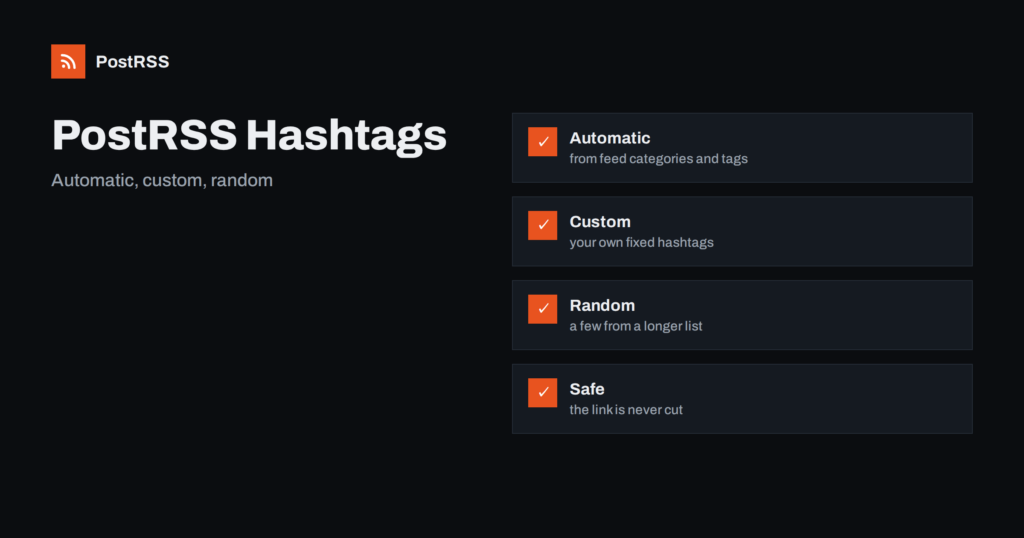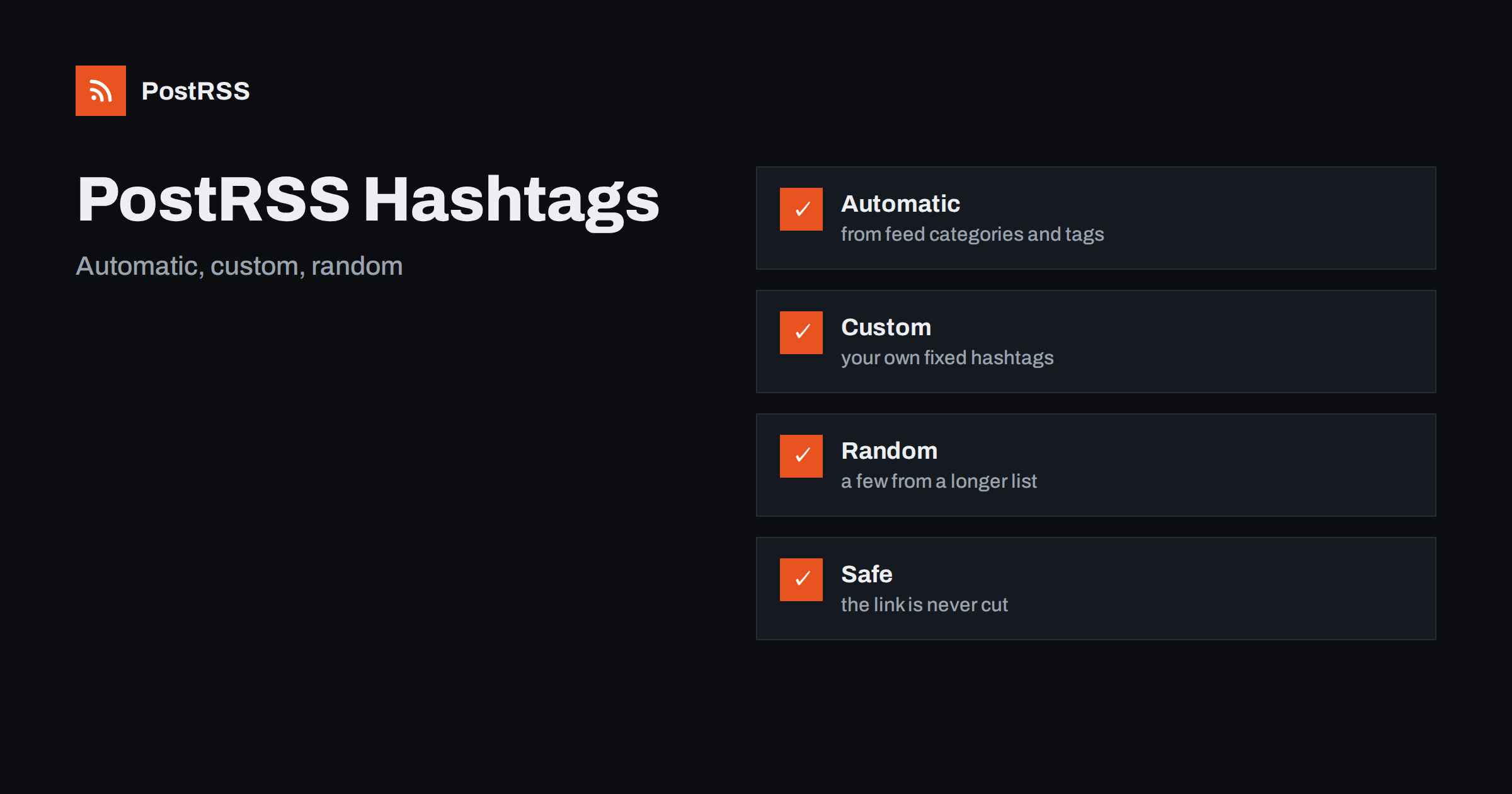
Short answer: PostRSS can add hashtags to your auto-posted messages in two ways. It can turn the categories and tags of each feed item into hashtags, up to a limit you set, and it can add your own fixed hashtags to every message, either all of them or a random subset for each post. You choose the maximum number, whether they go at the start or at the end of the text and PostRSS adds them only on networks where hashtags make sense, never at the cost of the link.
Hashtags are a small feature with a large effect on how auto-posted content looks. Too few and your posts are harder to discover. Too many and they look like spam, and on networks with short text limits they push out the part that matters, the link. PostRSS handles hashtags in the settings of each source, so the same feed can be configured differently for different targets and different purposes. This guide explains each option as it is described in the live features page and the API documentation: automatic hashtags from categories, a limit, a position, your own fixed hashtags, a random subset and the rules that protect your text. It ends with a practical setup you can copy.
PostRSS distinguishes between automatic hashtags and custom hashtags. Automatic hashtags come from the feed itself: every RSS or Atom item can carry categories or tags, and PostRSS can convert them into hashtags. Custom hashtags are your own list, which you type once and PostRSS adds to every message. The two work independently. You can use only automatic hashtags, only custom ones or both together.
Automatic hashtags are off by default, so a new source posts clean text until you turn them on. Custom hashtags are used whenever the list is not empty, even if automatic hashtags are off.
If your blog assigns the category recipes and the tag vegan to an article, the feed carries those words, and PostRSS can turn them into the hashtags #recipes and #vegan. This is the quickest way to get relevant hashtags with no manual work, and it improves with the quality of your categories. A site with clear, short category names produces clean hashtags. A site with long or messy categories produces messy ones, so it is worth reviewing the names before you switch the option on.
PostRSS normalizes the words into a proper hashtag form. Review how your main categories look as hashtags before you publish, and rename any that look awkward in your content system.
You decide how many automatic hashtags a post may carry, from one to ten. The default is three. This limit matters more than it seems. An article with eight categories would otherwise produce eight hashtags, and the post would be buried under them. For most business pages, two or three automatic hashtags are enough. For networks where hashtags are central, such as Mastodon, a few more can make sense, but still keep the post readable.
Hashtags can go after the message text, which is the default, or before it. At the end is the natural choice for most content: the reader sees the message first, and the tags follow as a quiet footer. At the start suits a few cases, for example a campaign tag that you want to be the first thing in every post, or a network where leading tags are the local custom. Pick one position per source and keep it consistent, because a mix looks unplanned.
Custom hashtags are a list you write yourself, separated by commas, spaces or new lines, for example news, rss and your brand name. PostRSS normalizes them, stores them in a tidy form and adds them at the end of every message on the networks where hashtags make sense. Up to ten fixed hashtags can be used. They come before the automatic ones and are kept first when the text limit is short, so your most important tags are the last to be dropped.
Fixed hashtags are ideal for a brand tag, a campaign, a city, an event or a community tag that your audience follows. If a hashtag already appears in the message, PostRSS does not repeat it.
Posting the identical block of hashtags on every message looks mechanical, and on some networks it can look like spam. PostRSS offers a random subset option for this reason. You provide a longer list, up to thirty hashtags, and each post receives a few of them chosen at random, without repeats inside the same post. You decide how many, from one to five, with a default of three.
For example, a travel blog might list twenty destination and theme tags. One post about a mountain hike receives three of them, the next post receives a different three. Over a month your posts reach several communities without any single post carrying a wall of tags. The random choice is not based on the content of the article, so keep your list focused on tags that fit most of your posts, otherwise a random tag can look out of place.
The documentation states two protective rules. First, hashtags are added only on networks where they make sense, such as X, Mastodon, Bluesky, Threads, Facebook, Instagram, LinkedIn, Telegram, VK, Tumblr, Pinterest and similar social networks. They are never added to webhooks, chat tools or blog platforms, where a hashtag would be noise. Second, on Facebook and LinkedIn at most five hashtags in total are used per post, and your own fixed hashtags take priority over the automatic ones.
Check the features page for the current list of networks and their status, because some of them are marked as being tested.
Networks limit the length of a post. When the text, the link and the hashtags together do not fit, PostRSS drops the hashtags that do not fit, and it never cuts the link. This is the right priority: a post without a few tags still works, but a post without its link has lost its purpose. It also means that on a short-limit network a long list of hashtags is partly ignored, so you do not need to keep a separate list for each network.
A local bakery with a small blog might use only fixed hashtags: its town, the word bakery and a seasonal tag. A news site with careful categories might use automatic hashtags with a limit of three and a single fixed tag for the brand. A travel blog with many destinations might use the random subset with a long list and three tags per post. An agency managing several clients can configure each client source differently, since the settings belong to the source and not to the account.
Automatic hashtags are only as good as the categories behind them. If every article is filed under uncategorized, the hashtag is useless. If every article has fifteen tags, the limit will pick the first few, which may not be the most relevant. Take an hour to clean up your category structure: choose a short list of meaningful topics, give them clear names and assign the most important one first. This improves your website navigation and search results as well as your hashtags.
Hashtags work alongside the other source options. Keyword filters decide which items are posted at all, so you can limit a campaign hashtag to items that mention a product. UTM parameters add your own query parameters to every link, so that your analytics shows which network and which campaign brought a visit. Together, hashtags for discovery, filters for relevance and UTM parameters for measurement give a clear picture of what works.
Hashtags are also read aloud by assistive technology, and a long block of tags is tiring to listen to. This is another reason to keep the maximum low. Where a tag is made of several words, capitalizing each word helps screen readers pronounce it, so if you write your own fixed hashtags, write a brand tag such as MyBakeryTown rather than all lowercase. A small habit like this makes your posts easier to read and costs nothing.
Do not set hashtags once and forget them. After a month, look at the posts on each network and ask three questions. Which tags appear most often and do they still describe your content? Did any tag attract the wrong audience? Which networks show tags in a useful way, and which hide them? Adjust the maximum, the fixed list and the random subset accordingly. If you add a new product line or a new campaign, update the list the same day, so that the first posts about it already carry the right tag.
The hashtag options belong to each source, which makes them convenient for agencies. One client may need a strict brand tag at the start of every post, another may want a random subset from a long list of regional tags and a third may want no hashtags at all. Because each source has its own settings, none of these choices affects the others. Keep a short note per client with the agreed list and the maximum, so that a colleague who takes over knows what was decided.
PostRSS gives you two clean ways to add hashtags: automatic ones from the categories and tags of each feed item, with a limit and a position, and your own fixed hashtags, optionally as a random subset for variety. Hashtags appear only where they make sense, Facebook and LinkedIn are limited to five in total, your own tags come first and the link is never cut. Start with two or three tags, review the first posts and adjust. Details of the current plans and networks are on the features page and the pricing page.
Only if you turn the option on. When enabled, PostRSS turns the categories and tags of each feed item into hashtags, up to the maximum you set.
Yes. Type a list of your own hashtags in the source settings, and PostRSS adds them at the end of every message on networks where hashtags make sense.
You give a longer list of hashtags, and each post receives a few of them at random, without repeats in the same post. This keeps posts from looking identical.
No. If the text limit is short, PostRSS drops the hashtags that do not fit and never cuts the link.
No. They are added only on networks where hashtags make sense, and never on webhooks, chat tools or blog platforms. On Facebook and LinkedIn the total is limited to five.
What changed in the networks, what broke, and how to fix it before it costs you reach.
Create de Internet Solutions, echipa din spatele PostRSS. Fiecare produs vă economisește timp în felul său.
 English
 Lietuviškai
 Deutsch
 Français
 Русский
 Español
 Polski
 Italiano
 Українська
 Čeština
 Português
 日本語
 Latviešu valoda
 Eesti
 Magyar
 Bahasa Indonesia
 Türkçe
 हिन्दी
 Ελληνικά
 العربية
 ไทย
 Tiếng Việt
 Română
 Bahasa Melayu
 বাংলা