Nowadays, there are no secret that social network takes a huge part of our lives. Everyone is using it, from small to huge organizations, as well as private users, bloggers etc. The main purpose of this article is to show how easy and simple is to make a multiply and automatic posts on social networks such as: Facebook, Twitter, Linkedin and Vkontakte. PostRSS is extremely simple tool, which will save you a lot of time. You can easily control how many RSS posts per day you want to make and schedule posting time. So, you want to try it by yourself? Let’s start!
1) Press LOGIN on the right top corner -> Log in with your facebook account or you can fill the registration form for new users.
2) If you filled the registration form – log into your email account and activate your registration.
Congratulations, now you are ready to have a free trial!
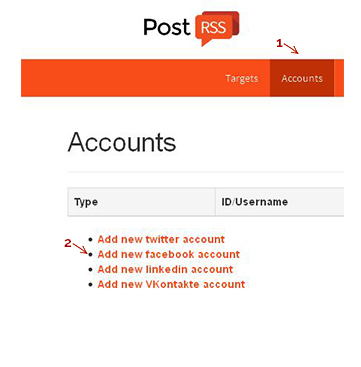
1) On the top menu table you’ll see “Accounts” – press it. Now you have an option to add a new twitter/facebook/linkedin/VKontakte accounts.
2) Press “add new facebook account” and log in to your facebook account -> agree to synchronize it with PostRSS.
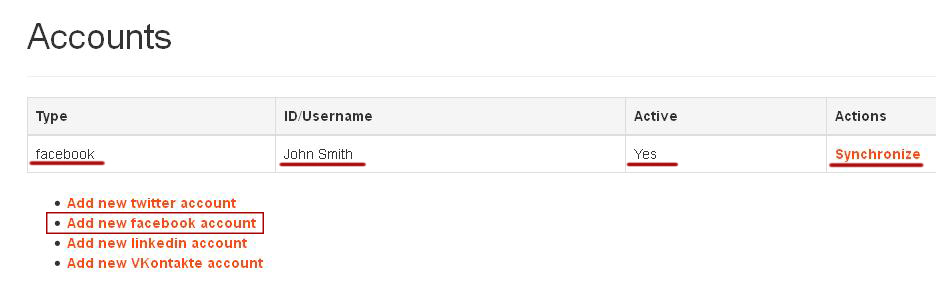
Also, you might want to add all four accounts at once. There is no problem of doing that too. If you made everything correctly, you should see that your facebook account is synchronized now.
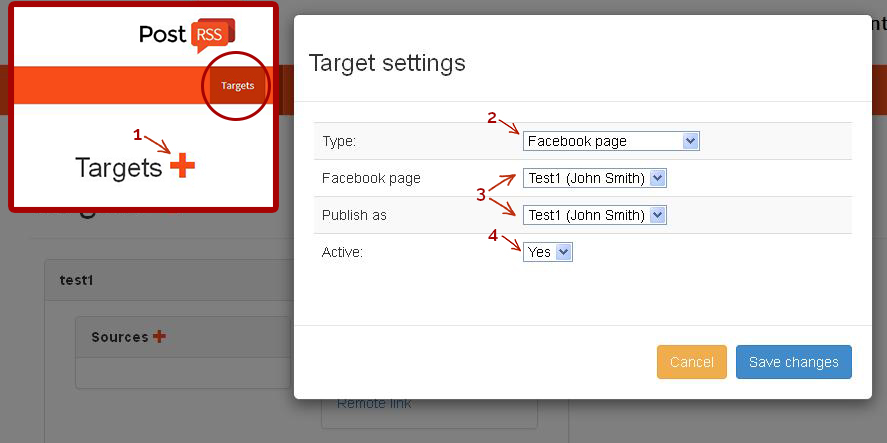
1) On the top menu table you’ll see option ‘’Targets”. It’s the main configuration place, in order to manage your posting source and target accounts. Press ‘’+’’ to start configurations and choose your target name.
2) First of all, you have to add your targets. Go to the target settings and choose type of your target (facebook account/page/group) you want to make posts to.
3) Next, choose the certain facebook page you want to connect with RSS and choose by whom it should be published.
4) Don’t forget to make your target active by choosing option “YES”.
1) Go to the blog, website or any other news page you want get posts from.
2) Get the RSS link. You can do it by pressing an icon next to the other social network icons. RSS icon usually looks like this:
3) Press the RSS button -> copy link from your browser -> paste it as your PostRSS source link.
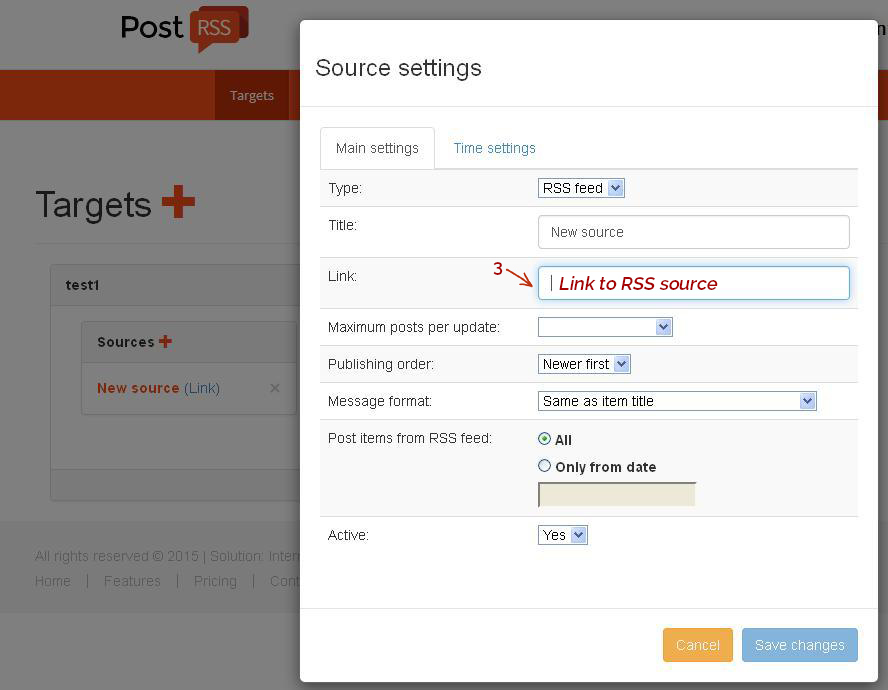
4) Now it’s all ready to go. Choose your main settings as: Maximum posts per update; Publishing order; Message format. Also, you can choose date you want to RSS to start feeding from. Time setting will help you to choose the posting frequency.
5) Don’t forget to make your source active by choosing option “YES”.
Now you are ready to sit back and relax. PostRSS will make all the social network posts automatically!
This guide was first published in PostRSS’s early years, and the basic idea is still exactly the same: a source (your feed) is connected to one or more targets (your social accounts), and PostRSS publishes every new item automatically. A few things are different today, and they are worth knowing before you start:
Step 2 above tells you to look for the orange RSS icon. Many modern websites no longer show it, even though they still publish a feed. If you cannot find the icon, try the usual address for your platform: WordPress sites use /feed/ after the site address, and most other systems have a similar fixed location. We have step-by-step guides for WordPress, Blogger și Joomla. Open the address in your browser first: if you see a list of your latest posts in XML, it is the right link to paste into PostRSS.
The main settings from step 4 are still there, together with a few newer options:
Facebook setup is documented separately on our auto-post RSS to Facebook page.
No. Meta shut down the Facebook Groups publishing API in April 2024, so PostRSS posts to Facebook Pages only. Personal profiles cannot be automated either.
La fiecare 5 minute pe toate planurile, inclusiv Free, și în fiecare minut pe planurile Enterprise. Puteți alege și un interval mai rar, până la o dată pe săptămână.
Most sites still publish a feed at a fixed address, such as /feed/ on WordPress. Open that address in your browser; if it shows your latest posts in XML, paste it into PostRSS as the source.
Yes. On the Professional plan and above you can upload a CSV file, where each row becomes one post. WordPress, PrestaShop and OpenCart sites can also use the official plugins.
What changed in the networks, what broke, and how to fix it before it costs you reach.
 English
 Lietuviškai
 Deutsch
 Français
 Русский
 Español
 Polski
 Italiano
 Українська
 Čeština
 Português
 日本語
日本語 Latviešu valoda
 Eesti
Eesti Magyar
 Bahasa Indonesia
 Türkçe
 हिन्दी
 Ελληνικά
 العربية
 ไทย
ไทย Tiếng Việt
 Română
 Bahasa Melayu
 বাংলা
বাংলা