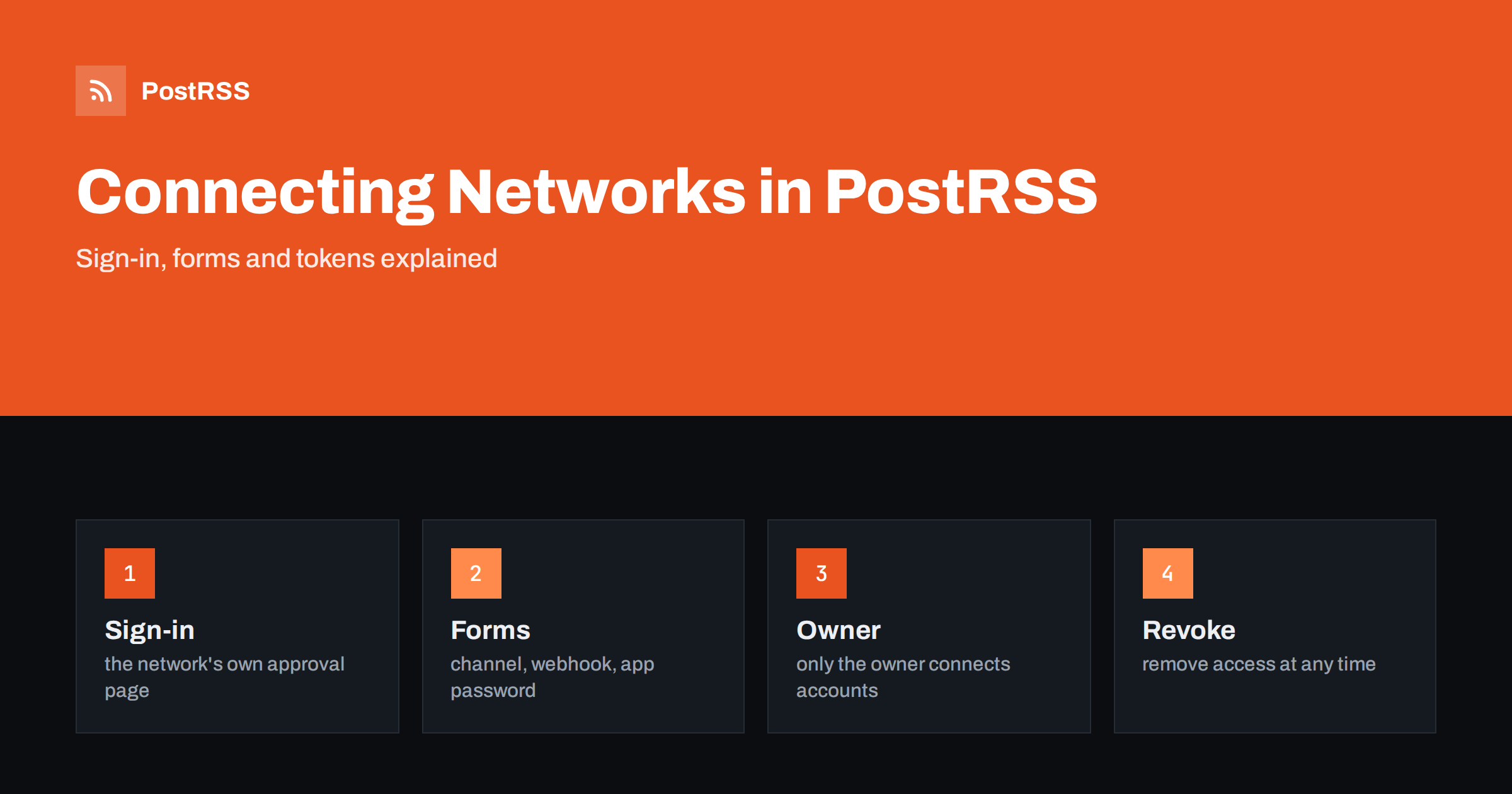
Short answer: PostRSS connects your social accounts in three ways. For large networks such as Facebook, X, LinkedIn, Pinterest, VK, Threads and Tumblr you sign in through the network’s own authorization page, with Mastodon the same way after you enter your server. For Telegram, Discord, Bluesky, Matrix, webhooks and Instapaper you fill in a short form with a channel, a webhook address, an app password or similar details. Many other networks are connected by form as well. Only the account owner can connect or disconnect accounts, and you never give PostRSS more access than the network’s own consent screen shows.
Before PostRSS can publish anything, it needs permission to post to your accounts. That step is where many new users hesitate, because it involves passwords, tokens and consent screens from companies that are not PostRSS. This guide explains the three connection methods, what you are asked for in each, what to prepare in advance, how the Free plan fits in, who is allowed to connect accounts and how to review or remove a connection later. The facts come from the live features page, the plan list and the API documentation, and the details of each network’s screens may change, so follow the instructions shown in the app when they differ.
The first method is authorization through the network. You click connect, the network’s own page opens, you sign in there and approve the permissions that PostRSS requests. PostRSS never sees your password. The network gives PostRSS a token that allows posting, and you can revoke it from the network’s settings at any time. This is the method for the large social networks.
The second method is a form. You enter the details that the network requires, such as a channel name, a webhook address or an app password, and PostRSS stores what it needs to post. This is typical for messengers, team chats, blog platforms and decentralized networks, which often do not have a consumer sign-in flow for tools like PostRSS. The third method is a hybrid used by Mastodon: you enter the address of your server first and then authorize on that server, and a manually created token is also possible.
According to the networks list in the PostRSS API, the sign-in method is used for Facebook, X, LinkedIn, Pinterest, VKontakte, Threads, Instagram and Tumblr, and for Mastodon after you provide your server. After you approve, PostRSS shows the pages, boards or accounts you can use as targets. For Facebook, PostRSS posts to Pages that you manage; it cannot post to Facebook Groups or personal profiles, because Meta closed that publishing interface in April 2024. For LinkedIn you can choose between a personal account and a company page, depending on what the plan and the authorization allow. For Pinterest you choose a board.
Instagram and a few other networks are marked as being tested on the features page, which means the integration is built and waits for the platform’s approval. Reddit is temporarily unavailable. Check the features page for the current status before you plan around a network.
The form method covers several kinds of destinations. For Telegram you provide the channel. For Discord you provide the address of a webhook that you create in the settings of the channel. For Bluesky you enter your handle and an app password. For Matrix you provide the server, a username, a password or an access token and the room. For a generic webhook you give a title, an address and a format, which lets you send each new item to tools such as Slack, Microsoft Teams, Zapier, Make or n8n. For Instapaper you enter the username and password of the account.
The long tail of other networks, including blog platforms, team chats and regional networks, also connect through forms that ask for the details each service needs. The app shows the fields for each one.
Connecting goes faster when you prepare. Decide which accounts you want to use, and sign in to them in the same browser. For Facebook, make sure you are an administrator of the Page. For a company page on LinkedIn, make sure you have the right role. For Discord, create a dedicated channel and a webhook first. For Bluesky, create an app password in your account settings instead of using your main password. For Matrix, consider a dedicated account for posting, so that the credentials are separate from your personal ones.
When a form asks for a password, use the least powerful credential available. An app password for Bluesky can be revoked without changing your main password. A dedicated Matrix account limits what a leaked credential can do. A webhook address for Discord or a team chat is a secret in itself: anyone who has it can post to that channel, so do not paste it in public places. These small habits cost minutes and protect your accounts.
The Free plan posts to one target: a Facebook Page, a Telegram channel, Bluesky or Mastodon. Paid plans from Start to Enterprise add more posts, more targets and more networks. The plan list in the API shows which networks each plan includes, and the pricing page presents the same information for humans. If you try to connect a network that your plan does not include, you will need to upgrade first, so look at the list before you plan a multi-network setup.
On Enterprise plans, the owner can invite team members who work inside the same account. According to the API documentation, connecting a social account, starting an authorization and disconnecting an account are actions reserved for the owner. Team members can work with the targets, sources and reports within the same restrictions as on the website, but they cannot add or remove connections. This is a sensible protection: the people who hold the keys to the accounts are the owner alone.
A connection is not yet a target. First you connect the account, which gives PostRSS permission. Then you create a target, which says which account or page receives posts and which feed or feeds feed it. One account can serve several targets, and one feed can feed several accounts, each with its own settings such as message format, hashtags and schedule. Keep a simple naming habit so that a year from now you can tell at a glance which target posts what.
Connections can break for ordinary reasons: you changed the password of the account, a token expired, you removed PostRSS from the settings of the network, the Page was deleted or the role of your user changed. If posts stop, open the report of the target and read the status and the reason shown for failed items. Reconnect the account and test again. If the problem repeats, check the status of the network on the features page, because a network under maintenance or awaiting approval behaves differently from a working one.
You stay in control. For the sign-in method, the settings of the network list the apps that can post for you, and you can remove PostRSS there at any time. In PostRSS, the owner can disconnect an account, which stops posting to it. For forms, change or delete the app password or webhook at the source, and update the connection if you still need it. Review your connections once or twice a year and remove the ones you no longer use. Fewer connections mean fewer secrets to protect.
Agencies and freelancers often connect accounts that belong to someone else. The cleanest approach is to ask the client to grant you a role on the Page, the company page or the board, and then authorize from your own sign-in, so that you never need the client’s password. Agree in writing which networks you will manage and who will own the PostRSS account. If the relationship ends, the client should be able to remove your access from the network’s settings without help from you, and you should be able to disconnect the accounts on your side. Clear ownership avoids awkward moments later.
Before you let automation run on a real audience, take five minutes to check the basics. Confirm that each connected account shows the name you expect, so that a post does not go to the wrong Page. Check that the feed address opens without a login and that its items have images. Publish a test article and read the post on every network. Look at the report of the target to see the status of the first items. Finally, note the date of the connection and the person who made it. When something changes a year later, that small record saves a long search.
Networks update their rules and consent screens from time to time, and an authorization that worked for a year may need to be renewed. Treat a failed connection as normal maintenance, not as a disaster. Subscribe to the update notes of the networks you use most, and read the news section of the PostRSS blog for changes that affect integrations. A quick review of the reports every month is usually enough to spot a connection that needs attention before readers notice a gap.
PostRSS connects accounts by network sign-in for the big social networks and by short forms for messengers, team chats, blog platforms, webhooks and similar destinations. Prepare the accounts and roles in advance, prefer app passwords and dedicated accounts, check your plan, remember that only the owner connects accounts and create a target after each connection. Review the connections now and then. The current list of networks and plans is on the features page and the pricing page.
Not for networks that use sign-in authorization. You sign in on the network’s own page, and PostRSS receives a token that you can revoke. Forms ask only for the details the network needs.
No. PostRSS posts to Facebook Pages only, because Meta closed the Groups publishing interface in April 2024.
Only the account owner can connect or disconnect accounts. Team members work with targets, sources and reports within the same restrictions as on the website.
The Free plan posts to one target: a Facebook Page, a Telegram channel, Bluesky or Mastodon.
Read the status and reason in the report of the target, reconnect the account and test again. Check the features page for the current status of the network.
What changed in the networks, what broke, and how to fix it before it costs you reach.
Criadas pela Internet Solutions, a equipe por trás do PostRSS. Cada uma economiza seu tempo de um jeito diferente.
 English
 Lietuviškai
 Deutsch
 Français
 Русский
 Español
 Polski
 Italiano
 Українська
 Čeština
 Português
 日本語
 Latviešu valoda
 Eesti
 Magyar
 Bahasa Indonesia
 Türkçe
 हिन्दी
 Ελληνικά
 العربية
 ไทย
 Tiếng Việt
 Română
 Bahasa Melayu
 বাংলা