Google Alerts is one of the oldest and simplest ways to keep tabs on a keyword, a competitor’s name, or your own brand across the web, and for a long time its RSS delivery option made it trivial to plug that monitoring straight into an automation workflow. If you’re trying to do that today, the honest answer is: it’s more inconsistent than it used to be, but it’s still very much possible with the right approach, and understanding exactly where the inconsistency comes from will save you a lot of wasted troubleshooting time. This guide walks through what actually still works, the fallback methods worth knowing, and — once you do have a working feed — how to turn curated alerts into an automatic content stream instead of a firehose you scroll past.
Google Alerts originally shipped with an RSS delivery option sitting right alongside email in its settings. Over the years, Google has added, removed, and reshuffled that option more than once, which is why you’ll find tutorials online confidently describing three or four completely different setup flows, each accurate for the specific period it was written in. The practical takeaway is that RSS support for Google Alerts has never been a permanently guaranteed feature the way it is for, say, a WordPress blog’s built-in feed — it’s worth verifying it’s currently available to you before building an entire workflow around it.
Because this option has moved around over time and can differ depending on your account type and region, don’t assume the absence of the option in your account means it’s gone everywhere — check directly rather than relying on an old tutorial’s screenshot.
When the native option isn’t available, there are two practical workarounds, and it’s worth understanding the trade-offs of each before picking one:
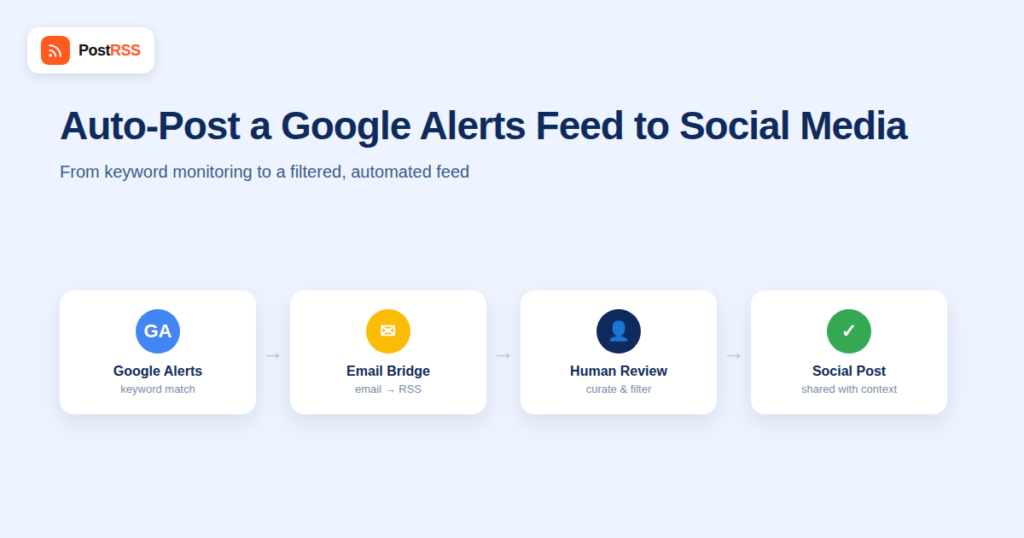
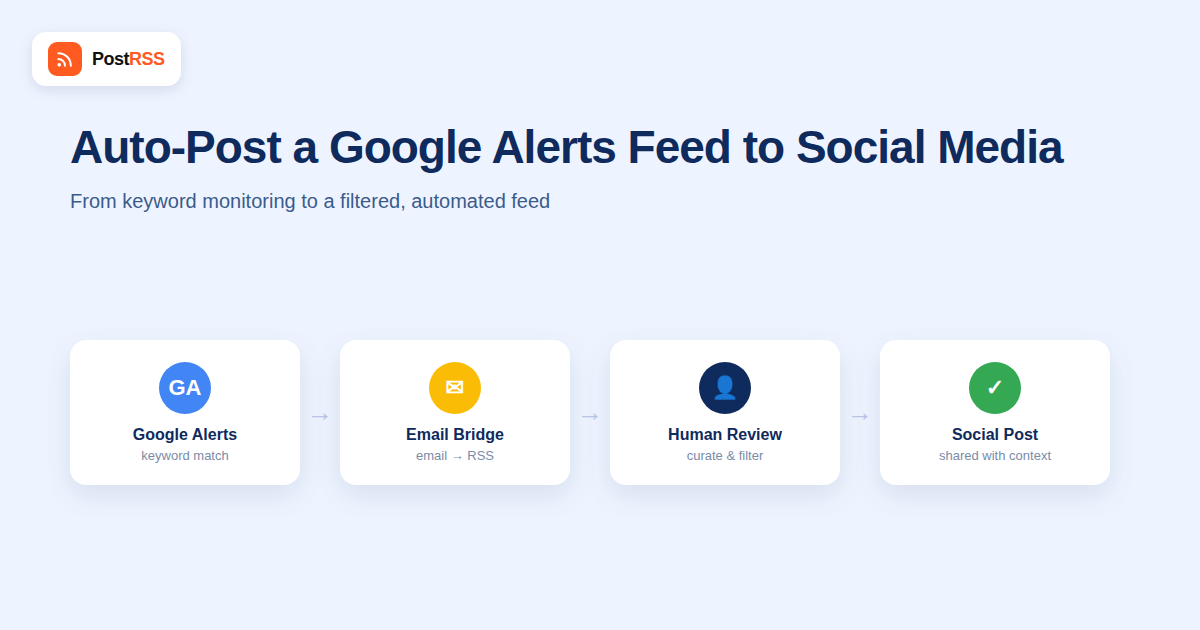
Since Google Alerts can always deliver to email, a dedicated email-to-RSS bridge service can watch a specific inbox (or a filtered label within one) and convert each incoming alert email into a new RSS feed item. This is the more reliable long-term approach precisely because it doesn’t depend on an undocumented or inconsistently available Google feature — it only depends on email delivery, which Google Alerts has never stopped supporting.
Whichever bridging approach you use, route Google Alerts email into its own inbox or a clearly filtered label rather than your main inbox. This keeps the automation’s source clean, makes it easy to see exactly what’s flowing through the pipeline, and avoids the bridge tool accidentally picking up unrelated email.
| Method | Reliability | Setup Effort | Best For |
|---|---|---|---|
| Native “RSS feed” delivery option (when available) | Depends on current availability | Very low | Accounts where the option still appears |
| Email-to-RSS bridge from a dedicated inbox | High — doesn’t depend on Google’s RSS feature | Low to moderate | Long-term, dependable automation |
| Manually forwarding interesting alerts | High, but fully manual | None (ongoing effort) | Low-volume, highly selective monitoring |
Once you have a working Feed RSS of your alerts, the natural next step is treating it as a source for automated distribution — but this is exactly where it’s worth pausing before connecting everything on autopilot. A Google Alerts feed is fundamentally different from your own blog’s feed: it’s aggregating other people’s content about a topic, not your own original writing, and posting it automatically carries different considerations.
The setup that tends to hold up best over time isn’t “Google Alerts straight to Twitter.” It’s a two-stage pipeline: Google Alerts feeds an internal monitoring channel via the email-to-RSS bridge described above, and separately, your own original content — the posts you actually write — flows through a dedicated RSS-to-social automation tool like PostRSS to your public-facing channels. The alerts become raw material a human skims and occasionally acts on manually, rather than a direct pipe to your brand’s public voice. This keeps the fully automated, no-human-review part of your workflow limited to content you actually created and stand behind.
The single biggest factor in whether a Google Alerts pipeline is useful or annoying isn’t the automation layer at all — it’s how well the underlying search query is written. A handful of adjustments make a disproportionate difference to result quality:
Five minutes spent tightening the query saves far more time downstream than any amount of filtering logic added after the fact in an automation tool.
Because a Google Alerts feed surfaces other publishers’ content, not your own, resharing it publicly comes with different expectations than posting your own blog content. A short excerpt with a clear link back to the original source and visible attribution to the publisher is standard practice and generally uncontroversial. Reproducing a large portion of someone else’s article text in your own post, or presenting curated third-party news in a way that implies you produced it, is where teams run into trouble — both from a courtesy standpoint with the original publisher and, in more serious cases, from a copyright standpoint. If your goal is a “roundup” style post drawing on several alerts, keep it clearly framed as a summary of other people’s reporting with links out, rather than lightly reworded copies of their work.
Google has occasionally invalidated existing RSS feed URLs during changes to the Alerts product, even for accounts where the option had previously worked. If a feed URL that used to work suddenly returns errors, re-check your alert’s delivery settings rather than assuming it’s a temporary outage.
This is a search-quality problem, not an RSS problem. Tightening the alert’s search terms with quotes for exact phrases, or using minus signs to exclude known noisy sources, usually helps more than any downstream filtering in your automation tool.
Confirm the bridge tool has ongoing access to the specific inbox or label you configured, and check that Google Alerts emails aren’t being filtered into spam, which would prevent them from ever reaching the folder the bridge is watching.
This is expected behavior rather than a malfunction — when a story gets picked up by wire services or syndicated across several news sites, Google Alerts will often surface each version as a separate match. A downstream deduplication step, even a simple one based on matching headlines, helps if this becomes a real nuisance in your feed.
Its availability has changed over the years and isn’t guaranteed to be present in every account, so it’s best treated as a convenience when available rather than a feature to build critical infrastructure around without a fallback.
Each Google Alert is tied to a single search query, so monitoring several keywords means creating separate alerts, each with its own feed or bridged email source, which most automation tools can combine into one downstream destination if needed.
It’s technically possible, but risky — the content isn’t yours, search quality varies, and an embarrassing false-positive match posted automatically to a public account is a bigger problem than a slightly delayed manual post would have been.
Using Google Alerts’ own delivery options, whether RSS or email, is using the product as intended. The email-to-RSS bridge approach works entirely on your own received email, not by circumventing any Google system.
It varies by alert and by how frequently you’ve set it to deliver — options typically range from as-it-happens to daily or weekly digests, and the frequency setting directly affects how current your downstream feed will feel.
Yes — the same email-to-RSS bridging pattern works for any monitoring service that only offers email delivery, which makes it a useful general technique beyond Google Alerts specifically.
Dedicated monitoring platforms typically offer better deduplication, sentiment analysis, and broader source coverage, at a real subscription cost. Google Alerts is free and good enough for straightforward keyword tracking, which makes it a reasonable starting point before investing in a paid tool, especially for smaller teams or single-brand monitoring.
As-it-happens delivery keeps your feed closest to real time, which matters most for fast-moving situations like a PR crisis or a competitor launch. For general background monitoring, a daily digest is usually easier to review and produces a calmer, more manageable feed.
Google Alerts’ native RSS option is worth checking for and using when it’s there, but it shouldn’t be the only plan, since its availability has shifted over the years in ways that are outside your control. An email-to-RSS bridge built on a dedicated monitoring inbox is the more dependable long-term foundation. And once the feed exists, treat it as raw material for a human-curated internal channel rather than wiring it directly into your public social accounts — the value of Google Alerts is catching things you’d otherwise miss, not generating unreviewed public posts on autopilot.
What changed in the networks, what broke, and how to fix it before it costs you reach.
Criadas pela Internet Solutions, a equipe por trás do PostRSS. Cada uma economiza seu tempo de um jeito diferente.
 English
 Lietuviškai
 Deutsch
 Français
 Русский
 Español
 Polski
 Italiano
 Українська
 Čeština
 Português
 日本語
日本語 Latviešu valoda
 Eesti
Eesti Magyar
 Bahasa Indonesia
 Türkçe
 हिन्दी
 Ελληνικά
 العربية
 ไทย
ไทย Tiếng Việt
 Română
 Bahasa Melayu
 বাংলা
বাংলা