RSS do 66 sieci społecznościowych: Facebook, Instagram, X, LinkedIn, Telegram i innych Blog Program partnerski Kontakt
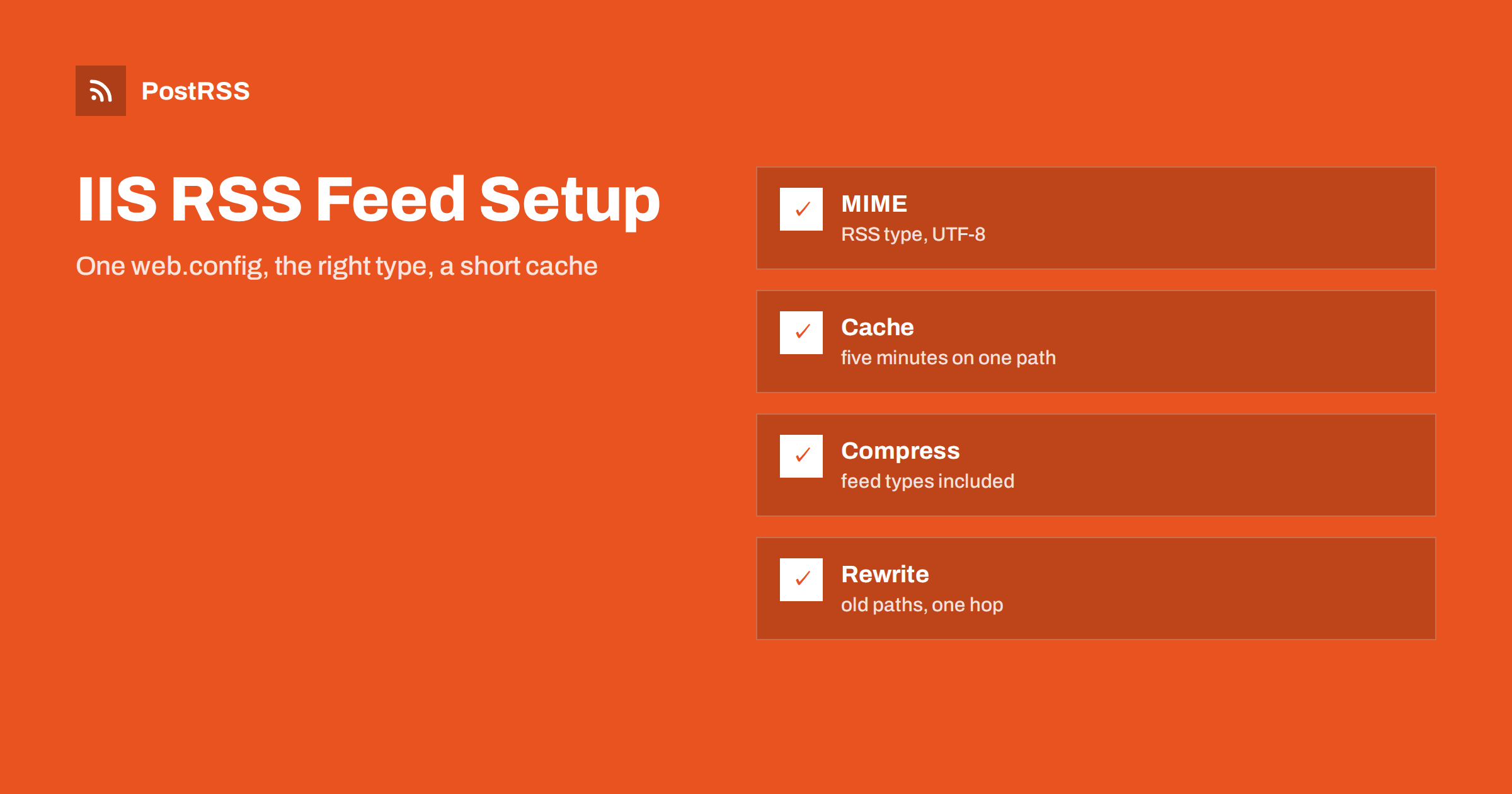
Short answer: Internet Information Services can serve an RSS feed correctly with a few lines in web.config. Map the feed file extension to the RSS content type, set a cache lifetime of a few minutes for the feed path only, make sure that dynamic and static compression cover feed types, redirect old addresses with one permanent rule from the URL Rewrite module and keep request limits from blocking feed readers. Then test the headers with curl and connect the address to an auto-poster so that every new article reaches your social channels.
Many business sites, intranets and older applications still run on Windows Server with IIS, and they publish feeds from ASP.NET, from a content management system or from a file that a scheduled task writes. The server is robust, but its defaults were designed for web pages, not for XML that tools fetch every few minutes. A feed with a file extension that the server does not know may be refused with a 404 status, a response may carry the wrong content type and a security module may answer a polling tool with a 403 status. This guide explains how to configure IIS for an RSS or Atom address, with short examples in web.config, and how to test the result. The examples work with a recent version of IIS, but your server may be set up differently, so check the documentation and keep a copy of the file before you change it.
IIS decides the content type of a static file from its extension. The extension xml is mapped to a generic XML type out of the box, and an extension that is not mapped at all, such as rss, is refused with a 404 status. If your feed is a file, make sure that the type is the one readers expect. Add a mapping in the static content section of web.config. If the extension is already defined at a higher level, remove it first, because a duplicate entry causes a configuration error.
<configuration>
  <system.webServer>
    <staticContent>
      <remove fileExtension=".rss" />
      <mimeMap fileExtension=".rss" mimeType="application/rss+xml; charset=utf-8" />
    </staticContent>
  </system.webServer>
</configuration>
If the feed ends in xml and you want to keep that name, you can change the type for that one file with a location block, which is shown below. When the feed comes from an application, such as an ASP.NET page or a handler, the application should set the content type itself, and the web server configuration does not matter. The reasons for choosing the RSS type are explained in the guide to the feed content type.
A short cache lifetime lets browsers, proxies and readers reuse an answer without hiding new posts for hours. In IIS you can apply a setting to a single path with a location block, so that the rest of the site is not touched.
<configuration>
  <location path="feed.xml">
    <system.webServer>
      <staticContent>
        <clientCache cacheControlMode="UseMaxAge" cacheControlMaxAge="00:05:00" />
        <remove fileExtension=".xml" />
        <mimeMap fileExtension=".xml" mimeType="application/rss+xml; charset=utf-8" />
      </staticContent>
    </system.webServer>
  </location>
</configuration>
The client cache setting adds a Cache-Control header with a maximum age of five minutes. Because the mapping for xml is changed only inside the location block, other XML files on the site, such as a sitemap, keep their usual type. For a feed that an application builds on each request, set the header in the application code instead, or add it with a custom header in the same location block. Whatever you choose, keep the lifetime short. The trade-off is explained in why auto-posted content sometimes lags.
| Setting | Where | Purpose for a feed |
|---|---|---|
| mimeMap | staticContent | Sets the RSS content type for a file |
| clientCache | staticContent | Adds a short Cache-Control lifetime |
| urlCompression | system.webServer | Turns compression on for static and dynamic content |
| httpCompression | Server configuration | Lists the types that are compressed |
| rewrite rules | URL Rewrite module | Redirects old feed addresses once |
| dynamicIpSecurity | Request limits | Must not block readers and auto-posters |
An XML feed is repetitive text and compresses to a fraction of its size. IIS has separate features for static and dynamic compression, and both must be installed as Windows components before the settings have any effect. Switch them on in web.config.
<system.webServer>
  <urlCompression doStaticCompression="true" doDynamicCompression="true" />
</system.webServer>
The list of types that are compressed is kept in the server configuration, and recent versions of IIS already include the RSS and Atom types. Do not assume this: request the feed with an accept-encoding header and look for a content encoding line in the answer. If it is missing, ask an administrator to add the feed types to the static and dynamic lists. More background is in the feed compression guide.
Keep one canonical address for the feed and use it in the link tags of your pages, in your notes and in the auto-poster. If older addresses must keep working, redirect them directly to the final one. The URL Rewrite module, which is installed separately, is the usual tool.
<system.webServer>
  <rewrite>
    <rules>
      <rule name="Old feed addresses" stopProcessing="true">
        <match url="^(rss|feed)/?$" />
        <action type="Redirect" url="/feed.xml" redirectType="Permanent" appendQueryString="false" />
      </rule>
    </rules>
  </rewrite>
</system.webServer>
Tools follow redirects, but every extra hop costs a request, and a chain of two or three is a common reason for a feed that works in a browser and fails in a tool. If your site also redirects from HTTP to HTTPS and from one host name to another, make sure that the three rules together lead to the final address in one step. The meaning of each status code is explained in the guide to feed status codes.
Windows editors and scripts sometimes save a file with a byte order mark, or write a blank line before the XML declaration. A strict reader then refuses the document with an error such as XML declaration allowed only at the start of the document. If a scheduled task writes your feed, save it as UTF-8 without a byte order mark and make sure that nothing is written before the declaration. Characters outside the basic range must be saved in the same encoding that the declaration announces. The details are in the guide to the XML declaration error oraz the guide to encoding problems.
If a script rewrites the feed file while IIS serves it, a reader may receive half a document or a locked file error. Write the new content to a temporary name in the same folder and then replace the old file in one step, so that every request reads either the old complete file or the new complete file. Run the task on a schedule that matches your publishing, for example every few minutes, or trigger it when a new article is saved. If the feed is created by an application, add a short in-memory cache there, so that a burst of requests does not repeat the same database work.
Two security features can cause quiet feed outages. The first is Dynamic IP Restrictions, a module that denies clients that send too many requests in a short time. A limit that suits browsers can refuse a polling tool, especially when several tools share one network address.
<system.webServer>
  <security>
    <dynamicIpSecurity>
      <denyByRequestRate enabled="true" maxRequests="200" requestIntervalInMilliseconds="10000" />
    </dynamicIpSecurity>
  </security>
</system.webServer>
Choose a value with plenty of headroom, or place the feed outside the scope of the limit. The second feature is a web application firewall, a bot filter or a content delivery network in front of the server. Rules that block empty or unusual user agents, or that challenge requests from data centres, also block feed readers and auto-posters. Give the feed path an exception in every layer. If a tool reports that the feed is forbidden, check these settings before you look anywhere else. A related case is described in how a content delivery network blocks a feed.
If the feed is produced by an ASP.NET Core application, IIS forwards requests to it, and the application is responsible for the content type, the compression of its own response and the cache headers. Keep the web server settings simple: let IIS deal with certificates, redirects and limits, and let the application build the document. A walk-through of the application side is in the guide to an ASP.NET Core feed. Make sure that the application builds absolute links with the public address of the site and not the internal one, because a feed with links to a server name that readers cannot open is useless.
IIS writes a log of each request in a plain text format, with the status code, the user agent and the time taken. Filter it for the feed path and look at three things: the share of 304 answers, which should be high if conditional requests work, the share of errors, which should be close to zero, and the interval between requests from the same client. A client that asks every few seconds is misconfigured, and a client that never appears may be blocked somewhere in front of the server. Failed request tracing can show which module produced an unexpected status.
curl.exe -I https://example.com/feed.xml
curl.exe -I -H "Accept-Encoding: gzip" https://example.com/feed.xml
curl.exe -I https://example.com/rss
Invoke-WebRequest -Uri https://example.com/feed.xml -Method HeadA longer routine is in the feed validation guide, and a shorter one in debugging a feed with curl.
PostRSS has been publishing RSS and Atom feeds to social networks since 2014. Paste the address of your feed, connect your accounts and choose how each post is built from the title, the description or the page title. PostRSS checks the feed as often as every minute and shares each new entry, with its image and link, to the channels you choose among 66 supported networks, messengers, team chats and blogs, including LinkedIn, X, Bluesky, Mastodon and Telegram. Keyword filters, UTM parameters and posting windows let you tune each channel. See the PostRSS features page and the plan limits on the pricing page. More developer guides are under the Technical Guide tag.
IIS serves a feed well once it knows what the file is. Map the extension to the RSS type, give the feed path a cache lifetime of a few minutes, check that compression covers feed types, redirect old addresses with one permanent rule, save the file without a byte order mark and in one step, keep request limits and firewall rules away from the feed path and make sure that links in the items use the public address. Test the headers from outside and then connect the address to an auto-poster, so that every article you publish reaches your social channels without surprises.
The file extension is probably not mapped to a content type. Add a mime map for the extension in web.config, or use the xml extension that is already known.
Only if the compression features are installed and the feed types are on the list. Check the answer headers for a content encoding line.
Use a permanent rule in the URL Rewrite module that points directly at the final address, so that tools meet only one redirect.
A request limit, a firewall rule or a bot filter may be blocking them. Add an exception for the feed path and test again with curl.
Yes. PostRSS reads any valid RSS or Atom address that is reachable without a login. Paste the address, connect your channels and new articles are shared as soon as they appear.
What changed in the networks, what broke, and how to fix it before it costs you reach.
Tworzy je Internet Solutions, zespół stojący za PostRSS. Każdy produkt oszczędza czas na swój sposób.
 English
 Lietuviškai
 Deutsch
 Français
 Русский
 Español
 Polski
 Italiano
 Українська
 Čeština
 Português
 日本語
 Latviešu valoda
 Eesti
 Magyar
 Bahasa Indonesia
 Türkçe
 हिन्दी
 Ελληνικά
 العربية
 ไทย
 Tiếng Việt
 Română
 Bahasa Melayu
 বাংলা