RSS uz 66 sociālajiem tīkliem: Facebook, Instagram, X, LinkedIn, Telegram un citiem Blogs Partner programma Kontakti
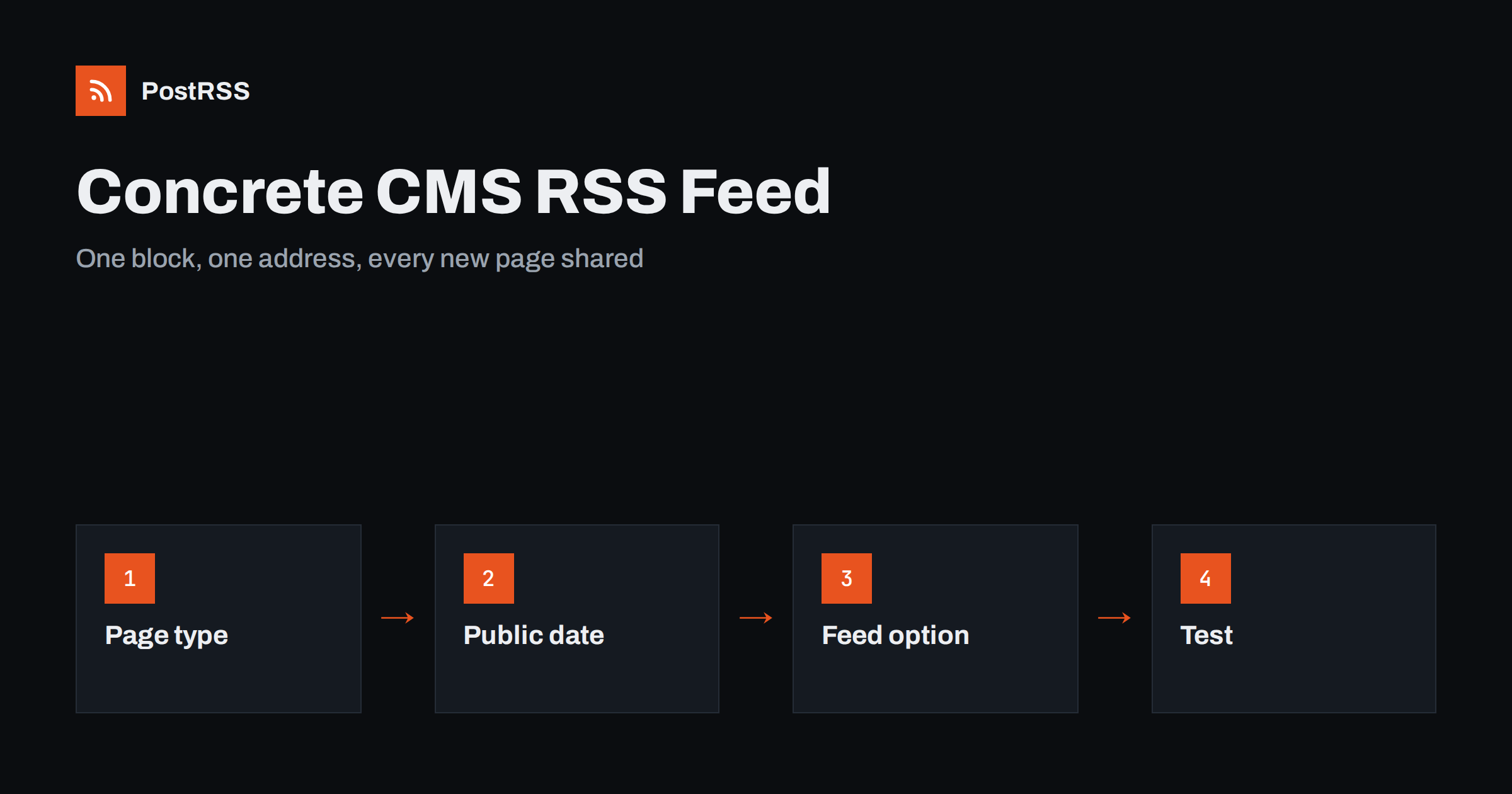
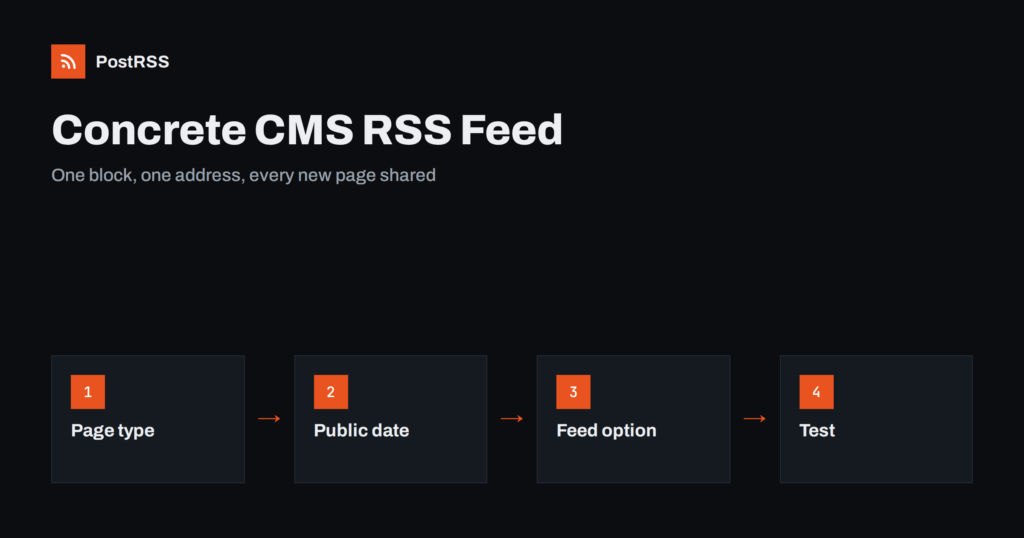
Short answer: Concrete CMS can publish an RSS feed without custom code. Add a Page List block to a page, filter it to your blog entry page type, sort it by publish date, switch on the option that provides an RSS feed and save the block. The block then offers a feed address that lists your newest pages with titles, descriptions and links. Check that every page has a public date and a short description, test the address on the live site and paste it into an auto-poster, so that each new entry is shared on your social channels automatically.
Concrete CMS, formerly known as concrete5, is an open source system with in-context editing. Editors click on the page and change it where it stands, and blocks such as the Page List show content from other pages. Many people know it as a way to build menus and news lists, but the same block can also produce a feed. This guide walks through the set-up in plain steps, explains which page properties matter for the quality of the feed and shows how to test it. Menu names differ a little between versions, so look for the same words if a label has moved.
The Page List block builds a list of pages that match rules you set: a page type, a position in the sitemap, a topic or an attribute. In the editing dialog you can sort the list, limit the number of results and choose whether to show descriptions, dates or thumbnails. One of its options provides an RSS feed for the same list. When you turn it on, Concrete asks for a title and a description of the feed, and it creates an address from which the list is delivered as XML.
This is different from the RSS Displayer block, which reads an external feed and shows it on your page. The Displayer consumes feeds, and the Page List creates them. If you want your own articles in a feed, you need the Page List.
A feed is only as good as the pages behind it. Before you add the block, check how your blog entries are built:
The public date deserves attention. Editors sometimes change it to move an article up a list, and a changed date can make an auto-poster think that the page is new. Agree in your team that the date is set once, when the article goes live, and is not changed later. The causes of repeated posts are explained in why a feed auto-posts the same article twice.
| Feed element | Source in Concrete CMS | Rule |
|---|---|---|
| Title | the page name | Plain text, written for readers |
| Link | the page address | Absolute, https, stable |
| Publication date | the public date | Set once by the editor |
| Description | the page description | One or two complete sentences |
After saving, the block shows the address of the feed. Copy it and open it in a browser. You should see raw XML or a page that offers to subscribe, depending on your browser. If the block does not show an address, check that the option is saved and that the page itself is published, because a draft page cannot serve a public feed.
Place the block on a page that visitors can also use. A news or blog index with a visible list is a natural choice, because the list and the feed always match. If you prefer a clean page, create a hidden one and remove it from the navigation, but do not block it for search engines or for visitors who follow the feed address. Keep the page published and keep its path stable. If an editor moves it to another place in the sitemap, the feed address may change, and every tool that used the old address stops receiving updates.
Because the feed follows the block, its rules are the block’s rules. A few settings make a big difference:
Test each rule by publishing a page that should be excluded and confirming that it does not appear. Do this on a real page, because rules that look right in the dialog sometimes behave differently with inherited attributes.
Concrete can cache pages, blocks and its own data to run faster, and caching affects feeds as well. If your site uses full-page caching, a new article may take a few minutes to appear in the feed, and a long cache lifetime can make your social posts arrive late. Decide how quickly you want updates. A lifetime of a few minutes is usually a good compromise. After a deployment or a change in the block settings, clear the cache in the dashboard and check the feed again. Background on delays is in why auto-posted content sometimes lags.
Check the response headers as well. The feed should be served with an XML content type, and the status should be 200. A login page or a redirect to a maintenance screen is a common surprise on sites that restrict access during development. See the guide to the content type header un the guide to feed status codes.
Concrete supports multilingual sections, where each language has its own branch of the sitemap. Create one Page List block in each branch, filter it to that branch and give each feed a title in its own language. A single feed that mixes languages causes an auto-poster to share the same story in several languages, one after the other, and followers will see it as spam. Keep one feed and one social channel for each language. See the guide to multilingual feeds for more on this.
Social networks give more attention to posts with pictures, and an auto-poster usually takes the picture from the page itself when the feed has none. Make sure each article has a clear featured image and a good social preview image set in the page properties or your theme. Choose a size that suits the networks, wider than tall, and avoid very large files. If your posts show the wrong picture, the problem is usually in the page markup and not in the feed. See how to control which image gets auto-posted.
Because the feed lives in a block on a page, anyone who can edit that page can also break the feed. Limit editing rights on the page to a few people, and write down in your team notes which page holds the block, what the filter is and who may change it. After an upgrade or a theme change, open the feed again and compare it with the list on the page. A short check once a month is enough to catch a missing block or a changed filter before your social channels fall silent.
Open the address in a browser, then request it from outside your network, because only a public request shows what an auto-poster sees.
curl -i https://example.com/your-feed-address
curl -s https://example.com/your-feed-address | head -n 30A longer routine is in the feed validation guide, and a shorter one in debugging a feed with curl.
PostRSS has been publishing RSS and Atom feeds to social networks since 2014. Paste the address of your feed, connect your accounts and choose how each post is built from the title, the description or the page title. PostRSS checks the feed as often as every minute and shares each new entry, with its image and link, to the channels you choose among 66 supported networks, messengers, team chats and blogs, including LinkedIn, X, Bluesky, Mastodon and Telegram. Keyword filters, UTM parameters and posting windows let you tune each channel. See the PostRSS features page and the plan limits on the pricing page. More developer guides are under the Technical Guide tag.
A Concrete CMS feed needs no code. Give every article a page type, a public date and a description, add a Page List block that filters by the type and provides a feed, keep the page and its address stable, mind the cache and test the live address from outside. Once the address works, connect it to an auto-poster, and every article your editors publish is shared on your social channels without extra effort.
Yes. The Page List block has an option that provides an RSS feed for the pages it lists, so you can offer a feed without writing code.
Save the Page List block with the feed option switched on. The block then shows the address, and you can open it in a browser to check the XML.
The public date of each page. Set it once when the article goes live, because a changed date can make an auto-poster share the article again.
Yes. Add one Page List block per topic or per language branch, each with its own filter and feed title, and connect each address to the right channel.
Yes. PostRSS reads any valid RSS or Atom address that is reachable without a login. Paste the address, connect your channels and new articles are shared as soon as they appear.
What changed in the networks, what broke, and how to fix it before it costs you reach.
Izstrādājusi Internet Solutions — PostRSS komanda. Katrs produkts ietaupa laiku savā veidā.
 English
 Lietuviškai
 Deutsch
 Français
 Русский
 Español
 Polski
 Italiano
 Українська
 Čeština
 Português
 日本語
 Latviešu valoda
 Eesti
 Magyar
 Bahasa Indonesia
 Türkçe
 हिन्दी
 Ελληνικά
 العربية
 ไทย
 Tiếng Việt
 Română
 Bahasa Melayu
 বাংলা