RSS to Facebook, Instagram, X, LinkedIn, Telegram and 11 more networks Blogs Partner programma Kontakti
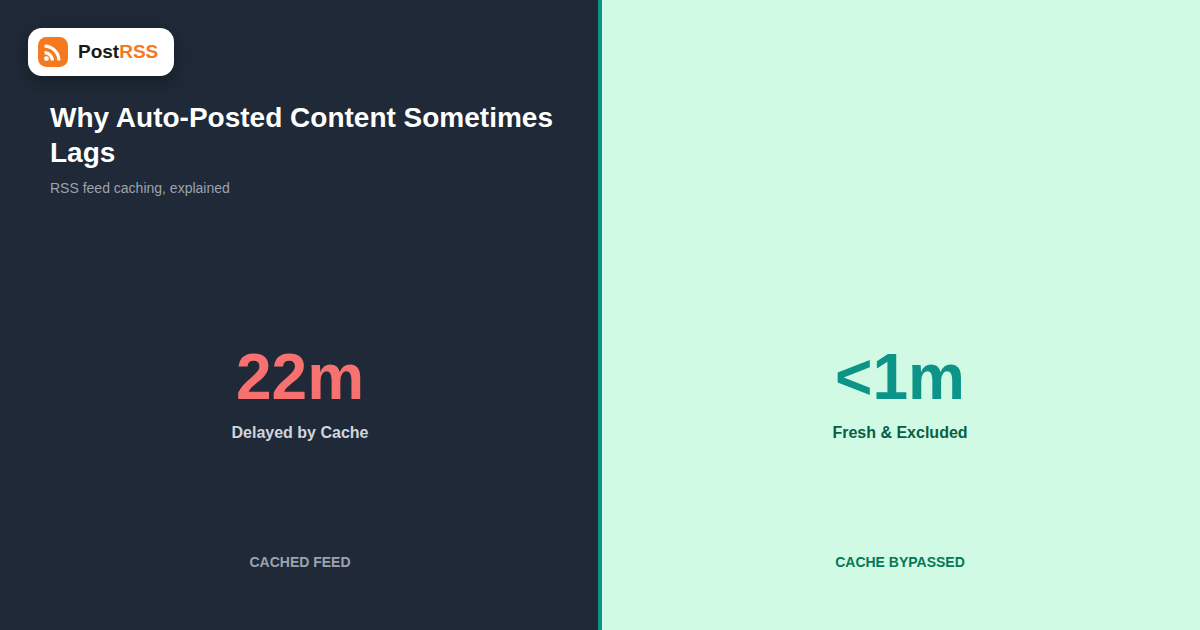
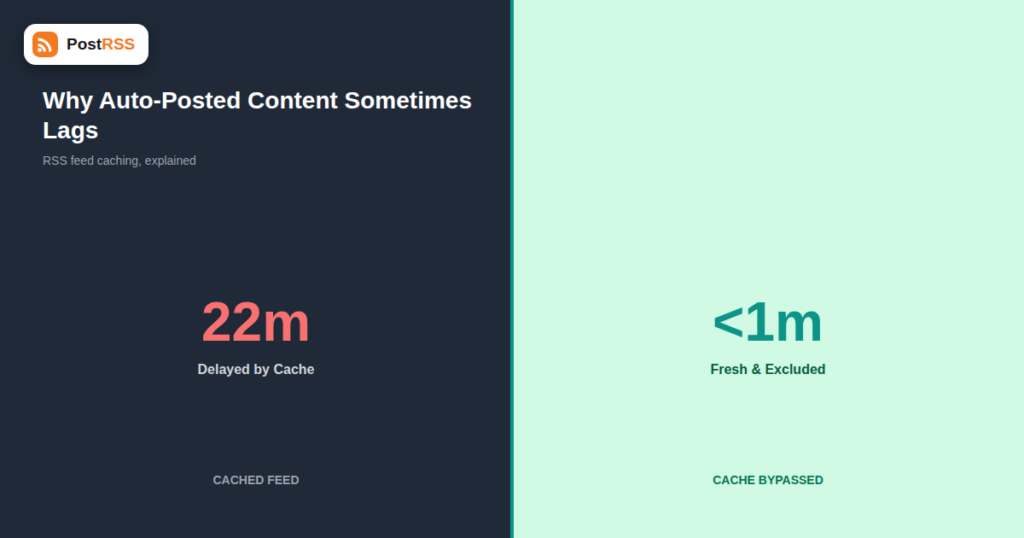
This is one of the more frustrating troubleshooting situations in RSS auto-posting precisely because every individual piece of the system looks fine in isolation: the site is up, the post is published, the auto-posting tool’s own logs show a successful, on-schedule check. Yet the content still doesn’t appear where it should. You publish a post, wait the amount of time your auto-posting plan promises, and still nothing shows up on social media. The auto-posting tool’s dashboard says it checked your feed right on schedule. Your new post is definitely live on the site. So where did it go? In a surprising number of cases, the answer is that the auto-poster genuinely did check your feed exactly when it was supposed to — it just got handed a stale, cached copy that didn’t include your new post yet, through no fault of the automation tool at all.
Caching exists to make websites faster: instead of regenerating a page from the database on every single visit, a cache stores a snapshot and serves that snapshot to visitors for some period of time, until it expires or gets manually cleared. This is genuinely useful for a busy homepage or blog post getting thousands of views. It becomes a problem the moment it’s applied, often without anyone specifically deciding to, to your feed URL — because a feed’s entire job is to reflect the very latest content, and a cached feed is, by definition, not that. The irony is that the very same performance optimization that makes your site feel fast to human visitors is what quietly slows down every system, including your auto-poster, that depends on the feed being current.
| Layer | How It Catches Your Feed |
|---|---|
| WordPress caching plugins | Plugins like WP Super Cache, W3 Total Cache, or LiteSpeed Cache often cache every URL on the site by default, including /feed/, unless specifically excluded |
| CDN edge caching | Cloudflare and similar CDNs can cache the feed response at the edge, serving a stale copy to every visitor (including auto-posting tools) until the cache expires |
| Hosting-level server caching | Some managed WordPress hosts apply their own object or page cache layer independent of any plugin you’ve installed |
| Reverse proxy caching | Varnish or similar reverse proxies, common on higher-traffic setups, can hold a cached feed response for a configured TTL |
Most site owners set up caching once, focused entirely on making pages load faster for human visitors, and never revisit the configuration with feeds specifically in mind. The feed URL keeps “working” the whole time — it loads, it validates, it just doesn’t reflect the newest content for however long the cache TTL is set to. Because nothing looks broken from a quick glance at the feed, the delay tends to get misdiagnosed as a problem with the auto-posting tool itself rather than the caching layer sitting in front of it.
Cache-Control, Age, or CF-Cache-Status, which will often explicitly confirm a cache hit and how old it is.| Layer | Typical Fix |
|---|---|
| WordPress caching plugin | Add an exclusion rule for /feed/ or any custom feed URL in the plugin’s cache exceptions settings |
| Cloudflare / CDN | Create a Page Rule or Cache Rule that sets caching to “bypass” specifically for the feed URL path |
| Managed hosting cache | Check your host’s documentation for feed-specific exclusions, or contact support directly — many hosts already have a standard exclusion pattern for RSS URLs |
| Reverse proxy (Varnish, etc.) | Add a VCL rule to bypass cache for feed paths, typically requiring server or developer access |
It’s tempting to solve this by turning off caching altogether, but that’s usually the wrong fix — caching still matters enormously for how fast your actual pages load for human visitors, and disabling it site-wide to fix one feed URL trades a minor automation delay for a real, ongoing site speed regression. The correct fix is almost always a targeted exclusion: keep caching on for everything else, and specifically bypass it for the feed URL your auto-posting tool depends on.
If your hosting setup makes a full bypass impractical, or if excluding the feed entirely raises server load concerns on a very high-traffic site, setting a short cache TTL specifically for the feed URL (say, 1-2 minutes instead of the site-wide 30-60 minutes) is a reasonable compromise. It still reduces server load compared to zero caching, while keeping the delay small enough that it rarely matters against a typical auto-posting polling interval.
It’s easy to conflate two different causes of the same symptom — a slow-to-appear social post — so it’s worth being precise about how they differ:
| Polling Delay | Feed Caching | |
|---|---|---|
| Where the delay happens | Between your site and the auto-posting tool’s scheduled check | Between your site and anyone requesting the feed URL at all, including the auto-poster |
| What raw feed shows immediately after publishing | Already up to date | Still missing the new item |
| What fixes it | A faster-polling plan, or a manual “check now” | A cache exclusion rule for the feed URL specifically |
| Who controls the fix | Your auto-posting tool’s plan tier | Your own site’s hosting, plugin, or CDN configuration |
In practice, both can be happening at once — a 30-minute polling interval stacked on top of a 20-minute cache TTL means the effective worst-case delay is closer to 50 minutes, even though each individual layer looks reasonable on its own.
Larger or higher-traffic sites often run more than one caching layer simultaneously — a WordPress plugin cache, a hosting-level cache, and a CDN in front of both. Fixing the problem at only one layer while leaving another cache still active in front of it can look like the fix “didn’t work,” when really only part of the caching chain was addressed. Testing methodically, one layer at a time (temporarily disabling the CDN cache for the feed URL alone, for instance, before touching the plugin settings) makes it much easier to identify exactly which layer is still holding a stale copy, rather than guessing and changing several settings at once.
Since WordPress powers a large share of the sites running RSS auto-posting setups, it’s worth walking through the check for this platform specifically. Most popular caching plugins provide a way to view cache status per URL, or at minimum a global “clear cache” button that, if pressing it makes a delayed post suddenly appear on the feed instantly, confirms the plugin was the cause. From there, look specifically for an exclusion or “never cache” list in the plugin’s settings and add your feed URL (commonly /feed/, or /feed/rss2/ depending on configuration) to it, rather than leaving the whole cache cleared manually going forward, which isn’t a sustainable fix.
Publish a test post and open the raw feed URL directly in an incognito browser window immediately afterward. If the new item is missing there too, the problem is upstream of your auto-posting tool entirely, in your site’s caching layer.
No meaningfully. Feed requests are typically a tiny fraction of total site traffic compared to page views, so excluding just the feed URL from caching has negligible impact on overall server load.
It depends on your specific caching configuration and page rules; Cloudflare’s default behavior varies by plan and by how your zone is configured, so it’s worth explicitly checking rather than assuming either way.
Often yes, through the host’s dashboard cache settings, but some fully managed hosts apply caching at a level that requires contacting support to add an exclusion. It’s worth asking directly rather than assuming you’re locked out of any control.
A full bypass is simpler and removes the variable entirely; a short TTL is a reasonable compromise specifically on very high-traffic sites where even feed requests add up. For most sites, a full bypass on the feed URL alone is the simpler and safer choice.
It’s unlikely to cause a full miss on its own, since most auto-posting tools check GUIDs across a rolling window of recent items rather than only the single latest one, but a long enough cache TTL combined with a fast publishing cadence could theoretically cause an item to briefly fall outside that window before ever being seen. Bypassing cache for the feed removes this risk.
Yes — the same caching mechanics apply regardless of whether the feed is a blog’s post feed or a podcast’s episode feed, since caching operates at the URL level without any awareness of what kind of content the feed contains.
It works as a one-off fix, but it’s not sustainable as a routine, since it depends on someone remembering to do it every single time. A proper exclusion rule for the feed URL solves the problem permanently without requiring a manual step for every future post.
Yes, and it’s often faster than digging through settings yourself. Most hosting support teams can confirm within minutes whether a specific URL pattern is being cached at the server level and add an exclusion on request if you explain that it’s an RSS feed used for automated content distribution.
Not necessarily — static sites still often sit behind a CDN, and the same feed-caching considerations apply there too. The specific fix differs (usually a build-time regeneration trigger rather than a plugin setting), but the underlying issue of a feed URL being served from a stale cache is the same.
Feed caching is one of the most common, and most commonly misdiagnosed, causes of “my auto-posting is slow” complaints in support conversations across virtually every RSS-to-social platform. Because the fix lives entirely outside the auto-posting tool itself, no amount of adjusting your posting plan or troubleshooting your automation settings will resolve it — the caching layer sitting between your server and the tool needs a targeted exclusion instead. It typically takes just a few minutes to check and fix once you know exactly where to look, and it’s worth ruling out early, before assuming your polling plan or auto-posting tool itself is the problem. A five-minute test — publish, then check the raw feed URL directly in a private browser window — will tell you immediately which side of the equation you’re actually dealing with, and save you from chasing the wrong fix entirely.
What changed in the networks, what broke, and how to fix it before it costs you reach.
 English
 Lietuviškai
 Deutsch
 Français
 Русский
 Español
 Polski
 Italiano
 Українська
 Čeština
 Português
 日本語
日本語 Latviešu valoda
 Eesti
Eesti Magyar
 Bahasa Indonesia
 Türkçe
 हिन्दी
 Ελληνικά
 العربية
 ไทย
ไทย Tiếng Việt
 Română
 Bahasa Melayu
 বাংলা
বাংলা