When an RSS feed stops updating on a social account, the actual cause is almost always sitting in an HTTP response header that nobody looked at. Auto-posting tools fetch your feed the same way a browser fetches a webpage, and the server’s response code determines whether that fetch succeeds, fails politely, or fails in a way that silently breaks automation for weeks before anyone notices. This is a practical guide to what each code actually means for your feed, and what to do about the ones that matter.
A human visiting a broken web page notices immediately and can hit refresh, check the URL, or give up. A feed fetcher checking your RSS URL every few minutes has no such judgment; it just gets a response code back and decides, mechanically, whether to read the content, treat it as temporarily unavailable, or give up on the feed entirely. A misconfigured redirect or an intermittent server error that a human would barely register can silently stop your RSSフィード from being read by every tool subscribed to it, including your auto-posting setup, without any obvious symptom on the website itself.
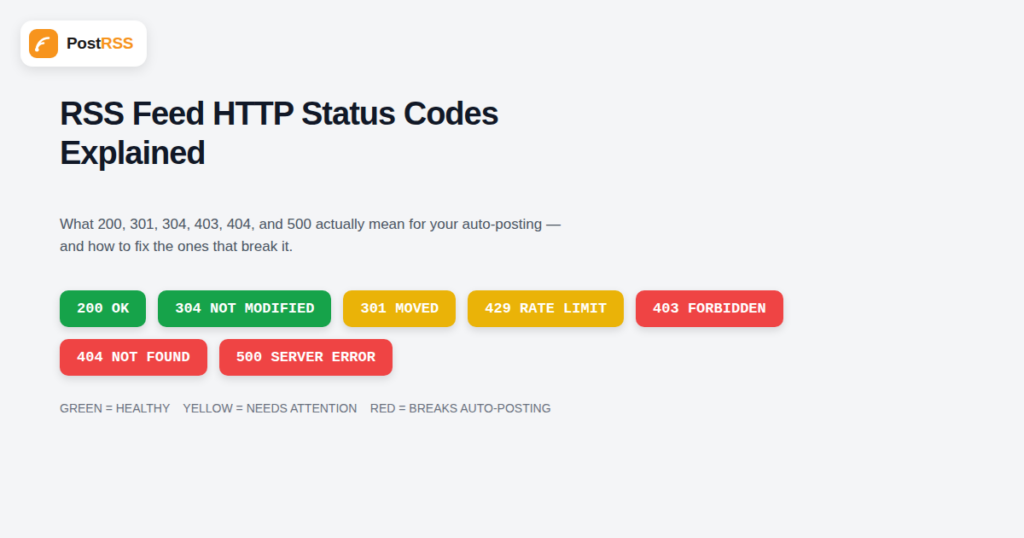
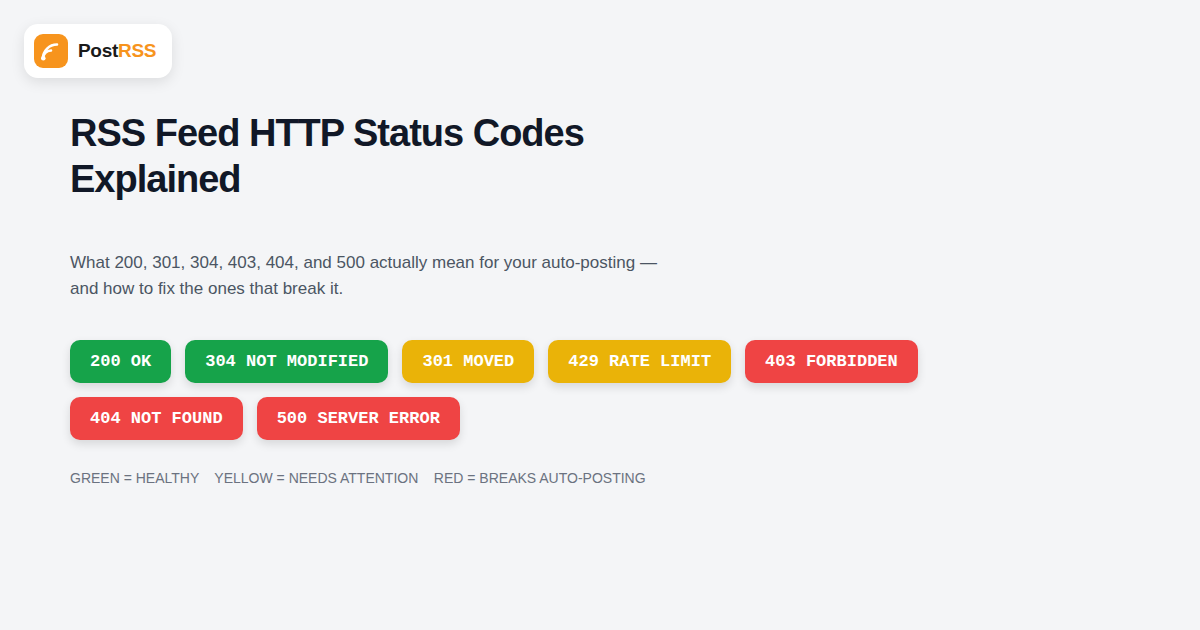
| Code | Meaning | What it means for auto-posting |
|---|---|---|
| 200 OK | Feed fetched successfully | Normal, healthy state — no action needed |
| 301 Moved Permanently | Feed URL has permanently moved | Most fetchers follow it, but every redirect adds latency and risk; update the source URL directly |
| 302 Found (Temporary Redirect) | Feed is temporarily at a different URL | Should resolve on its own, but a “temporary” redirect that never goes away often signals a misconfiguration |
| 304 Not Modified | Feed hasn’t changed since last check | Efficient and expected on most checks — this is a good sign, not an error |
| 403 Forbidden | Server is refusing the request | Often caused by a firewall, security plugin, or bot-blocking rule mistakenly blocking the fetcher’s user agent |
| 404 Not Found | Feed URL doesn’t exist at this address | The feed was moved, deleted, or the URL was typed wrong when the connection was set up |
| 410 Gone | Feed existed here before but is now permanently removed | Treated similarly to 404, but signals intentional removal rather than a possible typo |
| 429 Too Many Requests | Server is rate-limiting the fetcher | The feed is being checked more often than the server allows; usually a hosting or CDN configuration issue |
| 500 Internal Server Error | Something broke on the server generating the feed | Usually a plugin conflict, theme error, or resource exhaustion on the hosting side |
| 503 Service Unavailable | Server is temporarily overloaded or in maintenance mode | Should self-resolve; persistent 503s point to a hosting capacity problem |
| Timeout (no code) | Server never responded within the fetcher’s wait window | Distinct from an error response — the server may be up but too slow to respond in time |
These two look similar but carry different implications for a feed URL specifically. A 301 tells any client, including search engines and feed readers, that the move is permanent, and well-behaved clients update their stored URL accordingly over time. A 302 says “temporarily elsewhere,” which means clients keep checking the original URL on the assumption it will come back. If you’ve permanently changed your feed’s URL, for example after a site migration or switching from a custom feed path to the platform default, use a 301, and just as importantly, update the feed URL directly in every tool subscribed to it rather than relying on the redirect indefinitely. A redirect chain that’s technically “working” still adds a small amount of latency and failure risk to every single fetch.
A 403 on your feed URL almost never means the feed itself is broken; it means something between the request and the feed is deciding to block it. The most common causes: a security plugin (Wordfence, Sucuri, and similar) treating repeated automated requests as suspicious bot activity, a hosting-level firewall rule blocking non-browser user agents, or a CDN configuration set to challenge or block requests that don’t look like normal browser traffic. Because the feed loads fine in an actual browser (which sends different headers than an automated fetcher), this is exactly the kind of failure that gets dismissed as “the feed works fine, I just checked it,” while the automation tool sees only the block. If auto-posting has stopped and the feed URL opens fine in your browser, checking your security plugin’s block logs for the fetching tool’s user agent or IP range is usually the fastest way to find the real cause.
Before assuming the auto-posting tool is at fault, check the raw response your server is actually giving. From a terminal, a simple command reveals the status code directly:
curl -I https://yourdomain.com/feed/
The first line of the response shows the HTTP status. If it’s anything other than 200 (or 304 on a repeat check), that response, not the auto-posting tool, is where the problem lives. It’s also worth checking from more than one source, since a firewall or CDN rule can behave differently depending on the requesting IP or region, occasionally returning 200 from your own network while returning 403 to an external service.
Most well-built auto-posting tools distinguish between failure types rather than treating every non-200 response identically. A single 500 or timeout usually triggers a retry on the next scheduled check, with no action needed. Repeated failures over an extended window, though, typically escalate to a notification, since a feed that’s been down for days is a real problem worth surfacing rather than silently retrying forever. A 404 or 410 is usually treated more seriously and faster, since those codes explicitly say the resource is gone rather than temporarily unavailable, which is a much stronger signal that manual intervention is needed.
Status codes don’t operate in isolation; they work alongside caching headers like ETag および Last-Modified, which is where a lot of subtle feed problems actually originate. A well-behaved server returns a 304 Not Modified specifically because it compared the fetcher’s cached ETag against the current version and found no difference — that’s the system working correctly. Problems arise when a caching layer (a CDN, a caching plugin, or a reverse proxy in front of the site) serves a stale cached copy of the feed with a 200 status even after new content has been published, because from the fetcher’s perspective, a 200 with old content looks identical to a genuinely up-to-date feed. This is a common, hard-to-spot cause of “auto-posting isn’t picking up my new posts” that has nothing to do with status codes being wrong, and everything to do with a cache serving an outdated 200 response instead of forcing a fresh fetch. If new posts consistently take an unusually long time to appear on social accounts, checking your caching plugin’s feed-specific exclusion settings is often the fix, not the auto-posting tool’s fetch frequency.
Consider a common pattern: a site owner installs a new security plugin on a Tuesday, and by Thursday, notices no new posts have gone out to social media despite publishing twice since then. The instinct is usually to blame the auto-posting tool itself, or to assume the connection to PostRSS needs to be re-authorized. In the large majority of cases like this, the actual sequence is: the new security plugin’s default configuration started blocking requests that don’t include a standard browser user agent, the feed URL started returning 403 to the fetcher while still loading normally in the owner’s own browser, and the auto-posting tool’s periodic checks simply began failing silently in the background. Running a direct status check against the feed URL, rather than opening it in a browser, is what actually reveals the problem in under a minute, instead of hours spent second-guessing account connections that were never the issue.
My feed loads fine in my browser but auto-posting still isn’t working. What’s going on?
This is the classic signature of a 403 block against non-browser requests. Check your security plugin or hosting firewall for rules blocking automated user agents, since your browser and an automated fetcher send different request signatures.
Is a 304 response a problem?
No, it’s actually the efficient, expected outcome on most checks. It simply means the feed hasn’t changed since the last time it was fetched, so there’s nothing new to process.
How long should I wait before worrying about a 500 or 503 error?
A single occurrence is usually not worth acting on immediately, since servers occasionally hiccup. If the same error persists across several consecutive checks, spanning more than an hour or two, it’s worth investigating your hosting or recent plugin changes.
Does a redirect (301 or 302) break auto-posting?
Not usually, since most tools follow redirects automatically, but it does add a small performance and reliability cost. Update the feed URL directly wherever it’s connected once you know a redirect is permanent.
Can a slow server cause the same symptoms as an error code?
Yes. A timeout, where the server never responds within the fetcher’s wait window, produces the same practical effect (a missed check) as an actual error response, even though no error code is ever returned.
How do I check my feed’s status code without technical tools?
Several free online “HTTP header checker” tools let you paste in a URL and see the response code without using a terminal, which covers most of what a non-technical site owner needs for basic diagnosis.
Should I worry about occasional 429 responses?
If they’re rare, no. If they happen consistently, it usually means your hosting or CDN is rate-limiting requests more aggressively than an auto-posting tool’s normal check frequency, which is worth adjusting on the hosting side rather than something the auto-posting tool can work around.
Where do I actually look to find out what status code my feed is returning right now?
A terminal command like curl -I against your feed URL is the most direct method, but if that’s unfamiliar, any free browser extension or online header-checking tool that shows raw HTTP response headers will work just as well. What matters is checking the response your server sends to a non-browser request, since that’s what an automated fetcher actually receives.
This connects closely to two other common feed-reliability issues worth understanding: how RSSフィード caching and conditional requests interact more broadly, and how a slow or overloaded server produces timeouts that behave differently from an outright error response. Both are frequent, quiet causes of the same underlying symptom — a feed that looks fine to a human but isn’t actually being read successfully by the tools depending on it.
Most “my auto-posting just stopped working” problems trace back to an HTTP status code that nobody checked. Learning to read a handful of codes — especially the difference between a transient error, a permanent move, and an outright block — turns a mysterious, frustrating outage into a five-minute diagnosis, and building basic monitoring around your feed URL specifically means you find out about a problem before weeks of missed posts do, rather than discovering it only after noticing your social accounts have gone unusually quiet.
What changed in the networks, what broke, and how to fix it before it costs you reach.
PostRSSを手がけるInternet Solutionsが開発。どの製品も、それぞれの形で時間を節約します。
 English
 Lietuviškai
 Deutsch
 Français
 Русский
 Español
 Polski
 Italiano
 Українська
 Čeština
 Português
 日本語
日本語 Latviešu valoda
 Eesti
Eesti Magyar
 Bahasa Indonesia
 Türkçe
 हिन्दी
 Ελληνικά
 العربية
 ไทย
ไทย Tiếng Việt
 Română
 Bahasa Melayu
 বাংলা
বাংলা