RSS vers 66 réseaux sociaux : Facebook, Instagram, X, LinkedIn, Telegram et plus Blog Affiliation Contacts
Google Chat sits in an awkward spot for anyone trying to automate it. It is used by every organisation on Google Workspace, which is a great many of them, yet it attracts a fraction of the integration guides written for Slack. People assume it must be harder. It is not — it is arguably simpler, because the mechanism is a single URL and there is no app to build, submit or install.
This guide covers how to get an RSS feed posting into a Google Chat space automatically: what the mechanism actually is, how to set it up, what the message looks like, the limits that apply, and what to check when nothing arrives.
Google Chat supports incoming webhooks: a URL bound to one specific space. Any HTTP POST to that URL, carrying a small JSON payload, becomes a message in that space. There is no bot to invite, no OAuth consent screen, no Workspace Marketplace listing, and no ongoing authentication beyond holding the URL.
That is the whole mechanism, and it has three consequences worth understanding before you set anything up.
Access is scoped to one space. A webhook cannot read messages, cannot see the member list, cannot post anywhere else, and cannot do anything to your Workspace domain. It is the narrowest form of access Google Chat offers.
There is no token to expire. Unlike OAuth integrations, which quietly stop working months later when a token is revoked or a policy changes, a webhook keeps working until somebody deletes it.
The URL is the credential. Whoever holds it can post into that space. This is covered properly further down.
Webhooks in Google Chat are controlled at the Workspace level, and in some organisations they are switched off by default. If you do not see the option described below, that is why, and a Workspace administrator has to enable it.
This is worth checking first rather than after twenty minutes of looking for a menu that is not there. It is also the single most common reason this setup stalls in larger companies.
Open the Google Chat space you want posts to land in. Use the space name menu and choose Apps & integrations, then Webhooks (in some versions this appears as Manage webhooks). Add a webhook, give it a name and, optionally, an avatar URL.
Both the name and the avatar appear on every message it posts, so this doubles as a branding decision. Name it something a colleague will recognise in six months — “Blog”, “Releases”, “Status” — rather than leaving a default.
Google Chat issues a URL that includes the space identifier plus a key and token. This is the credential you will paste into your automation. Copy it once and treat it accordingly.
In your auto-posting service, add the webhook URL as a destination and point an RSS or Atom feed at it. On WordPress the feed sits at your domain followed by /feed/, and every category has its own — /category/releases/feed/, for example, which is frequently what a Chat space actually wants rather than the whole blog. If you are not sure where your feed lives, finding the right feed URL is the first thing to settle.
Publish a test item and confirm it lands. If it does not, the troubleshooting section below covers the realistic causes in order of likelihood.
Google Chat accepts two shapes of payload, and the difference is visible.
A plain text message is exactly that: a line of text with a URL in it. Chat will linkify the URL but produces no preview card. It is fine for terse internal notifications and nothing else.
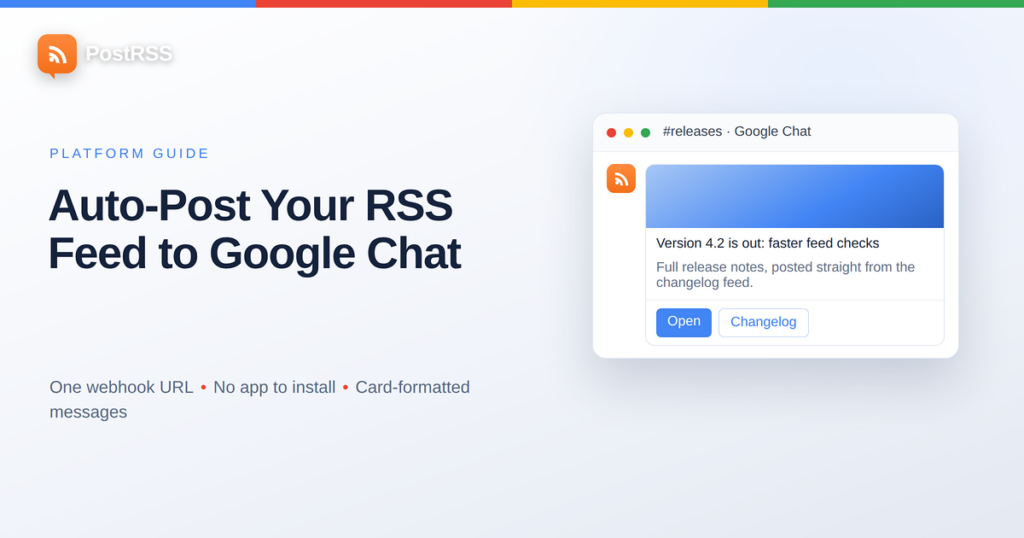
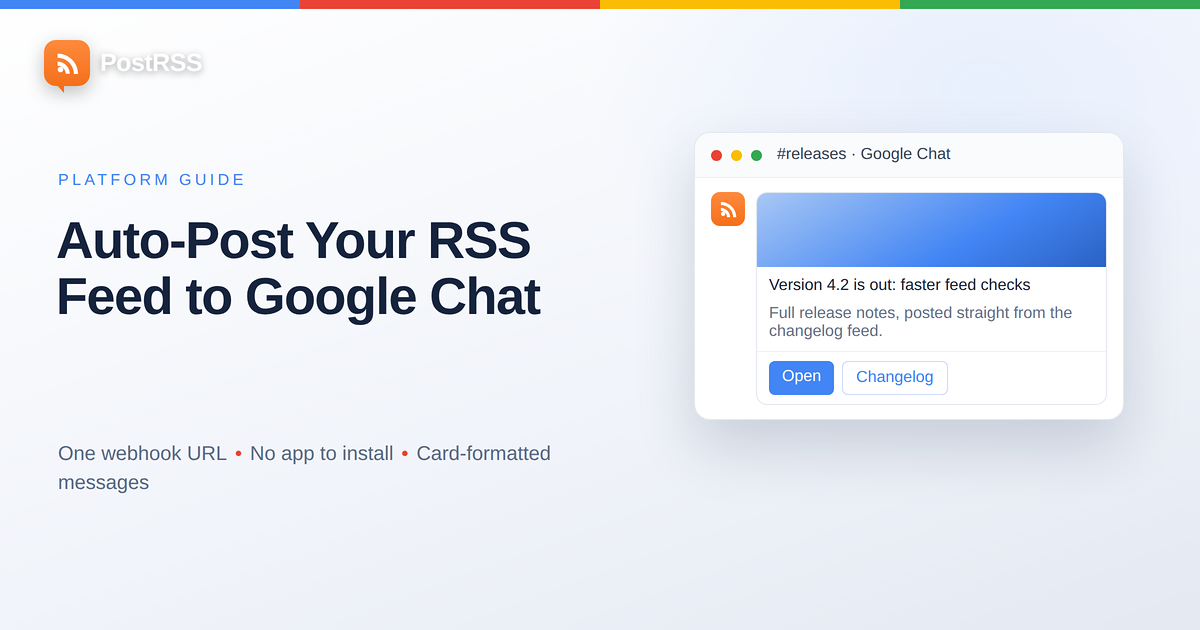
A card message renders a structured block: a header, a title, description text, an optional image and optional buttons. This is what makes an automated feed look like a deliberate notification rather than a bot dumping links, and it is the format worth using for anything a human is meant to read.
Where the content comes from is the part people miss. The title and link come from your feed. The description and image come from the destination page’s open-graph tags — the same tags Facebook, LinkedIn and every other network read. If your articles have no og:image, your Chat cards will have no image, and the fix is on your website rather than in the automation.
If you are choosing where internal notifications should go, the practical differences matter more than feature lists.
| Google Chat | Slack | Microsoft Teams | Discord | |
|---|---|---|---|---|
| Mechanism | Webhook entrant | Incoming webhook (via an app) | Connector or Power Automate | Webhook entrant |
| App to create? | No | Yes, in your workspace | Depends on tenant | No |
| Admin can block it | Yes, Workspace setting | Yes, app policy | Yes, tenant policy | Rarely |
| Rich card format | Yes, card payloads | Yes, blocks | Yes, adaptive cards | Yes, embeds |
| Token expiry | None | None | None | None |
| Typical setup time | Two minutes | Five minutes | Varies widely | Two minutes |
The honest summary is that Google Chat is the quickest of the four to set up, provided your administrator has not disabled webhooks. Where it loses to Slack is in the surrounding ecosystem, not in this particular task.
Release notes and changelogs are the strongest fit. Everyone benefits from knowing what shipped, and the space becomes a searchable record of it.
Status and incident feeds are the highest-value use of all — including the status feeds of services you depend on. Piping a provider’s status feed into an engineering space often means you learn about an outage before your users tell you.
Documentation updates suit support teams, who otherwise discover changes by answering a question wrongly.
Your own blog works in a marketing or general space, but scheduled rather than instant.
Competitor and industry feeds give a team shared context that nobody has to maintain, and they belong in their own space rather than a working one.
What does not belong is a high-volume product feed. A working space that receives forty notifications a morning gets muted, and a muted space informs nobody.
The most common way this setup fails has nothing to do with Google Chat. It is pointing a feed at the space where people are trying to work.
A working space is a conversation. An automated feed arriving in the middle of it pushes down whatever was being discussed, and the cost falls on the most active members. Two or three times is tolerated; after that the space gets muted, and a muted space informs nobody. The automation then appears to be working perfectly while achieving nothing at all.
What works is a dedicated space named after what it carries: #releases, #blog, #status, #industry. People who want the stream join it and leave notifications on; people who do not are never pushed past it. The space also becomes a searchable archive, which is quietly one of the biggest wins here — “when did we ship that” turns into a search rather than a question in a meeting.
There is a second, subtler benefit to separate spaces: it lets you give each feed different timing. An incident feed should be immediate. A blog feed should be batched to once or twice a day. Those two rules cannot coexist in one space, which is the practical argument for splitting them before you connect anything.
If you are unsure how many spaces to create, start with one and split only when a feed starts annoying someone. Splitting later costs two minutes; rebuilding a team’s trust in a muted space takes considerably longer.
Google applies quotas to incoming webhooks, and while an ordinary feed never approaches them, two situations do.
The first is a burst: a site that publishes twenty items in one batch, or a feed that suddenly exposes a back catalogue after a migration. The second is a busy space where several integrations already post.
The fix for both is scheduling rather than anything Google-specific — the same approach that keeps team notification channels readable everywhere else. A publishing window in your automation holds items found outside it and releases them inside, which turns a burst into a sequence. That keeps you clear of any quota and, more importantly, keeps the space readable.
Anyone holding the webhook URL can post into that space as your webhook, with the name and avatar you configured. They cannot read anything, cannot reach other spaces, and cannot touch your Workspace — the blast radius is one space’s message stream — but a leaked URL posting nonsense into a company space is still worth avoiding.
Three habits cover it. Do not paste the URL into public issues, screenshots, documentation or a repository; webhook URLs are among the most commonly leaked secrets on public code hosts. Do not commit it to version control, even a private one. And if you suspect it has been seen, delete the webhook and create a new one — which is also the fastest possible off switch if something goes wrong at three in the morning.
Webhooks are disabled at the Workspace level, or you are not a manager of the space. A Workspace administrator has to enable them. This is the most common blocker in larger organisations.
Check the webhook still exists in the space’s Apps & integrations panel. Then confirm the feed itself updated — a caching plugin serving a stale copy looks identical to a broken automation from the outside.
The payload is being sent as plain text, or the destination page has no open-graph tags for Chat to build a card from. Check your article’s tags first.
The page is missing an og:image, the image is too large, or a CDN rule is blocking the fetch. Fixing it on your site fixes every network at once.
A filter is doing its job. Review the category, tag and keyword rules on the feed before assuming a fault.
No publishing window is set. Add one, especially if the space is shared with people doing actual work.
Unlike bot integrations, a webhook does not depend on a user account — but the space itself might have been archived, or the webhook deleted during a tidy-up. Check the space first.
No. An incoming webhook is created inside the space itself and requires no app, no listing and no review.
It needs webhooks to be enabled for your Workspace, which is an administrator setting. Creating the webhook itself only requires that you can manage the space.
No. It can post into the one space it belongs to and nothing else — no history, no member list, no other spaces.
With a card-format payload, yes, built from your page’s open-graph tags. With a plain text payload, no.
Yes. Create a webhook in each space and add each as its own destination, with different filters if the spaces want different things.
No. Items are published as they appear in the feed after the connection starts running.
Delete the webhook in the space, or pause the feed in your automation. Either stops delivery immediately.
Google Chat is easier to automate than its reputation suggests. There is no app to build and no token to maintain — one URL, created inside the space in about two minutes, is the entire integration.
The two things worth getting right are the ones that have nothing to do with Google. Choose a dedicated space rather than a working one, so the notifications inform people instead of interrupting them. And set a publishing window, so a batch of twenty items does not arrive as twenty consecutive pings.
Start with the feed that carries changes rather than articles — releases, changelog entries or a status page. Those are the ones a team actually needs, and they are the ones that make a notification space worth keeping unmuted.
What changed in the networks, what broke, and how to fix it before it costs you reach.
Conçus par Internet Solutions, l'équipe derrière PostRSS. Chaque produit vous fait gagner du temps à sa façon.
 English
 Lietuviškai
 Deutsch
 Français
 Русский
 Español
 Polski
 Italiano
 Українська
 Čeština
 Português
 日本語
日本語 Latviešu valoda
 Eesti
Eesti Magyar
 Bahasa Indonesia
 Türkçe
 हिन्दी
 Ελληνικά
 العربية
 ไทย
ไทย Tiếng Việt
 Română
 Bahasa Melayu
 বাংলা
বাংলা