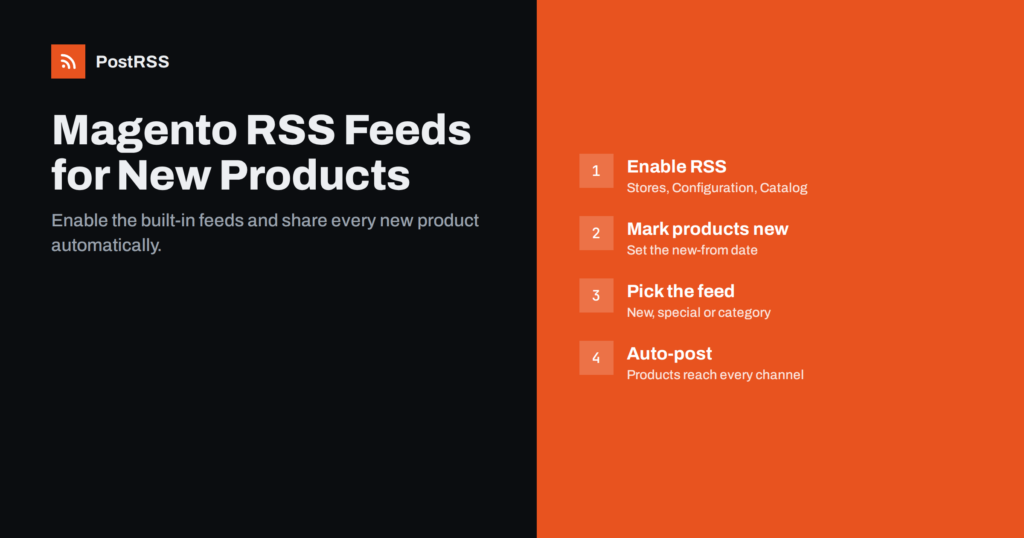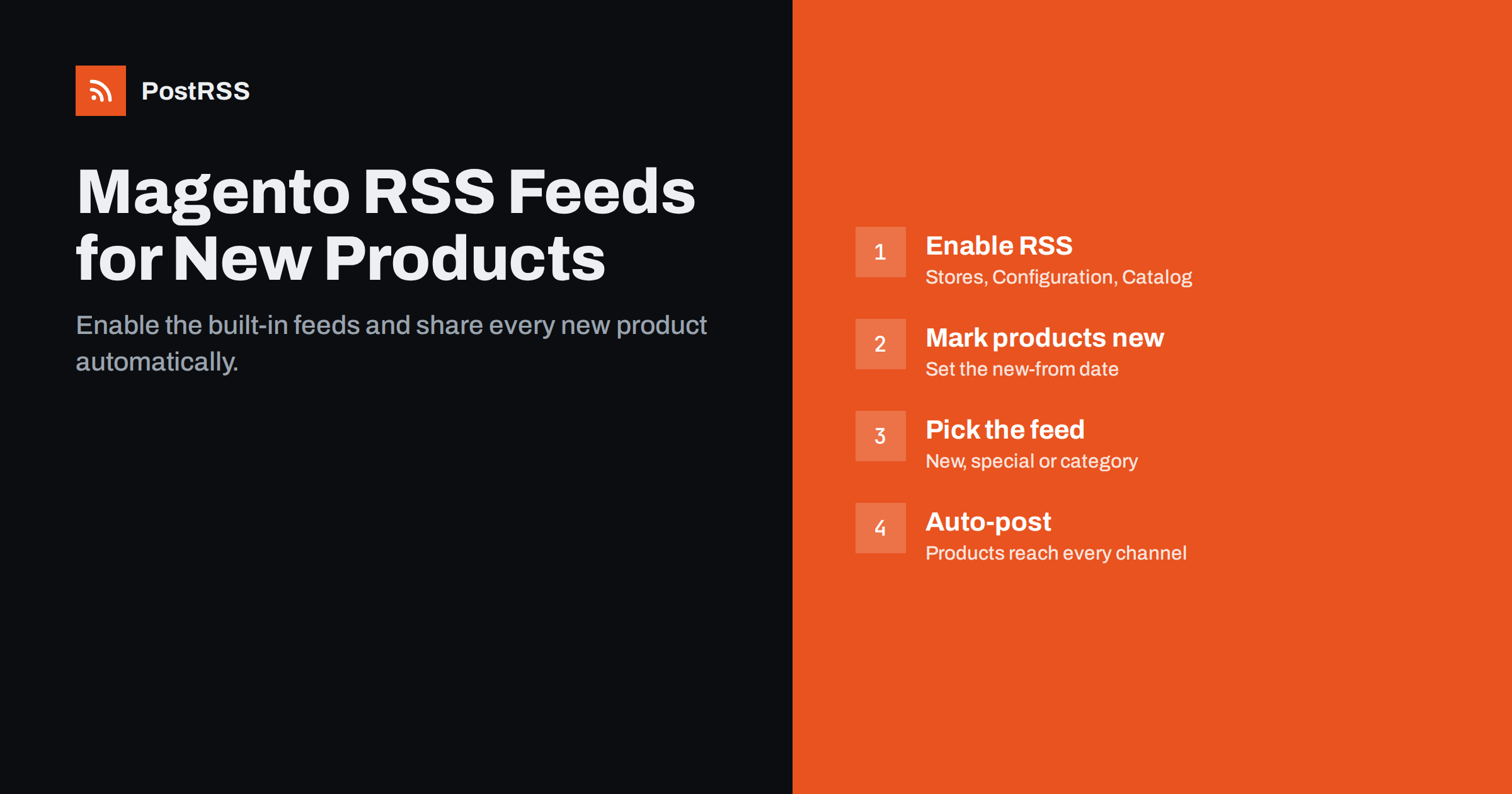
Short answer: Magento Open Source and Adobe Commerce include built-in RSS feeds, but they are switched off by default. Enable them under Stores, Settings, Configuration, Catalog, RSS Feeds, then open /rss/ on your store to see the available feeds, including New Products, Special Products and category feeds. One detail catches many store owners: the New Products feed lists products that are marked as new with a “Set Product as New From” date, not simply every product you add. Once the feed shows the right products, you can connect it to an auto-posting tool and share each new product to social media automatically.
Magento has shipped with RSS support for a long time, and Magento 2 and Adobe Commerce continue to include it. The feeds are aimed at shoppers and tools that want to follow what is happening in a store. Depending on configuration and version, the available feeds typically include:
These feeds are generated by Magento itself, so they need no extra extension. That is an advantage over platforms where a feed of products requires a plugin, but it also means the feeds follow Magento’s own rules about which products to include, which is where most confusion comes from.
For social media automation, the New Products feed and category feeds are the most useful. Special Products can also work for promotions, as long as you are comfortable sharing sale prices publicly.
The feeds are controlled in the admin configuration. The exact labels can differ slightly between versions, but the path is broadly the same:
After saving, visit https://yourstore.com/rss/. On most installations this page lists the enabled feeds with links, which is the easiest way to find the exact URL for each one. The URLs usually follow a pattern that includes the feed type and the store ID, for example a path containing type/new_products y store_id/1. Copy the URL from the list rather than typing it by hand.
The most common complaint about the Magento New Products feed is that it is empty, or that it does not show products that were just added. The reason is how Magento defines “new”.
A product is not new because it was created recently. It is new when it has a date range set in the fields usually labelled Set Product as New From y Set Product as New To. The New Products feed lists products whose “new from” date has started and whose “new to” date, if any, has not yet passed. A product without these dates will not appear, however recent it is.
In practice, you have a few options:
Also check that products are enabled, visible in the catalogue, assigned to the correct website and in stock if your configuration hides out-of-stock items. Any of these can keep a product out of the feed.
Category feeds are often the most flexible option for social media. Because each category has its own feed, you can route products to the most relevant channels:
Category feed URLs usually include the category ID. You can find the ID in the admin under Catalog, Categories, where it appears next to the category name or in the URL while editing. Again, the /rss/ overview page is the easiest way to get working links for top-level categories.
Keep in mind that category feeds list products in the category, which may include older products, depending on how the feed sorts and limits items. Auto-posting tools usually track which items they have already seen, so they only post products that appear new to them, but the first connection may treat existing products as new. Decide whether you want that initial catch-up or prefer to start only with future products.
Before connecting any automation, open the feed and look at the raw XML. Check each item for:
Magento’s feeds were designed for feed readers, so the description may contain price tables or layout markup that looks cluttered on social media. If that is a problem, choose a message format in your auto-posting tool that uses only the item title and the page’s own title or description, rather than the feed description. Many product pages have good Open Graph tags from the theme or an SEO extension, which gives a clean image and description for link previews. Running the feed through a validator, as described in RSS feed validation before auto-posting, also helps catch structural errors.
Magento stores commonly use full page caching, Varnish, a CDN or security layers. These can affect feeds in ways that look like automation problems:
For the caching side in general, see RSS feed caching and delayed auto-posts. For firewall and bot protection issues, the principles in our Cloudflare guide apply to other providers too.
Once the feed is right, connecting it to social channels is straightforward:
If you run several store views for different countries or languages, create a separate source for each store view’s feed and connect it only to the channels for that market. That keeps language and currency consistent between the post and the page it links to.
Magento shops with a blog extension can add the blog feed as a second source for buying guides and news, which balances product posts with more useful content.
/rss/ page to confirm the feeds still work.A short monthly check of the feed, and one look at a recent post on each social channel, catches most of these problems before customers notice them.
PostRSS works with any RSS or Atom feed, including Magento’s New Products and category feeds. It checks each feed every 5 minutes and posts new items, with the image from the feed item or the product page’s Open Graph tags, to the networks you connect. You can choose the message format per target, limit the number of posts per update, filter items by keywords and add UTM parameters to product links. PostRSS also has official plugins for PrestaShop and OpenCart, and the options for all platforms are on the features page.
Magento already has the feeds a store needs for automated product announcements; they just need to be enabled and understood. Turn on RSS in the catalogue configuration, find the exact URLs on the /rss/ page, remember that the New Products feed depends on the “new from” date, and use category feeds for finer routing. Check the feed for clean links and images, then let an auto-posting tool share every new product with your customers.
Yes. Magento Open Source and Adobe Commerce include RSS feeds for new products, special products, discounts and categories. They are disabled by default and can be enabled under Stores, Configuration, Catalog, RSS Feeds.
After enabling RSS, open /rss/ on your store. Most installations show a page listing the enabled feeds with links. Copy the URLs from there rather than typing them manually.
Products appear in that feed only when they have a “Set Product as New From” date that has started. Set the date for new products, or use a category feed instead. Also check that products are enabled and visible.
Yes. Magento provides category feeds, so you can use the feed for a single category as the source. That lets you send different product types to different social channels.
Caching can delay updates, and category feeds may include existing products in the category. Check cache settings for the RSS URLs and decide whether your auto-posting tool should catch up older items when first connected.
What changed in the networks, what broke, and how to fix it before it costs you reach.
 English
 Lietuviškai
 Deutsch
 Français
 Русский
 Español
 Polski
 Italiano
 Українська
 Čeština
 Português
 日本語
日本語 Latviešu valoda
 Eesti
Eesti Magyar
 Bahasa Indonesia
 Türkçe
 हिन्दी
 Ελληνικά
 العربية
 ไทย
ไทย Tiếng Việt
 Română
 Bahasa Melayu
 বাংলা
বাংলা