Updated: 2026-09-28
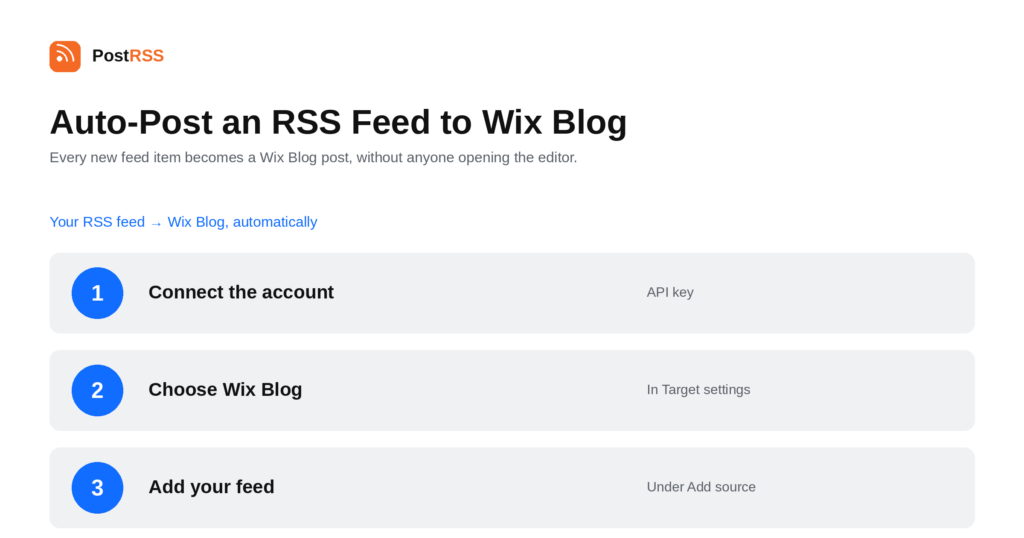
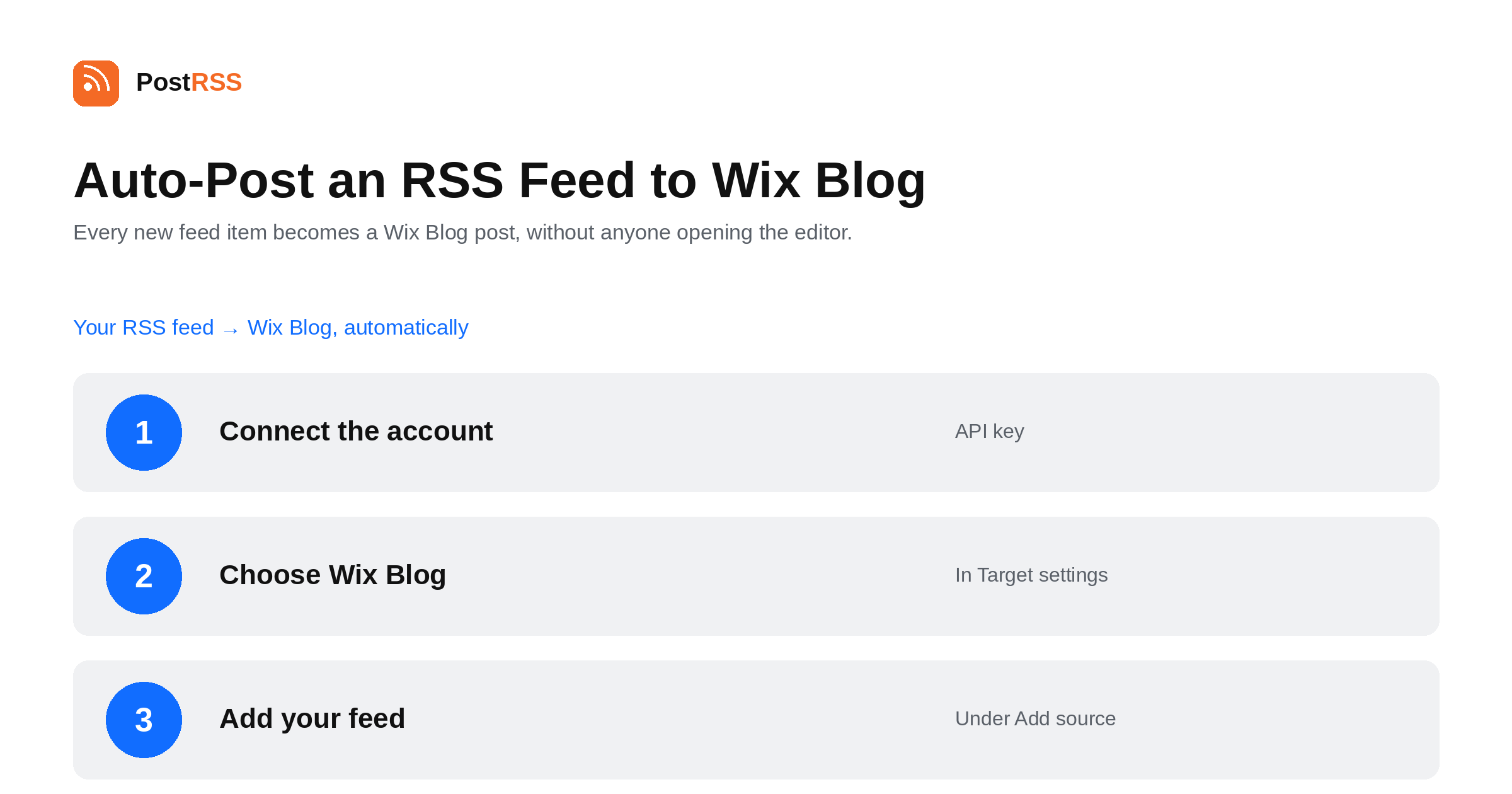
Short answer: create an API key in your Wix account with the Manage Blog permission, and add it to PostRSS together with your site ID under Accounts → Add new Wix Blog account. Then open Ziele → Add feed, choose Wix Blog in Target settings and add your feed under Add source (Type = RSS feed, Link = your feed address). Each new item is created and published as a Wix Blog post with an image, paragraphs and a link back to the original. Wix Blog is included from the Professional plan.
Wix is a site builder first and a blogging platform second, which is exactly why this comes up. Companies build a marketing site in Wix because it looks the way they want, then discover that keeping its blog current means somebody opening the Wix editor and retyping an article that already exists somewhere else. This guide is the long version; the auto-post RSS to Wix Blog page has the short one.
Wix needs two pieces of information, and people usually have trouble with the second one.
Both go into PostRSS together. The API key is a credential for your Wix account, so it belongs in the same category as a password: not in a shared document, not in a ticket, and revoked in Wix the moment it is no longer needed.
Each new feed item becomes a complete Wix Blog post rather than a link: the image, the text laid out in paragraphs, and a link back to the original article. It is published, not held as a draft.
That last detail is worth planning around. Because posts go live as they arrive, the quality of your feed is the quality of your blog. A feed shipping full text with a proper featured image produces posts that look deliberate; a summary-only feed produces a blog of stubs. If your source feed is set to excerpts, change that before you connect anything — it is a setting in your CMS, and it is the single biggest factor in how this looks.
If you are mirroring your own articles onto a Wix site, you are publishing the same text on two domains. Search engines resolve that by choosing one version to rank, and the choice may not be the one you want.
PostRSS includes a link back to the original in every post it creates, which is honest and useful for readers. If search performance on the original matters to you, it is worth checking what Wix lets you do about canonical tags on blog posts and treating the mirror as distribution rather than as a second place you expect to rank. For a Wix site that is the primary home of the content, none of this applies.
PostRSS publishes items that appear in the feed after the Target starts running. It does not import the back catalogue — the alternative would be a destination flooded with years of archive on its first day.
When a destination goes quiet, the feed is usually the cause. Open the feed URL in a browser first.
All four are fixed in your content system.
Wix Blog is included from the Professional plan. Each destination you connect counts as one Target, and your plan decides how many Targets and how many posts a month you get. An annual subscription is cheaper than paying monthly. Current limits per tier are on the pricing page, and the full lineup of 66 networks is on the supported networks page. The Wix Blog page has the short version of the setup.
Manage Blog. A key without it will connect successfully and then fail when PostRSS tries to create a post, which is the most common setup problem here.
Because a Wix account can contain more than one site, and the key alone does not say which blog the posts belong in.
No. Each new feed item is created and published as a Wix Blog post, so it is worth checking that your source feed carries full text and an image before connecting it.
Yes, when the feed item carries one. Items without an image produce posts without one — nothing can supply a picture the feed never sent.
Publishing the same article on two domains is duplication, and search engines will pick one to rank. Every post links back to the original; if search performance on the original matters, treat the Wix copy as distribution rather than as a page you expect to rank.
Yes. Each site is a separate Target with its own key and site ID, and the same feed can be a source for all of them.
No. Only items appearing after the Target starts running are published.
Wix Blog is a two-credential setup with one thing that catches people out: the API key must carry the Manage Blog permission, and you need the site ID as well. Get those right, make sure your source feed ships full text and an image, and a blog that used to be updated by hand updates itself. It is included from the Professional plan.
What changed in the networks, what broke, and how to fix it before it costs you reach.
 English
 Lietuviškai
 Deutsch
 Français
 Русский
 Español
 Polski
 Italiano
 Українська
 Čeština
 Português
 日本語
日本語 Latviešu valoda
 Eesti
Eesti Magyar
 Bahasa Indonesia
 Türkçe
 हिन्दी
 Ελληνικά
 العربية
 ไทย
ไทย Tiếng Việt
 Română
 Bahasa Melayu
 বাংলা
বাংলা