RSS to 66 social networks: Facebook, Instagram, X, LinkedIn, Telegram and more ব্লগ অ্যাফিলিয়েট যোগাযোগ
Updated: 2026-09-28
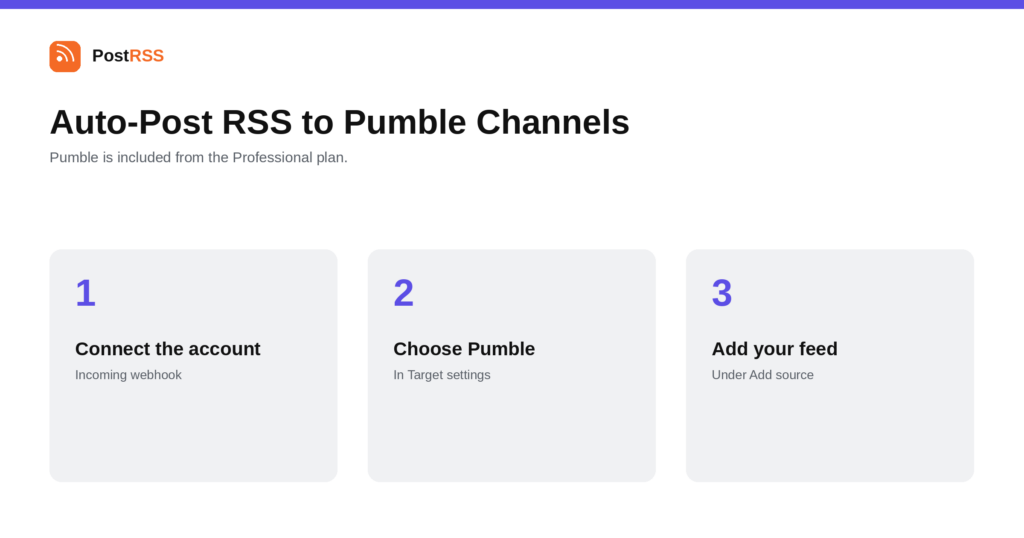
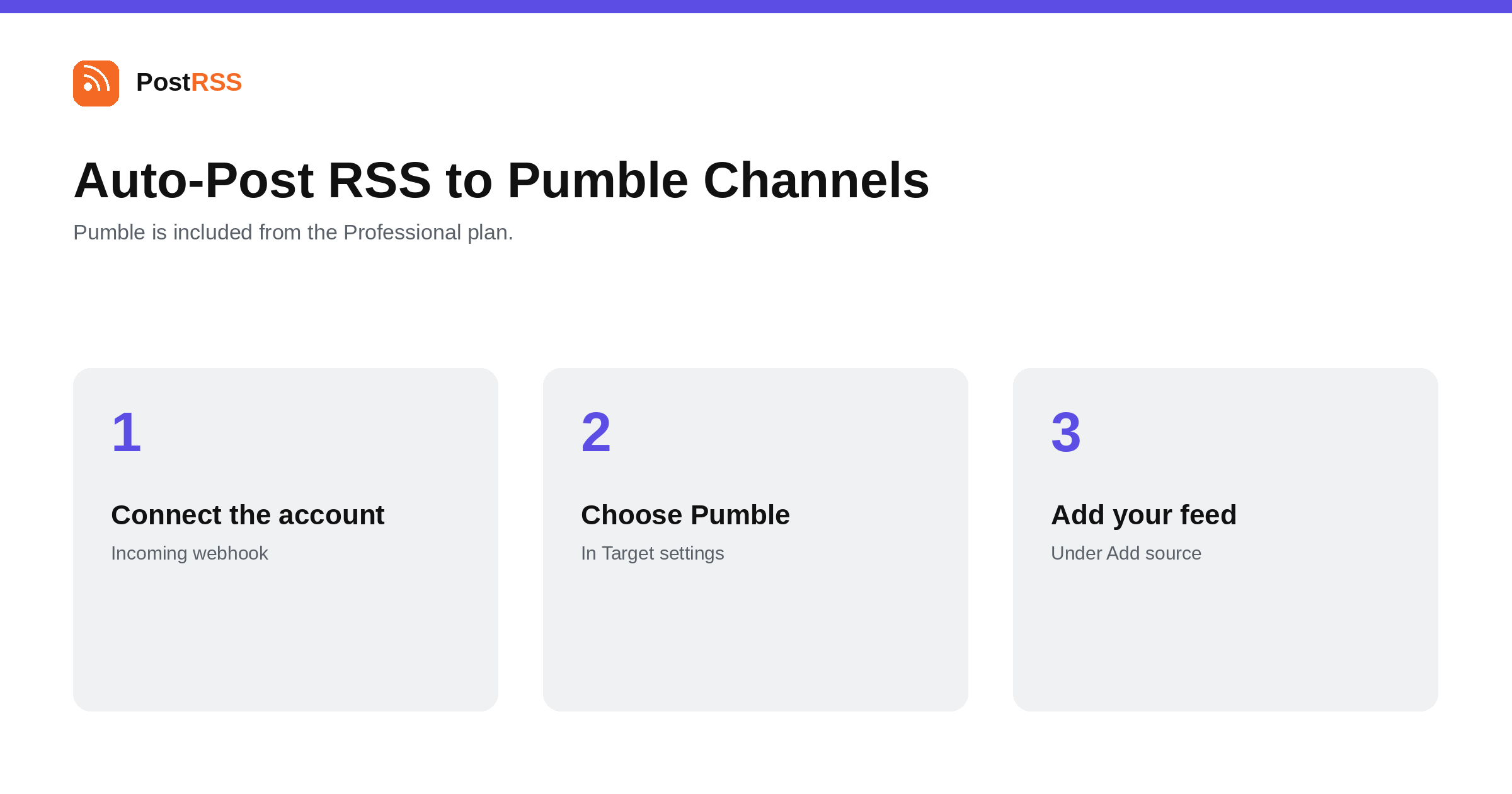
Short answer: create an incoming webhook for the Pumble channel and paste its URL into PostRSS under Accounts → Add new Pumble account. Then open টার্গেট → Add feed, choose Pumble in Target settings and add your feed under Add source (Type = RSS feed, Link = your feed address). Each new item appears in the channel with its text and a link. Pumble is included from the Professional plan.
Pumble is a straightforward team chat tool, and its appeal is usually that it does the job without the price or the feature surface of the larger suites. For an RSS feed that makes it easy to work with: one webhook per channel and no platform-specific complications. This guide is the long version; the auto-post RSS to Pumble page has the short one.
All of these connect the same way, and it is worth being clear about what that means. An incoming webhook is created inside the channel or workspace by somebody who can administer it, the platform returns a URL, and anything holding that URL can post into that one place. There is no developer account, no application to submit and nothing to get approved.
The security consequence is blunt: the URL is the credential. No username, no token exchange, no second factor. Keep it out of public repositories, shared documents and support tickets, and treat regenerating it as the way to revoke access.
Pumble's own documentation leans on the same idea worth applying here: different channels for different subjects. Because each channel has its own webhook and each webhook is its own Target, one source feed can be split across as many channels as you like — or, more usefully, several different feeds can each go where they belong.
The practical version for most sites is category feeds. A WordPress site exposes one per category, and so do most other content systems. Pointing the product category at the product channel and the engineering category at the engineering channel takes the same five minutes as pointing everything at a general channel, and produces something people keep rather than mute.
Pumble channels tend to be small and purposeful, which suits a narrow feed rather than a broad one:
The test is simple: if a person in that channel would not have subscribed to the feed themselves, it probably does not belong there.
From the integration side, Pumble is interchangeable with Mattermost, Zulip, Zoho Cliq, Flock, Twist and the rest: one incoming webhook per channel, send-only, nothing to build. Organisations pick between them on price, hosting and feature depth rather than on how well they take a feed.
That interchangeability is useful if you are migrating. Connecting the new tool does not mean disconnecting the old one, so both can run in parallel during a move and the feed keeps working throughout.
Before investigating the webhook, look at the feed itself — it is the more common culprit.
If the feed is fine and the channel is still quiet, then the webhook is worth checking — most often because it was regenerated or the channel was archived.
Each new feed item arrives as a message with its text and a link back to your article. It is deliberately compact: a working channel scrolls, and the job of the message is to say that something exists, not to reproduce it.
PostRSS publishes items that appear in the feed after the Target starts running. It does not import the back catalogue — the alternative would be a destination flooded with years of archive on its first day.
Pumble is included from the Professional plan. Each destination you connect counts as one Target, and your plan decides how many Targets and how many posts a month you get. An annual subscription is cheaper than paying monthly. Current limits per tier are on the pricing page, and the full lineup of 66 networks is on the supported networks page. The Pumble page has the short version of the setup.
The connection itself is a standard incoming webhook created in your Pumble workspace. Whether webhooks are available on your tier is a question for Pumble's own plan documentation.
No. You create an incoming webhook for the channel and paste its URL into PostRSS.
Yes. Use the category or tag feeds your content system already publishes, and point each at the channel it belongs in. Each pairing is one Target.
Yes. Anyone holding it can post into that channel, so keep it private.
No. Incoming webhooks are send-only.
The Professional plan, alongside the other team-chat destinations.
No. PostRSS publishes items that appear after the Target starts running, so an established feed does not backfill its archive into the channel.
Delete or regenerate the webhook in Pumble. The URL is the whole authorisation, so removing it ends delivery immediately without any change in PostRSS.
Pumble is one of the simplest destinations on the list: create a channel webhook, paste the URL, point a Target at the right feed. It is included from the Professional plan.
What changed in the networks, what broke, and how to fix it before it costs you reach.
 English
 Lietuviškai
 Deutsch
 Français
 Русский
 Español
 Polski
 Italiano
 Українська
 Čeština
 Português
 日本語
日本語 Latviešu valoda
 Eesti
Eesti Magyar
 Bahasa Indonesia
 Türkçe
 हिन्दी
 Ελληνικά
 العربية
 ไทย
ไทย Tiếng Việt
 Română
 Bahasa Melayu
 বাংলা
বাংলা