RSS'den 66 sosyal ağa: Facebook, Instagram, X, LinkedIn, Telegram ve daha fazlası Blog Satış Ortaklığı İletişim
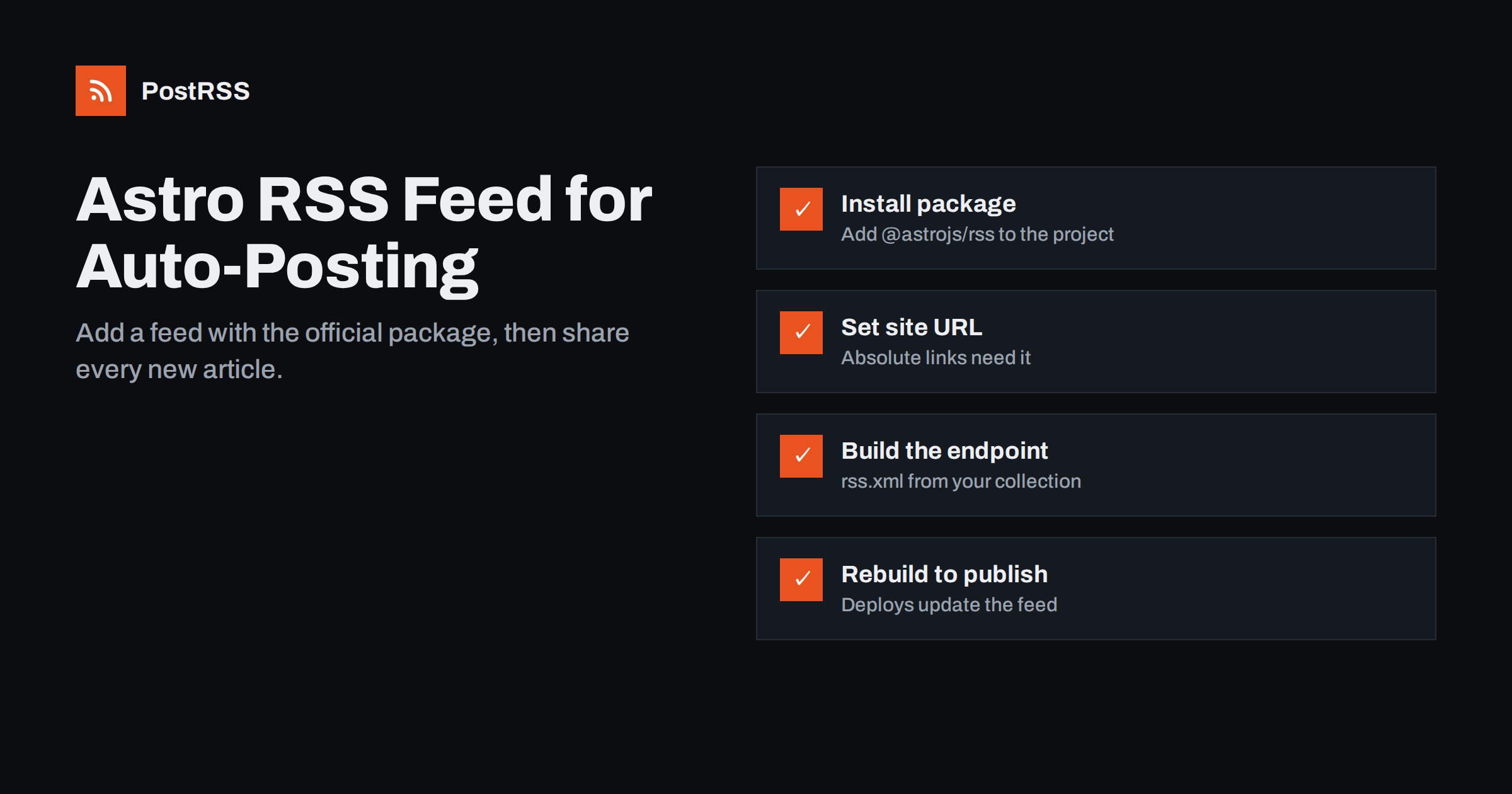
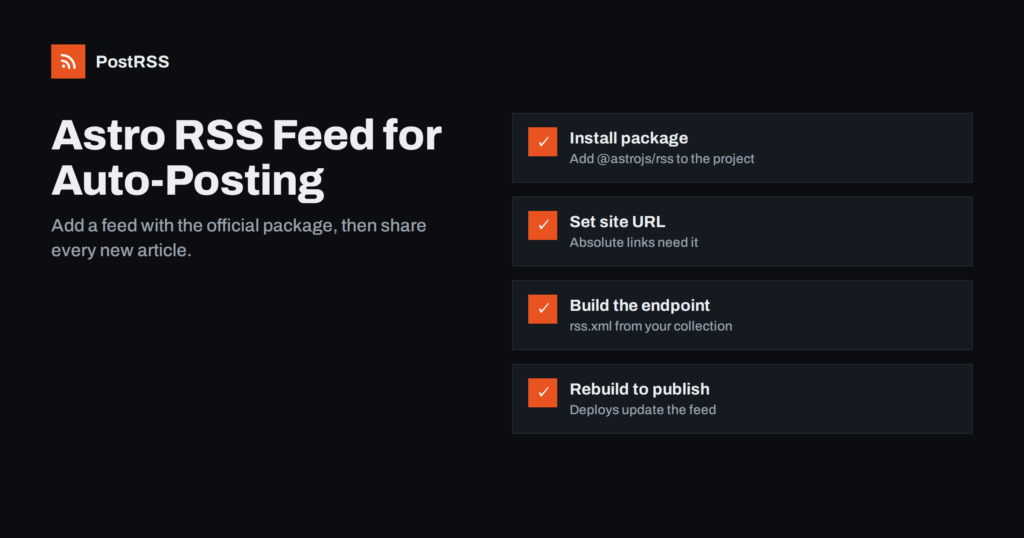
Short answer: Astro does not create an RSS feed by default, but the official @astrojs/rss package makes it easy. Install the package, set your site URL in the Astro configuration, and create an endpoint such as src/pages/rss.xml.js that returns your blog posts as feed items with a title, publication date, description and link. Because most Astro sites are static, the feed updates only when the site is rebuilt and deployed, so auto-posting tools see new articles after each deploy. Once the feed is live and validated, you can connect it to an auto-posting service and share every new article automatically.
Astro has become a popular choice for blogs, documentation, portfolios and marketing sites because it produces fast pages with little JavaScript. Many developers and content teams move to Astro from WordPress, Gatsby or other generators. One thing they sometimes lose along the way is the RSS feed that their old platform created automatically.
A feed still matters. It lets readers follow your site in feed readers, lets aggregators and newsletters pick up new articles, and gives automation tools a reliable signal that something new has been published. Without a feed, sharing each new article on social networks means doing it by hand after every deploy.
It also helps to think about who will consume the feed. Feed readers need clean titles and links. Aggregators and newsletter tools often want descriptions or full content. Auto-posting services need a reliable link and, ideally, an image. A single well-built feed can serve all of them, as long as the basics are right.
The good news is that Astro’s official feed package covers the common case in a few lines of code, and it works with both static and server-rendered sites.
Add the official RSS package to your project with your package manager, for example npm install @astrojs/rss. Then open astro.config.mjs and make sure the site option is set to your live address, such as https://example.com.
The site setting is essential. The feed package uses it to turn relative paths into absolute URLs, and feed items must link to full addresses. If site is missing or still points to a development or preview domain, your feed will contain broken or wrong links, and every auto-posted item will point to the wrong place. This is the most common Astro feed mistake, and it is easy to miss because the site itself works perfectly in the browser. Our article on relative URLs in RSS feeds explains why absolute links matter so much.
In Astro, a feed is an endpoint: a file in src/pages that returns data instead of a page. A typical feed for a blog built with content collections looks like this:
import rss from '@astrojs/rss';
import { getCollection } from 'astro:content';

export async function GET(context) {
  const posts = await getCollection('blog');
  return rss({
    title: 'Example Blog',
    description: 'Practical articles about our topic',
    site: context.site,
    items: posts.map((post) => ({
      title: post.data.title,
      pubDate: post.data.pubDate,
      description: post.data.description,
      link: '/blog/' + post.id + '/',
    })),
  });
}
Save it as src/pages/rss.xml.js, and the feed will be available at /rss.xml. Adjust the collection name, the field names and the link pattern to match your project. Depending on your Astro version and collection setup, the identifier may be called id veya slug; check how your post pages build their URLs and use the same pattern, so feed links match real pages.
If your site is not built on content collections, the package can also build items from pages loaded another way, for example with Astro’s file import helpers. The principle is the same: collect the posts, turn each into an item with title, date, description and link, and pass them to the rss() function. Sites that publish several content types, such as articles and podcast episodes, can create more than one endpoint, for example /rss.xml for articles and /podcast.xml for episodes.
Older tutorials may show a lowercase get function; current Astro versions use uppercase HTTP method names for endpoints. If you copy code from an old guide and the feed returns nothing, that is a likely cause.
Content collections usually contain drafts and sometimes posts with future dates. The feed should include only what is actually published:
draft field, exclude those items before mapping them to feed items.Sites using server-side rendering behave differently. If the feed endpoint is rendered on request rather than at build time, it can reflect new content immediately, but it also runs on every request. In that case, add sensible caching headers so the feed is not regenerated for every reader and tool, while still updating within minutes of a new post.
Remember that on a static site, a post with a future date only appears in the feed after a build that happens on or after that date. If you rely on scheduled publishing, you need a scheduled rebuild, for example a daily deploy triggered by your hosting platform or CI system.
A feed with only titles and links works, but richer items make better social posts and a better reading experience:
Whatever you choose, be consistent. Tools handle feeds most reliably when every item has the same structure, so a feed where some items carry images in the content and others in a media element can produce uneven results on social networks.
For social media, Open Graph tags are often the simplest image solution. Set og:image, og:title ve og:description in your article layout, and many auto-posting tools and social networks will use them for link previews even when the feed itself has no image.
Add an autodiscovery link to the head of your pages, usually in your main layout, so browsers, readers and tools can find the feed from your homepage URL:
<link rel="alternate" type="application/rss+xml" title="Example Blog" href="/rss.xml" />If you publish several feeds, add one autodiscovery link for each, with a clear title such as “Articles” or “Podcast”, so readers can choose the one they want.
Also link to the feed visibly, for example in the footer or on a subscribe page. See RSS akışı otomatik keşfi for details on getting this right.
Run a production build and deploy the site. Then open https://yourdomain.com/rss.xml in a browser and check the raw XML:
It is a good idea to add a simple automated check to your build or CI pipeline as well. Even a basic test that fetches the generated rss.xml, parses it as XML and confirms that the newest post appears with an absolute link will catch most regressions before they reach production and your subscribers.
Check the feed again after your next article is published, to confirm that new items appear after each deploy. If you use a CDN, make sure it does not cache the feed for too long, or new items will reach tools late.
site value, producing relative or preview-domain links.Most of these mistakes share one cause: the feed is treated as a one-time task rather than part of the site. Once it is set up, it tends to be forgotten until something breaks. Keeping the feed code next to your layouts, reviewing it when you change URL structures and testing it in CI keeps it healthy with very little effort.
The last two points are worth special care when you migrate from another platform. If your old feed used different URLs, redirect them and keep item links stable where possible. Our guide to migrations and auto-posting covers how to avoid duplicate posts after such changes.
PostRSS reads any valid RSS or Atom feed, including one generated by Astro. It checks the feed every 5 minutes, so new articles are picked up shortly after each deploy, and posts them with their image, taken from the feed item or the page’s Open Graph tags, to the networks you connect, such as X, LinkedIn, Mastodon, Bluesky, DEV, Facebook Pages and Telegram. You can choose the message format per network, filter items by keywords and add UTM parameters to links. The features page lists the supported networks and options.
An Astro site can have a clean, reliable RSS feed in a few minutes with the official package. Set the site URL, build the feed from your content collection, filter drafts and future posts, add descriptions and images, and link the feed from your layout. Validate it after deploying, keep URLs stable, and connect it to an auto-posting tool so every new article reaches your audience without manual sharing.
No. You add one with the official @astrojs/rss package and a small endpoint file such as src/pages/rss.xml.js. Some Astro blog templates include a feed already, so check your project first.
Usually the site option in astro.config.mjs is missing or points to a development or preview domain. Set it to your live URL and rebuild. Also check that feed links follow the same pattern as your post pages.
On static sites, the feed is generated at build time. New posts appear only after the site is rebuilt and deployed. Scheduled posts need a rebuild on or after their publication date.
You can add image data through extra XML elements, include the image in the full content, or rely on Open Graph tags on the article pages. Many auto-posting tools read Open Graph images from the linked page.
Yes. Once the feed is live and valid, connect it to an auto-posting service. Each new article that appears after a deploy is then shared to the networks you choose.
What changed in the networks, what broke, and how to fix it before it costs you reach.
 English
 Lietuviškai
 Deutsch
 Français
 Русский
 Español
 Polski
 Italiano
 Українська
 Čeština
 Português
 日本語
日本語 Latviešu valoda
 Eesti
Eesti Magyar
 Bahasa Indonesia
 Türkçe
 हिन्दी
 Ελληνικά
 العربية
 ไทย
ไทย Tiếng Việt
 Română
 Bahasa Melayu
 বাংলা
বাংলা