RSS ไปยังโซเชียลเน็ตเวิร์ก 66 แห่ง: Facebook, Instagram, X, LinkedIn, Telegram และอื่นๆ บล็อก พันธมิตร (Affiliate) ติดต่อเรา
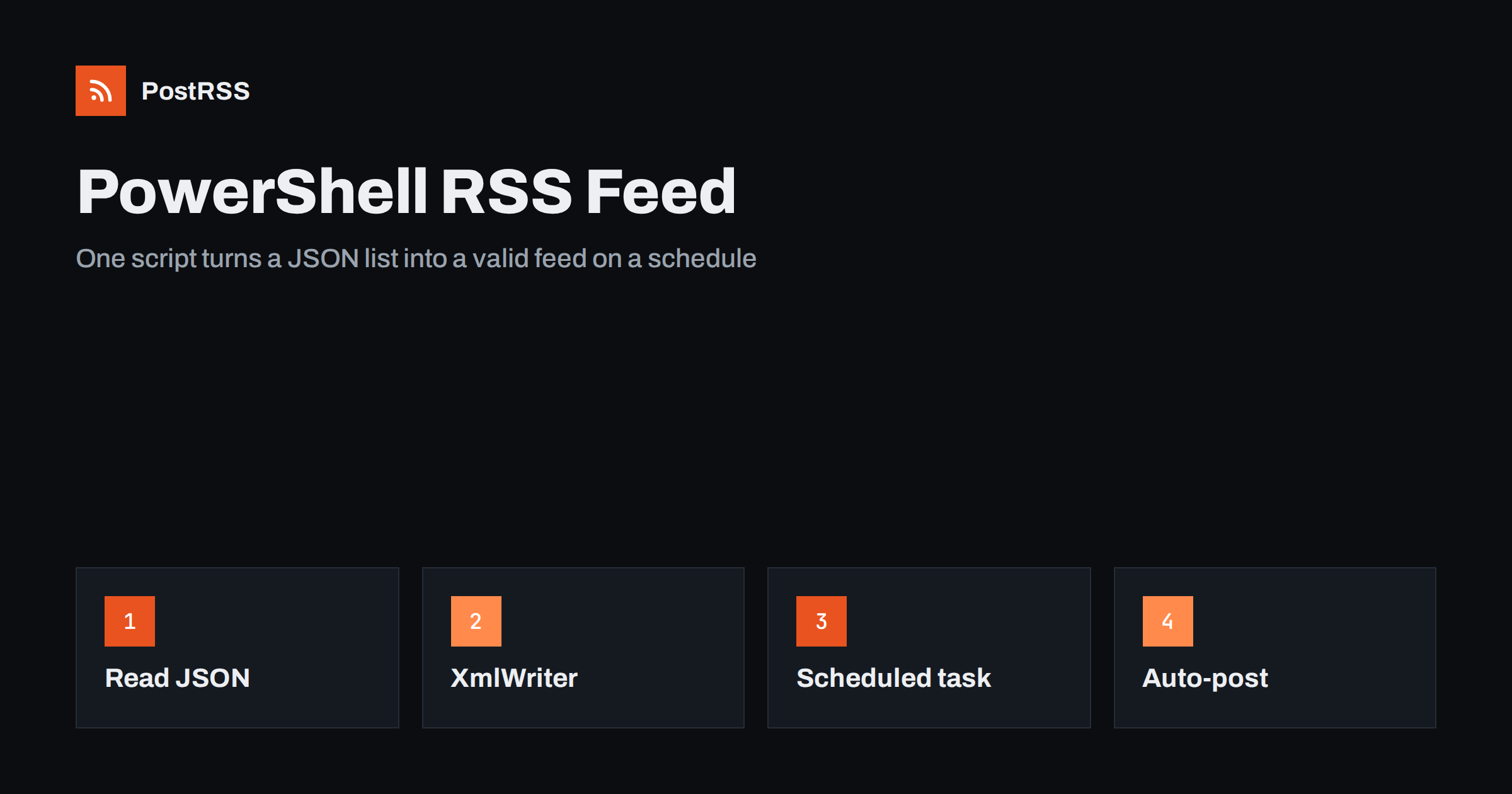
Short answer: To generate an RSS feed with PowerShell, read your items from a JSON, CSV or database source, keep only published items dated in the past, write RSS 2.0 XML with the XmlWriter class so every value is escaped for you, format dates in English UTC, save the file to a temporary name and move it over the live feed.xml, and run the script on a schedule. Then give the public address of the file to an auto-poster so every new item reaches your social channels.
PowerShell is the tool many administrators already use for everything else on Windows and, with PowerShell 7, on Linux and macOS as well. It is a natural choice for small publishing jobs: an intranet that announces notices, an IIS website without a content management system, a status page, or a list of releases kept in a spreadsheet. Writing a feed in a scripting language you already know is often faster than installing a framework. This guide builds a complete PowerShell RSS feed generator, explains why it uses XmlWriter instead of string building, and shows how to schedule it and keep it reliable.
A script is a good fit when content is stored in simple files or small systems:
If your site already runs on WordPress or a static generator, use the feed it provides; see how to find your WordPress feed link. If you would rather run a small web application, see the Flask feed guide.
The example reads a JSON file named posts.json. Each entry has a stable identifier, a title, a slug, a summary, a status and a publication date in ISO format. Replace this step with a query to your own system if you wish. Everything after it stays the same.
[
  {
    "id": "rel-2026-10-18",
    "title": "Version 2.4 is out",
    "slug": "version-2-4",
    "summary": "What changed in the new release.",
    "status": "published",
    "publishedAt": "2026-10-18T07:40:00Z"
  }
]
Keep the identifier separate from the slug. Slugs are edited, and a changed identifier makes an old item look new, so an auto-poster may share it again.
Save the following as New-RssFeed.ps1. It selects the newest twenty published items, writes the XML with XmlWriter and replaces the live file only when the new one is complete.
param(
    [string]$Source  = 'C:\feeds\posts.json',
    [string]$Output  = 'C:\inetpub\wwwroot\feed.xml',
    [string]$SiteUrl = 'https://www.example.com'
)

$ErrorActionPreference = 'Stop'
$culture = [System.Globalization.CultureInfo]::InvariantCulture
$now = [DateTimeOffset]::UtcNow

function ConvertTo-Rfc822([DateTimeOffset]$Date) {
    $Date.UtcDateTime.ToString('ddd, dd MMM yyyy HH:mm:ss', $culture) + ' GMT'
}

$posts = Get-Content -Raw -Encoding UTF8 -Path $Source | ConvertFrom-Json |
    ForEach-Object {
        [pscustomobject]@{
            Id        = $_.id
            Title     = $_.title
            Slug      = $_.slug
            Summary   = $_.summary
            Status    = $_.status
            Published = [DateTimeOffset]$_.publishedAt
        }
    } |
    Where-Object { $_.Status -eq 'published' -and $_.Published -le $now } |
    Sort-Object Published -Descending |
    Select-Object -First 20

$temp = "$Output.tmp"
$settings = [System.Xml.XmlWriterSettings]::new()
$settings.Indent   = $true
$settings.Encoding = [System.Text.UTF8Encoding]::new($false)

$w = [System.Xml.XmlWriter]::Create($temp, $settings)
try {
    $w.WriteStartDocument()
    $w.WriteStartElement('rss')
    $w.WriteAttributeString('version', '2.0')
    $w.WriteAttributeString('xmlns', 'atom', $null, 'http://www.w3.org/2005/Atom')
    $w.WriteStartElement('channel')
    $w.WriteElementString('title', 'Example Product News')
    $w.WriteElementString('link', "$SiteUrl/news/")
    $w.WriteElementString('description', 'Release notes and announcements')
    $w.WriteElementString('language', 'en')
    $newest = if ($posts) { $posts[0].Published } else { [DateTimeOffset]::UnixEpoch }
    $w.WriteElementString('lastBuildDate', (ConvertTo-Rfc822 $newest))
    $w.WriteStartElement('atom', 'link', 'http://www.w3.org/2005/Atom')
    $w.WriteAttributeString('href', "$SiteUrl/feed.xml")
    $w.WriteAttributeString('rel', 'self')
    $w.WriteAttributeString('type', 'application/rss+xml')
    $w.WriteEndElement()

    foreach ($p in $posts) {
        $w.WriteStartElement('item')
        $w.WriteElementString('title', $p.Title)
        $w.WriteElementString('link', "$SiteUrl/news/$($p.Slug)/")
        $w.WriteStartElement('guid')
        $w.WriteAttributeString('isPermaLink', 'false')
        $w.WriteString($p.Id)
        $w.WriteEndElement()
        $w.WriteElementString('pubDate', (ConvertTo-Rfc822 $p.Published))
        $w.WriteElementString('description', $p.Summary)
        $w.WriteEndElement()
    }

    $w.WriteEndElement()   # channel
    $w.WriteEndElement()   # rss
    $w.WriteEndDocument()
}
finally {
    $w.Close()
}

Move-Item -Path $temp -Destination $Output -Force
Write-Output ("Wrote {0} items to {1}" -f @($posts).Count, $Output)Many scripts build XML by joining strings. That works until a title contains an ampersand, a less-than sign or a character that is not allowed in XML. The result is a feed that stops validating and, worse, stops auto-posting without any visible error in your own system. The XmlWriter class escapes text and attribute values for you, writes a correct XML declaration and produces UTF-8 without a byte order mark when you configure it as shown. It also makes the structure visible: every start has an end, and the compiler of the language is not needed to see it. The common declaration problems are explained in RSS feed XML declaration errors.
If your summaries contain HTML, either write them as escaped text, which XmlWriter does automatically, or place them in a CDATA section with WriteCData; see CDATA and HTML in RSS descriptions.
The helper function fixes the culture on purpose. Without an invariant culture, a server with another language setting may print month names in that language, and a feed with a month in another language is invalid. The format is the one required by the RSS specification, for example Sun, 18 Oct 2026 07:40:00 GMT. The script also compares every item with the current UTC time, so items dated in the future stay hidden until their moment. The rules for the date field are described in RSS date formats and pubDate errors.
| Element | Source | Rule |
|---|---|---|
| title | Title column | Written by XmlWriter, so special characters are safe |
| link | Site address plus slug | Always absolute and always the public address |
| guid | Id column | Never changes, even if the slug changes |
| pubDate | Published date | UTC, RFC 822 format, never in the future |
| description | Summary column | Plain text; the first sentences matter most |
The script writes to a temporary file and moves it over the live one only after the writer closed without an error. This matters because the web server may serve the file at any moment. A half-written file would give an auto-poster a broken feed, and some tools react by pausing the source. With the error preference set to stop, a failure leaves the previous feed untouched. If your web server runs on another machine, copy the finished file there with your usual method, such as a file share or a secure copy, using the same write-then-rename idea.
A feed that is only built by hand is not a feed. Register a scheduled task that runs the script every few minutes:
$action  = New-ScheduledTaskAction -Execute 'pwsh.exe' `
           -Argument '-NoProfile -ExecutionPolicy Bypass -File C:\feeds\New-RssFeed.ps1'
$trigger = New-ScheduledTaskTrigger -Once -At (Get-Date) `
           -RepetitionInterval (New-TimeSpan -Minutes 10) `
           -RepetitionDuration (New-TimeSpan -Days 3650)
Register-ScheduledTask -TaskName 'Build RSS feed' -Action $action -Trigger $trigger
Use powershell.exe instead of pwsh.exe if only Windows PowerShell is installed. Run the task under an account that can read the source and write the output folder, and nothing more. On Linux, the same script runs under PowerShell 7, and you can start it from cron or a systemd timer instead. Choose an interval that matches how often content changes: a short interval makes new items appear quickly, and since the script only rewrites a small file, the cost is negligible. Do not choose an interval of hours, because it would delay every share by the same amount.
The web server must return the file with a 200 status and the type application/rss+xml or application/xml. IIS usually maps the xml extension correctly, but check it. A short cache lifetime of a few minutes is sensible; a long one delays every share, as explained in RSS feed caching explained. The correct type is described in the Content-Type guide, and compression in RSS feed compression.
curl -i and check the status, the content type and the cache header. The method is explained in debugging an RSS feed with curl.If something looks wrong later, the checklist in RSS feed not updating helps you find the cause quickly.
PostRSS has been publishing RSS and Atom feeds to social networks since 2014. Paste the address of your feed.xml file, connect your accounts and choose how each post is built from the title, the description or the page title. PostRSS checks the feed as often as every minute and shares each new item, with its image and link, to the channels you choose among 66 supported networks, messengers, team chats and blogs, including LinkedIn, X, Bluesky, Mastodon and Telegram. Keyword filters, UTM parameters and posting windows let you tune each channel, and webhooks connect PostRSS to your own systems. See the PostRSS features page and the plan limits on the pricing page. More developer guides are under the Technical Guide tag.
A PowerShell script is a perfectly good RSS generator. Read a simple source, keep only published items dated in the past, write the XML with XmlWriter so every value is escaped, format dates in English UTC, build links from a fixed site address, replace the file safely and run the script on a schedule. Test the result with curl and a validator, keep the address unchanged and connect it to an auto-poster. After that, every item you add to your list can reach your social channels automatically.
No. It has commands for reading feeds, but you create one yourself with XmlWriter or another XML class from the .NET library. The script in this guide needs no extra module.
Both work. PowerShell 7 runs on several operating systems and is easier to keep current, while Windows PowerShell 5.1 is already installed on most Windows servers. Test the script with the version your scheduled task will use.
Every few minutes is a good balance. A shorter interval makes new items appear sooner and costs almost nothing, because the script only reads a small file and writes a small file.
Yes. Replace the first step with a query that returns the same fields, and keep the rest. Always select only published items and limit the result to about twenty of the newest.
Give every item a stable identifier and use it as the GUID. Avoid editing the publication date of items that are already public, because some tools treat a changed date as a new item.
Yes. PostRSS reads any valid RSS or Atom address that is reachable without a login. Paste the address, connect your channels and new items are shared as soon as they appear.
What changed in the networks, what broke, and how to fix it before it costs you reach.
พัฒนาโดย Internet Solutions ทีมผู้สร้าง PostRSS แต่ละผลิตภัณฑ์ช่วยประหยัดเวลาของคุณในแบบที่ต่างกัน
 English
 Lietuviškai
 Deutsch
 Français
 Русский
 Español
 Polski
 Italiano
 Українська
 Čeština
 Português
 日本語
日本語 Latviešu valoda
 Eesti
Eesti Magyar
 Bahasa Indonesia
 Türkçe
 हिन्दी
 Ελληνικά
 العربية
 ไทย
ไทย Tiếng Việt
 Română
 Bahasa Melayu
 বাংলা
বাংলা