RSS ke 66 rangkaian sosial: Facebook, Instagram, X, LinkedIn, Telegram dan banyak lagi Blog Afiliasi Hubungi Kami
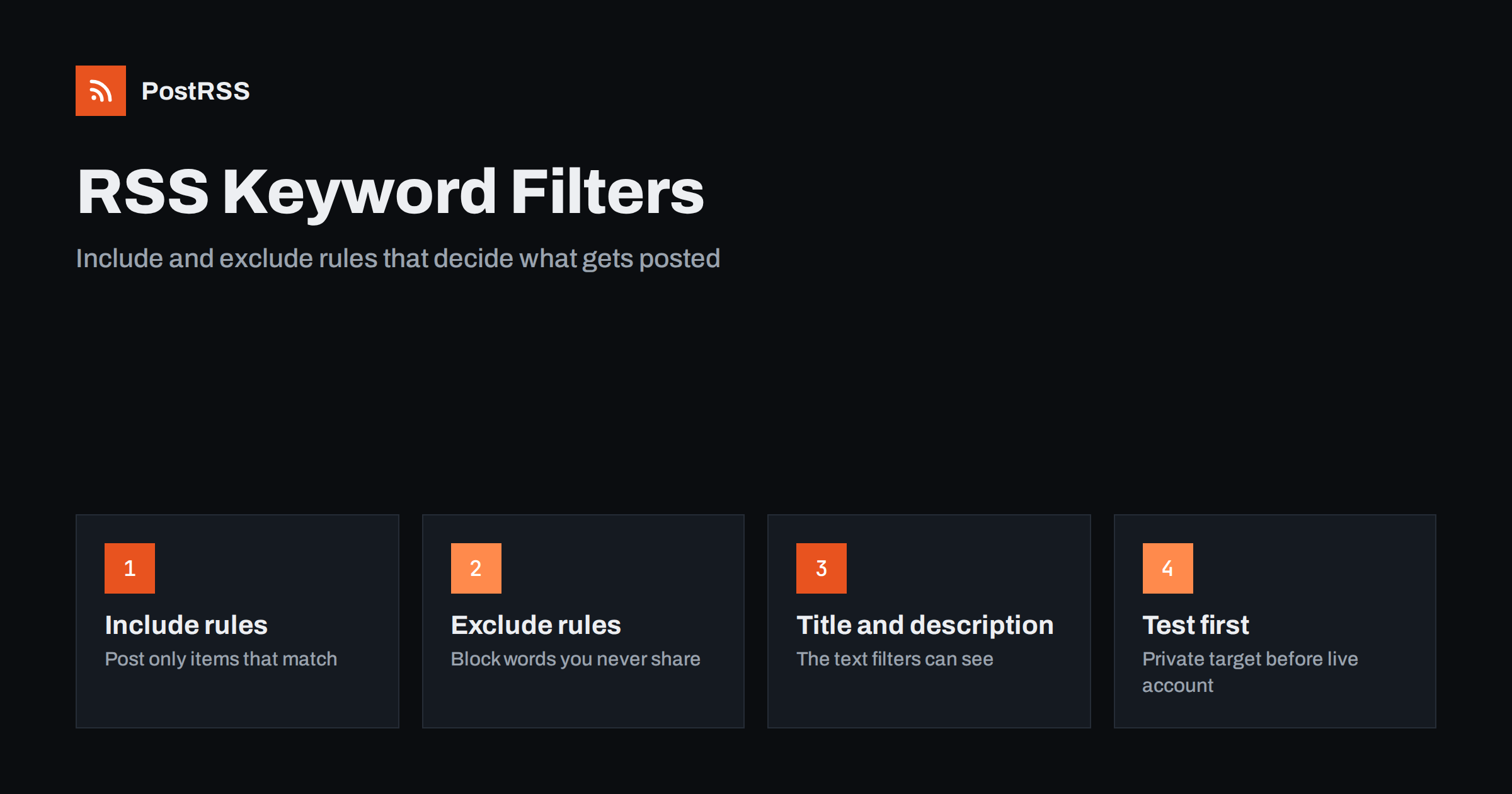
Short answer: RSS keyword filters decide which feed items are allowed to become social posts. An include list posts only items that contain at least one of your chosen words, and an exclude list blocks items that contain words you never want shared. Keep both lists short and specific, check them against the title and description text your feed really contains, and test them on recent items before you connect a live account.
Most feeds carry more than you want to publish. A news site mixes local stories with national wire copy, a shop feed mixes new products with restocks, and a company blog mixes product news with job ads and event recaps. Keyword filters are the simplest way to send only the right items to each channel without building separate feeds in your CMS. This guide explains how include and exclude rules work, how to choose the words, the mistakes that make filters leak or block too much, and how to test them before they go live.
A keyword filter is a rule that sits between the feed and the social account. Every time the auto-poster finds a new item, it reads the text of that item and compares it with your word lists. If the item passes, it is posted. If it fails, it is skipped and nothing appears on the network.
There are two kinds of rules:
Used together, the include list narrows the feed to a topic and the exclude list removes exceptions inside that topic. For example, a cycling club that shares a regional sports feed could include cycling, bike dan race, and exclude motorbike so motor sport stories do not slip through.
A filter can only see the text that the feed provides. In an RSS 2.0 item that usually means the title and the description; in Atom it is the title and the summary atau content. The structure of these elements is defined in the RSS 2.0 specification, and the basics are explained in RSS feed XML anatomy.
This has practical consequences:
sale-banner.jpg inside an image tag.category elements of an item are separate from the title and description. If you want to route by category, use a category feed or category rules instead, as described in how to filter your RSS feed by category.Before writing a single rule, open the raw feed in a browser or with a command-line tool and read three or four items. Note exactly which words appear in their titles and descriptions. You will often find that the word you planned to filter on is not there at all.
The choice depends on what the feed looks like and what the channel is for.
| Situation | Better starting rule | Why |
|---|---|---|
| Broad feed, narrow channel | Include | Only a small share of items fit the audience |
| Focused feed, a few unwanted item types | Exclude | Most items fit; block the known exceptions |
| Third-party or aggregated feed | Include plus exclude | You do not control what appears in it |
| Your own blog with clear categories | Category feed first | More reliable than guessing words in the text |
| Brand-sensitive channel | Exclude as a safety net | Catches words that should never be posted |
A useful rule of thumb: include lists are precise but fragile, because a new article that uses a synonym is silently skipped. Exclude lists are forgiving but leaky, because a new unwanted topic passes until you add its word. Decide which failure you can live with on each channel. Missing a post is usually cheaper than publishing the wrong one on a company page.
Good filter words are distinctive. They appear in the items you want and almost never in the items you do not. Some practical guidelines:
The last point is worth repeating. Filters work best when the content team knows they exist. A short note in your style guide, such as all job ads start with Hiring, turns a guessing game into a dependable rule.
These patterns cover most real setups. Adapt the words to your own feed.
One feed can feed several targets, each with its own filter. That is often cleaner than maintaining several feeds: the same blog feed can go to a developer community with a technical include list and to a general audience with an exclude list for internal topics.
Most filter problems come from a small set of causes:
When an item is skipped by a filter, it is usually skipped for good on that target, because the auto-poster has already seen it. Changing the filter afterwards will not bring back old items unless your tool offers a way to post older items again.
Never connect a new filter directly to your main account. A short test saves you from both silent gaps and embarrassing posts.
Validate the feed itself at the same time. A filter cannot help if the feed is malformed or the description is empty. The W3C Feed Validation Service shows structural problems, and RSS feed validation before auto-posting explains what to fix.
Keyword filters are one of three ways to control what is posted, and each has a place.
In practice the best setups combine them: a category feed to get the right topic, plus a short exclude list as a safety net for words that should never appear on that channel. Routing topics to different accounts is explained in category filtering for auto-posting.
Feeds change. Writers adopt new terms, products get new names, and publishers redesign their feeds. Plan a short review every month or quarter:
Keep a simple document with each target, its include and exclude lists, and one sentence about why each word is there. When several people manage the setup, this record prevents someone from deleting a safety word without knowing why it was added.
PostRSS has posted RSS and Atom feeds to social networks since 2014. For each source you can list keywords to include or exclude; PostRSS matches them in the item title and description and posts only the items that fit. The same feed can be connected to several targets, each with its own settings, so one blog can feed a brand page, a careers channel and a community server with different rules. Filters sit alongside other controls such as hashtags from item categories, UTM parameters, posting windows and the choice of post text, across 66 supported networks, messengers, team chats and blogs. See the PostRSS features page for details and the pricing page for plan limits. More guides on this subject are under the Feed Filtering tag.
Keyword filters turn a broad feed into a feed that fits each channel. Use include rules when only a small part of the feed belongs on a channel and exclude rules to block known exceptions. Choose distinctive words that really appear in the title and description, cover their variants, and agree on fixed title words with your writers. Test every new filter on a private target, review both what was posted and what was skipped, and keep a written record so the rules stay understandable as the feed changes.
Include keywords allow only items that contain at least one of the listed words, and everything else is skipped. Exclude keywords block items that contain any of the listed words, and everything else is posted.
No. A filter can only check the text inside the feed, usually the title and the description or summary. If the feed carries only a short excerpt, words further down the article are not visible to the filter.
Yes, and it is often the best approach. The include list narrows the feed to a topic, and the exclude list removes unwanted items inside that topic, such as sponsored posts or restocks.
The word may appear only in the full article and not in the feed text, it may be spelled differently, or it may also match an exclude word. Open the raw feed and read the exact title and description of that item.
Not always. When you own the site, a category or tag feed is usually more reliable. Keyword filters are best for feeds you do not control, for quick exceptions and as a safety net on brand-sensitive channels.
What changed in the networks, what broke, and how to fix it before it costs you reach.
Dibina oleh Internet Solutions, pasukan di sebalik PostRSS. Setiap produk menjimatkan masa anda dengan cara tersendiri.
 English
 Lietuviškai
 Deutsch
 Français
 Русский
 Español
 Polski
 Italiano
 Українська
 Čeština
 Português
 日本語
日本語 Latviešu valoda
 Eesti
Eesti Magyar
 Bahasa Indonesia
 Türkçe
 हिन्दी
 Ελληνικά
 العربية
 ไทย
ไทย Tiếng Việt
 Română
 Bahasa Melayu
 বাংলা
বাংলা