If you’ve ever opened your own RSS feed in a text editor and seen tags like media:content, itunes:image, or dc:creator mixed in with the standard title un description elements, you’ve run into RSS namespaces. They look cryptic, but they’re doing real work — and for anyone auto-posting from an RSS feed to social media, understanding what these tags actually control can be the difference between a post with the right image and author credit, and one that silently drops both. This guide breaks down the namespaces that matter most for auto-posting, in plain language.
The core RSS 2.0 specification is deliberately minimal: a channel, a list of items, and a handful of required and optional elements like title, link, description, and pubDate. That minimalism kept RSS easy to implement in 1999, but it also meant the base spec had no built-in way to describe things publishers quickly needed — a full-resolution image separate from a thumbnail, a podcast episode’s runtime, or a distinct human author on a multi-writer blog.
Rather than repeatedly changing the core RSS spec (which would break every existing parser), the format’s maintainers adopted XML namespaces: a way to bolt on extra, clearly-labeled tags from an external vocabulary without touching the base spec at all. A namespace declaration at the top of a feed, like xmlns:media="http://search.yahoo.com/mrss/", tells any parser “tags prefixed with media: in this document follow this external specification.” Any auto-posting tool that knows how to read that specification can then pull extra structured data most feeds wouldn’t otherwise expose.
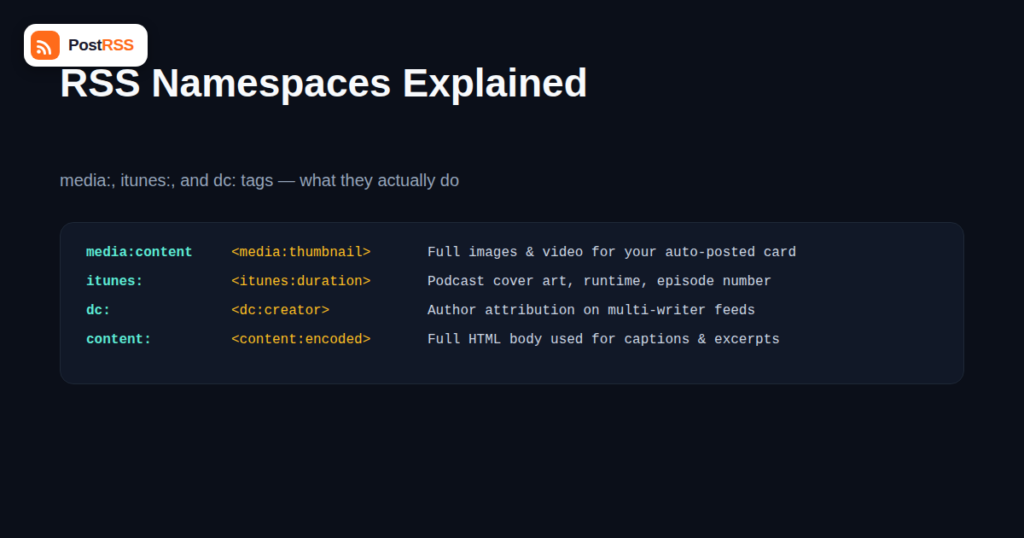
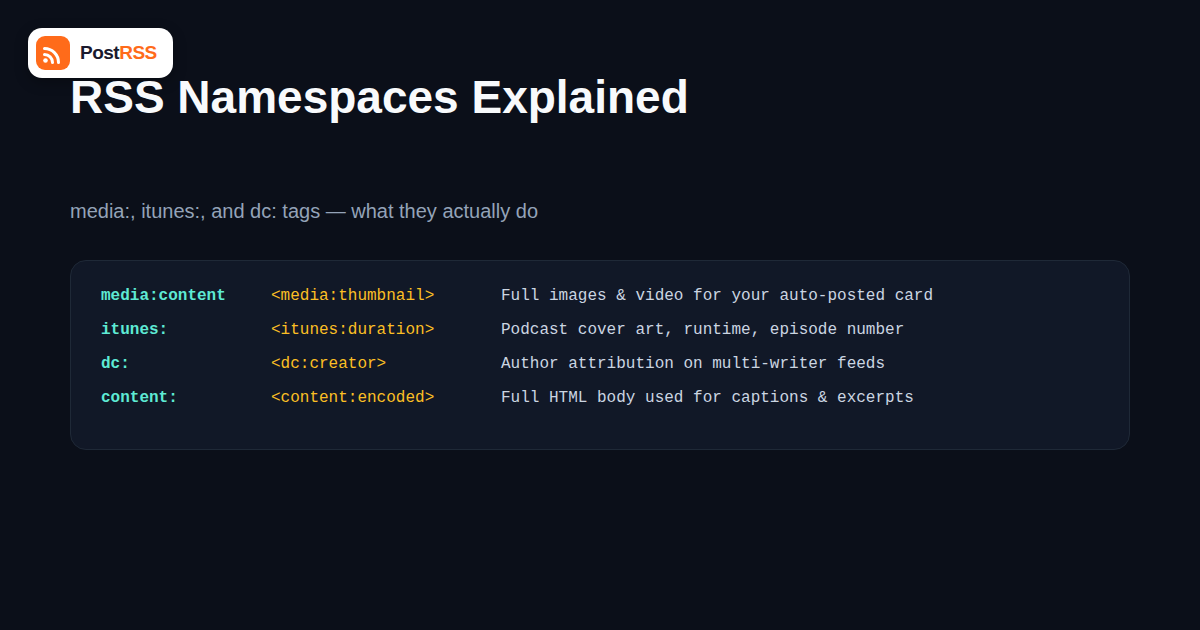
| Namespace | Common Tags | What It Controls | Why Auto-Posting Tools Care |
|---|---|---|---|
| Media RSS (media:) | media:content, media:thumbnail | Full images, video, and thumbnails attached to an item | Often the most reliable source of a high-resolution featured image for a social post |
| iTunes (itunes:) | itunes:image, itunes:duration, itunes:explicit, itunes:episode | Podcast-specific metadata: cover art, runtime, content rating, episode number | Lets a tool auto-post podcast episode art and duration instead of a generic blog thumbnail |
| Dublin Core (dc:) | dc:creator, dc:date, dc:subject | Author attribution, alternate date formats, subject/category tagging | Powers “by [author]” captions on multi-author blogs |
| Content (content:) | content:encoded | Full HTML article body, separate from the plain-text description | The usual source of a longer auto-posted caption or excerpt |
| Atom (atom:) | atom:link | A self-referential link to the feed’s own canonical URL | Helps tools confirm they’re reading the correct, current feed URL |
When an auto-posting tool grabs an image to attach to a Facebook, X, LinkedIn, or Pinterest post, it doesn’t always come from the first <img> tag inside your article’s HTML. Many feeds, especially those generated by WordPress plugins and e-commerce platforms, explicitly declare a media:content vai media:thumbnail tag with a direct URL to a properly sized image, along with attributes like width, height, and medium="image". When present, this is usually the most reliable image source, because it was deliberately chosen by whatever system generated the feed, rather than scraped from inline content that might include unrelated icons, ads, or decorative graphics.
If your feed doesn’t include Media RSS tags at all, most auto-posting tools fall back to scanning content:encoded for the first usable image, or to Open Graph tags on the linked page itself. Both fallbacks work, but they’re less predictable — which is part of why “no image showed up” or “the wrong image showed up” is one of the most common auto-posting troubleshooting questions, and why adding proper Media RSS tags to your feed (most WordPress SEO and RSS plugins support this) is one of the highest-leverage fixes available.
If you’ve compared a podcast RSS feed to a blog RSS feed side by side, the podcast feed is noticeably more cluttered with itunes: prefixed tags. That’s because Apple Podcasts (originally iTunes) effectively became the de facto standard for podcast feed metadata, and every major podcast host and directory, including Spotify, still expects those tags even though the “iTunes” name is a historical artifact. For auto-posting specifically, itunes:image is the field most tools check first for episode cover art, since it’s more reliably podcast-specific than a generic media:thumbnail that might just be a show’s generic logo. itunes:duration un itunes:episode let a tool build a caption like “New episode (34 min): #42 — Interview Title” instead of a bare title and link.
Dublin Core is one of the oldest metadata vocabularies on the web, originally developed for library cataloging long before RSS existed. Its most commonly used tag in RSS feeds is dc:creator, which names the specific author of an item — distinct from a channel-level “managing editor” or a generic site name. For a multi-author blog, magazine, or news site, this is what lets an auto-posting tool generate a caption like “New from Jane Doe:” rather than attributing every post to the site’s generic account. Without a populated dc:creator tag, most tools simply omit author attribution from the auto-posted caption rather than guessing.
Namespace tags are, by design, optional extensions — a feed without them is still perfectly valid RSS. That means auto-posting tools are built to degrade gracefully rather than fail when a namespace tag is absent: no media:content means falling back to inline images, no dc:creator means omitting author attribution, no itunes:duration means posting without a runtime figure. Where things actually break is malformed namespace usage — most commonly, a feed that uses a media: vai itunes: prefix in its tags but forgets to declare the corresponding xmlns:media vai xmlns:itunes attribute on the root <rss> element. Technically, this makes the feed invalid XML-namespace usage, and while lenient parsers will often still extract the data by pattern-matching the prefix, stricter validators and some auto-posting tools may skip those tags entirely. If your featured images or author attribution mysteriously stop appearing in auto-posted content, checking that every namespace prefix used in your feed has a matching xmlns: declaration on the root element is a quick, high-value diagnostic step.
It’s common for a single feed item to expose more than one possible image source at once: a media:thumbnail, a separate media:content, an inline <img> inside content:encoded, and an Open Graph tag on the destination page, all potentially pointing at different pictures. Auto-posting tools generally resolve this with a fixed priority order rather than picking arbitrarily: an explicit, correctly sized media:content image is typically preferred first, followed by media:thumbnail, then the first substantial inline image found in content:encoded, and finally the destination page’s Open Graph image as a last resort. Understanding this order matters most when you’re troubleshooting image quality issues in auto-posted content — if a low-resolution logo keeps showing up instead of your intended featured image, it usually means a higher-priority tag is pointing at the wrong file rather than the tool “choosing” badly.
This is also why swapping a featured image in your CMS sometimes doesn’t immediately fix an auto-posted item that already went out: if a media:content tag was cached with the old URL by an auto-posting tool that had already fetched the feed, it may take until the next fetch cycle for the updated image to be picked up, depending on how aggressively that tool caches feed content between checks.
curl and view the raw XML rather than a rendered preview.<rss> tag for xmlns: attributes — each one lists a namespace your feed declares.media:, itunes:, dc:) to confirm they’re actually populated with real data, not just declared and unused.Most publishers never hand-edit their feed’s XML and shouldn’t need to — that’s exactly what RSS auto-posting tools and feed-generating plugins are for. But when an auto-posted image, caption, or author credit doesn’t look right, knowing that the underlying cause is usually a namespace tag being present, absent, or malformed gives you a concrete place to look instead of guessing. It also explains why two feeds that look similar at a glance can behave very differently once they’re plugged into the same automation tool — the difference is often exactly which namespaces each one bothers to populate.
Almost never. WordPress, Shopify, Substack, Ghost, and most modern publishing platforms generate the relevant namespace tags automatically, especially Media RSS and, for podcasts, iTunes tags. Manual editing is really only relevant if you’re building a custom feed generator from scratch.
Not in a way that causes problems technically — declaring a namespace you don’t use has no real downside beyond a few extra bytes. The more common issue is the opposite: using a prefix without declaring its namespace, which can make tags unreadable to strict parsers.
No. media:content lives inside the RSS feed itself and describes the item directly. Open Graph tags live in the HTML <head> of the linked webpage and are a separate, independent source of image and metadata that auto-posting tools often use as a fallback.
This usually means itunes:image is missing or still pointing at an old URL at the episode level, causing tools to fall back to the channel-level podcast art instead of episode-specific artwork. Check your podcast host’s per-episode image settings first.
Yes — it comes from the RSS Content Module namespace, commonly declared as xmlns:content="http://purl.org/rss/1.0/modules/content/". It’s one of the most widely used namespaced tags because it’s the standard way to include a full HTML article body alongside the plain-text description.
Namespace tags affect how auto-posting tools and feed readers interpret your content, not how search engines rank your actual webpage. Their value is in making your automated distribution more accurate and complete, which can indirectly support SEO through better-performing social traffic, but they aren’t a direct ranking factor.
The most reliable way is to check your platform’s preview or test-post feature against a sample item, since actual parsing behavior can vary between tools even when the underlying feed is identical.
The colon is the namespace prefix separator required by the XML namespace specification itself — it’s what tells a parser “the part before the colon identifies which vocabulary this tag belongs to.” Standard RSS elements like title un description have no prefix because they belong to the default, unprefixed RSS namespace rather than an external one.
RSS namespaces are the quiet infrastructure behind a lot of what makes auto-posted content look polished rather than generic — the right image, the right author credit, the right podcast runtime. You don’t need to write or edit XML to benefit from them, but knowing that media:, itunes:, and dc: tags exist, what each one controls, and what happens when they’re missing gives you a real diagnostic tool the next time an auto-posted item doesn’t look the way you expected.
What changed in the networks, what broke, and how to fix it before it costs you reach.