RSS į 66 socialinius tinklus: Facebook, Instagram, X, LinkedIn, Telegram ir kitus Blogas Partnerių programa Kontaktai
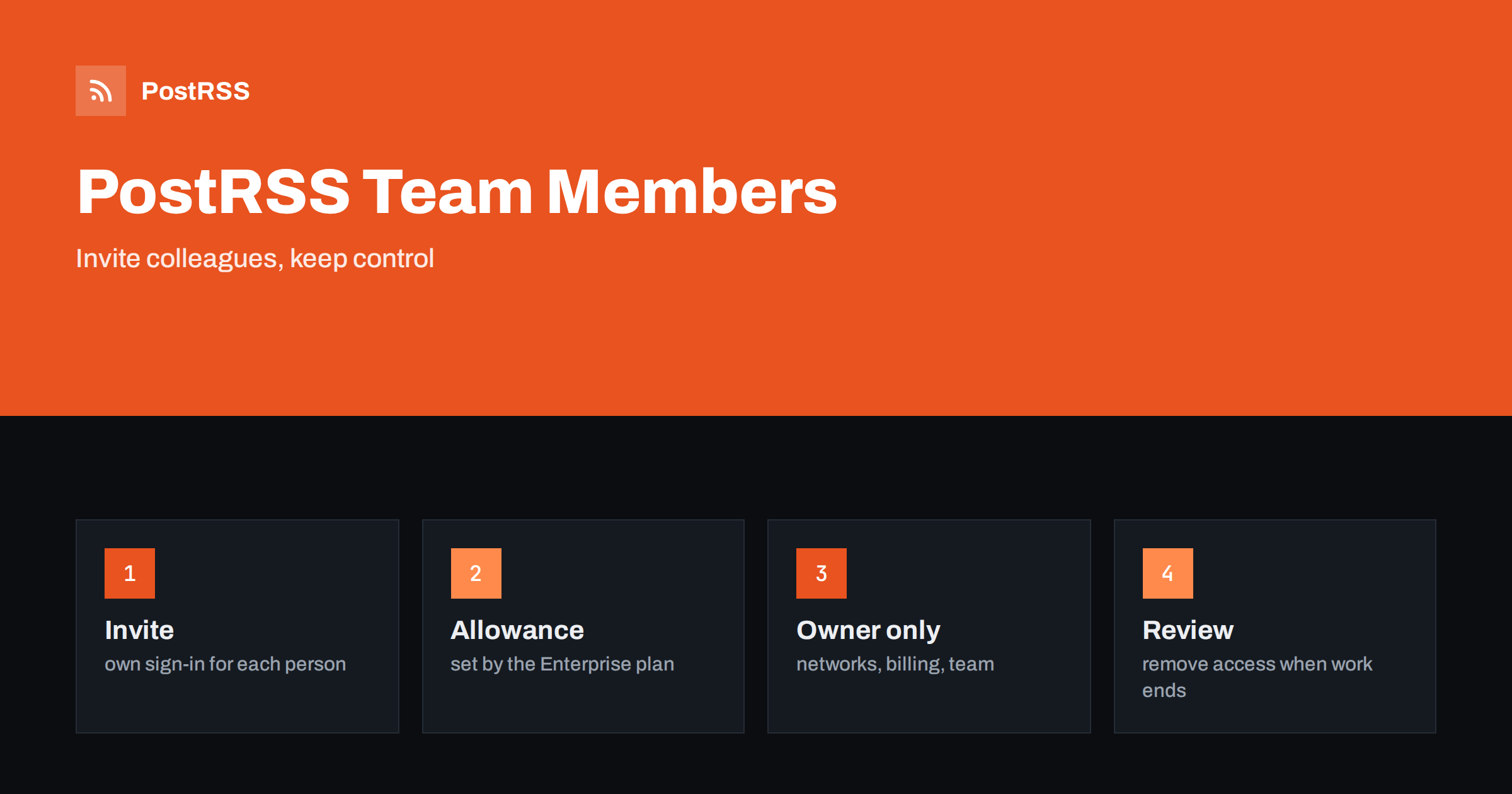
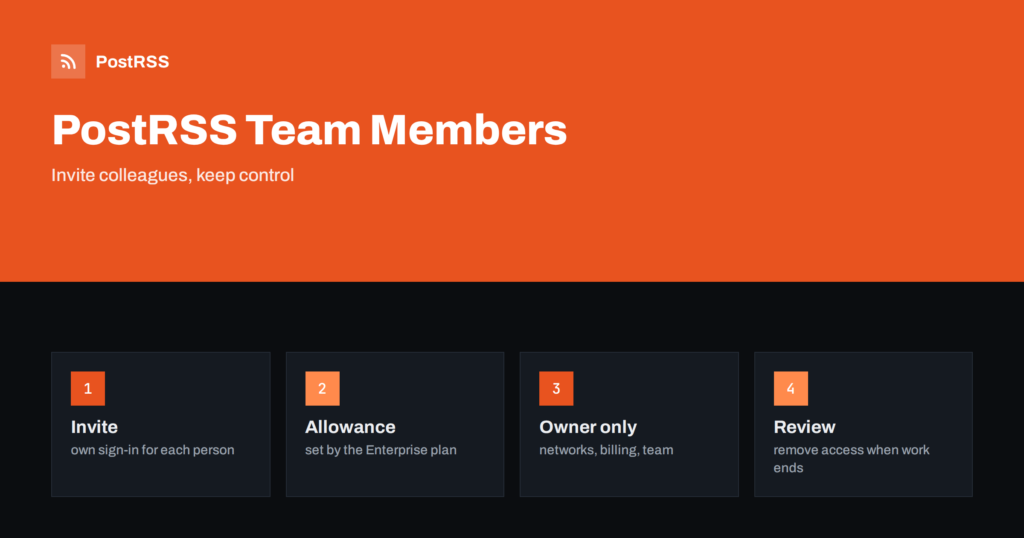
Short answer: On PostRSS Enterprise plans the account owner can invite additional users who work in the same account. Team members see the owner’s data, such as targets, sources and reports, with the same restrictions as on the website, while sensitive actions stay with the owner: connecting or disconnecting social accounts, changing the e-mail or profile, requesting account deletion, viewing the order history and managing the team itself. The number of additional users depends on the Enterprise plan, from one on the first Enterprise plan to ten on the largest.
Auto-posting rarely stays a one-person job. A small business starts with the owner connecting a Facebook Page and a feed. A few months later a marketing colleague needs to adjust the posting hours, an editor wants to check why an article did not go out and an agency partner has to add a new feed for a client. Sharing one password among them is the easy answer and the wrong one: nobody knows who changed what, a departing colleague still has access and a leaked password gives away everything. PostRSS solves this on Enterprise plans with team members, who are invited by e-mail, sign in with their own credentials and work inside the owner’s account. This guide explains what team members can and cannot do, how many you can invite, how to add and remove them, how to organize roles in practice and how to manage the same list through the REST API. The facts come from the live features page, the plan list and the API documentation.
A team member is an additional user of the same PostRSS account. The features page puts it simply: Enterprise plans can invite additional users to work in the same account from the Team menu. The member has a separate sign-in, so actions are tied to a person and not to a shared login. The API documentation adds the rule that matters most: team members get the owner’s data with the same restrictions as on the website. In practice, a member sees the same targets, sources and reports as the owner and can work with them, within the plan limits that apply to the account as a whole. A member does not get a separate set of posts or a separate quota; everything is counted in the owner’s account.
The number of additional users depends on the plan. The plan list published by PostRSS shows that Free, Start, Professional, Professional Plus and Ultimate have no additional users, and that Enterprise plans do, with the allowance growing with the size of the plan.
| Plan | Additional users |
|---|---|
| Verslo | 1 |
| Enterprise 300 | 2 |
| Enterprise 500 | 3 |
| Enterprise 1000 | 5 |
| Enterprise 3000 | 6 |
| Enterprise 5000 | 10 |
The owner is not counted among the additional users. The figures can change, so check the pricing page for the current plans before you decide, and read the full list of options on the features page.
Some actions are reserved for the owner of the account. The API documentation marks them as owner only. They include connecting a new social account and starting its authorization, disconnecting an account, updating the profile, changing the e-mail address, requesting the deletion of the account, reading the order history and managing the team itself. This protects the parts of the account that involve identity, payment and access to your networks. A member can use targets that already exist, adjust their settings within the rules of the plan and read the reports, but cannot cut the connection to a Page or hand the account to someone else. If a new network must be connected, ask the owner to do it once, and then the team can work with it.
The owner opens the Team menu in the web app and invites the person by e-mail address. The person receives an invitation and then signs in with their own credentials. Before you invite, decide who really needs access and what they will do. Use the person’s work address and not a personal one, so that access can be removed when they leave. After the invitation, the member appears in the list with an invitation date, and after the first sign-in the list shows the last login. If the number of members has reached the allowance of the plan, remove someone first or move to a larger plan.
The owner can remove a member from the same list at any time. Do it on the day a colleague leaves a project, an agency finishes a contract or a freelancer completes a job. Removing the member ends that person’s access to the account, and because members work in the owner’s account, the targets and sources belong to the owner. The list also shows whether a member is enabled, so you can see at a glance who can sign in. Review the list once a quarter and remove anyone who no longer needs access. This simple habit is the best protection against forgotten accounts.
The documentation describes one level of access for members, so organize the work by agreement and not by named roles. Write down who changes what, and use the reports to review changes. Because each person signs in separately, you can see in the Team list who has logged in recently.
A new member works best when they know what to look at first. Give them a short list: where the targets are, how to read the report of a run, what the item statuses mean and who to ask about connecting a new network. Start with a read-only walk through the reports, then let them change one small setting, such as the posting hours of a source, and check the effect together. Agree on a place where changes are noted, for example a shared document or a message thread, so that the whole team knows why a filter or a limit was changed. If several people edit the same source, a short note avoids the situation in which one person undoes another person’s improvement without knowing it. The guide to keyword filters is a good first reading for anyone who will adjust what gets posted.
When an outside partner helps with the setup, give them a member account instead of your own login, and remove it when the project ends. Let them prepare sources, filters and schedules, while you connect the networks yourself, because only the owner can do that. Ask the partner to document the final settings, such as the feed address, the message format, the order and the limit for each source, so that your own staff can maintain them afterwards. Review the first week of reports together. If the partner works for several clients, they should have a separate account with each client and never share one login across clients. This arrangement keeps responsibility clear and makes handover simple.
The allowance of additional users grows with the Enterprise plan, but so do the number of targets and the monthly posts, which are shared by everyone in the account. When your team grows, look at the whole picture: how many targets each person manages, how many posts the account makes in a month and whether the reports are reviewed often enough. A plan that matches your workload keeps the account calm. If you find that you invite and remove members all the time, it may be better to make one person responsible for the account and have the others send requests, which keeps the list short and the access easy to audit.
Ask every member to use a strong, unique password and, where the sign-in method allows it, a login from a provider that supports two-step verification. Do not forward invitations. Do not create generic addresses that several people share, because they defeat the purpose of individual access. If a member loses a device, ask them to sign out of it and change their password. When someone leaves, remove the member the same day, and consider whether any accounts that they handled outside PostRSS, such as a Page admin role on a social network, also need to be changed.
The same list is available through the API for owners who automate administration. After signing in with a bearer token, an owner can read the team, which returns the allowance of the plan, the number used and the members with their e-mail, first and last name, whether they are enabled, the last login and the invitation date. The owner can invite a member by sending a request and remove one by its identifier. Members cannot use these actions. A small script can compare the list with your staff directory every month and report people who should no longer have access. The authentication and the structure of requests are described in the API documentation, which is linked from the features page.
Team access pays for itself when more than one person touches the account, when you work with an agency or when you want an audit trail of who signed in. If you are the only person who ever opens PostRSS, you do not need it. If you manage several brands, consider how many targets and posts your work needs, because these limits belong to the plan and are shared by all members. The guide to PostRSS for agencies explains how agencies organize several client websites.
Team members let several people work in one PostRSS account without sharing a password. Enterprise plans include additional users, from one to ten depending on the plan. Members work with the owner’s data inside the same limits, while connecting networks, changing the profile, viewing orders and managing the team stay with the owner. Invite people with their work addresses, review the list every quarter, remove members when their work ends and, if you wish, administer the team through the API.
Enterprise plans include additional users. The number grows with the plan, from one on the first Enterprise plan to ten on the largest. Other plans have none.
No. Connecting and disconnecting accounts is reserved for the owner. After the owner connects a network, members can work with its targets.
No. Members work inside the owner’s account, so posts, targets and other limits are those of the owner’s plan.
The owner removes the member from the Team list, which ends that person’s access. The targets belong to the owner’s account.
Yes. The owner can list members, invite a new one and remove one through the REST API. Members cannot use these actions.
What changed in the networks, what broke, and how to fix it before it costs you reach.
Sukūrė Internet Solutions – PostRSS komanda. Kiekvienas produktas sutaupo laiko savaip.
 English
 Lietuviškai
 Deutsch
 Français
 Русский
 Español
 Polski
 Italiano
 Українська
 Čeština
 Português
 日本語
 Latviešu valoda
 Eesti
 Magyar
 Bahasa Indonesia
 Türkçe
 हिन्दी
 Ελληνικά
 العربية
 ไทย
 Tiếng Việt
 Română
 Bahasa Melayu
 বাংলা