RSS į 66 socialinius tinklus: Facebook, Instagram, X, LinkedIn, Telegram ir kitus Blogas Partnerių programa Kontaktai
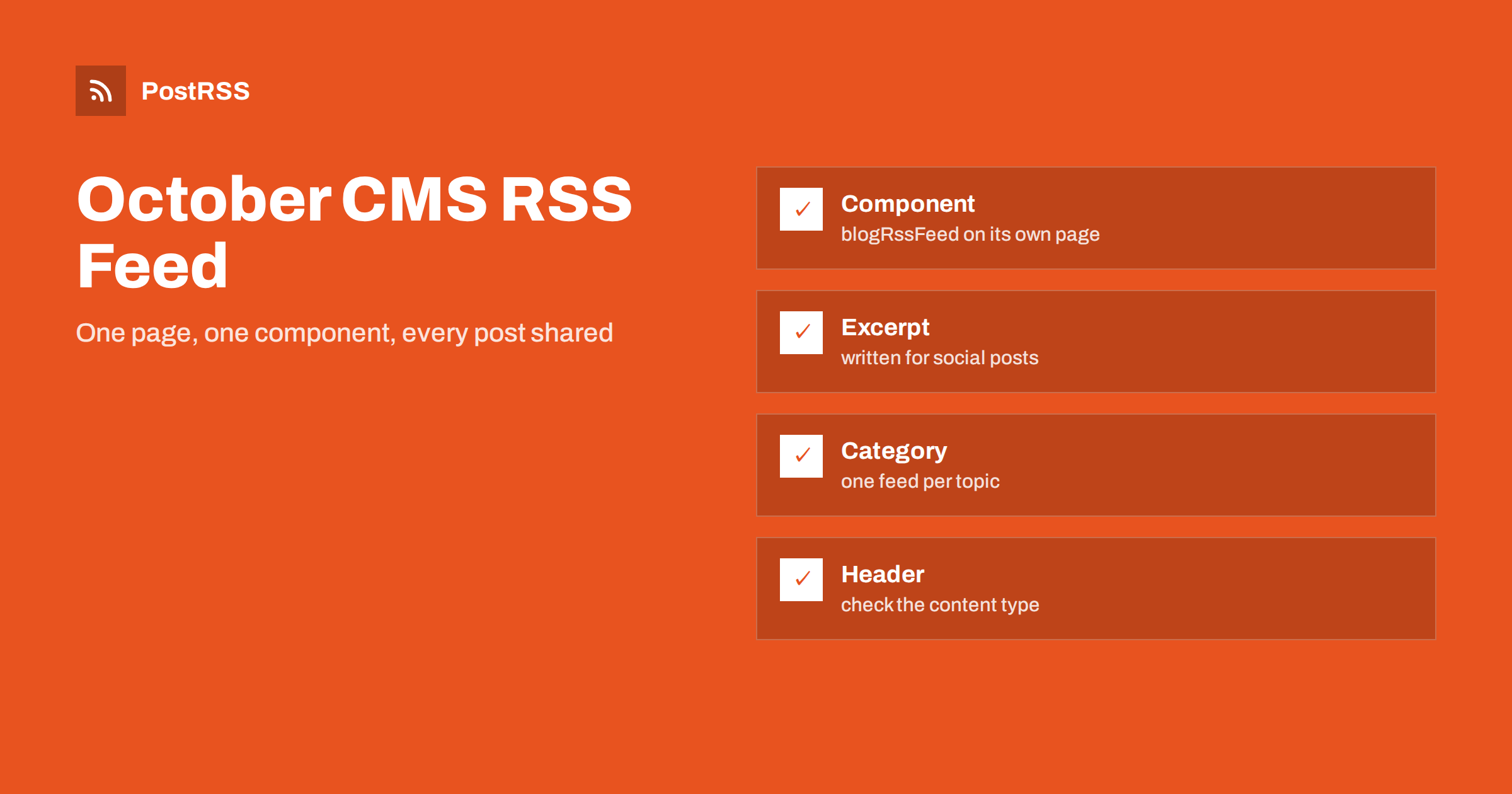
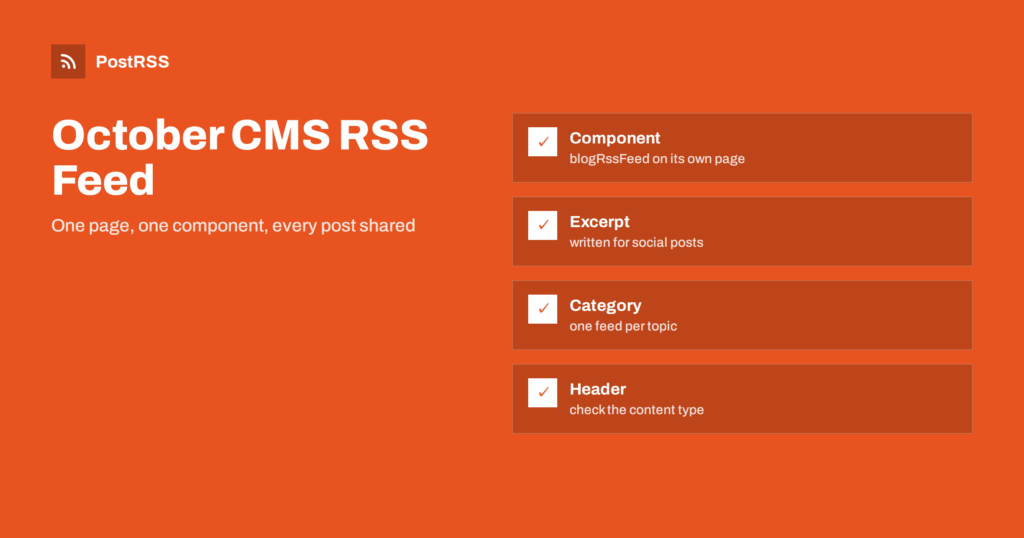
Short answer: October CMS can publish an RSS feed from the RainLab Blog plugin without custom code. Install the plugin, create a CMS page at an address such as /rss.xml, add the blogRssFeed component and point it at your blog page and post page. Give every post an excerpt and a publish date, optionally filter by category, then test the live address and check the content type. Paste the address into an auto-poster, and every new post is shared on your social channels as soon as it goes live.
October CMS is a Laravel-based system that keeps pages, layouts and partials in files and uses Twig for templates. Plugins add features, and the RainLab Blog plugin, which many projects use for news and articles, includes a component that renders the newest posts as an RSS document. The Winter CMS fork carries a similar blog plugin with the same idea, so most steps below apply to both. This guide shows the set-up, explains which post fields matter for quality, covers categories and caching and ends with a test routine that catches the usual problems.
The blog plugin stores posts with a title, a slug, an excerpt, content, categories and a publication date. It also has a published flag, so that an editor can save a draft that the public cannot see. The feed component reads the published posts, sorts them and renders one item for each of them. It takes the link of each item from the post page you name in the component settings, which means the feed and your website use the same address rules.
The plugin does not create the feed by itself. You add the component to a page, and that page is the feed. This is flexible, because you can make several feeds with different settings, and it is easy to forget, because nothing in the blog menu says that a feed is missing.
| Feed element | Source in the blog plugin | Rule |
|---|---|---|
| Title | the post title | Plain text, written for readers |
| Link and identifier | the post page and the slug | Absolute, https, never changes |
| Publication date | the published date field | Set once, when the post goes live |
| Description | the excerpt | One or two complete sentences |
In the back end, create a new CMS page, or add a file to the pages folder of your theme. Give it the address you want for the feed and add the component. A page file looks like this:
title = "RSS feed"
url = "/rss.xml"

[blogRssFeed]
blogPage = "blog"
postPage = "blog-post"
sortOrder = "published_at desc"
postsPerPage = 20
==
{% component 'blogRssFeed' %}
The blogPage and postPage values are the file names of your blog list page and your single post page, as they appear in the theme, and the property names can differ slightly between plugin versions. Open the component in the back end after you add it and use the labels there if a name does not match. The page needs no layout, because the component returns the whole document and not an HTML page inside a layout.
Save the page and open the address in a browser. You should see XML or a subscribe prompt, depending on the browser. If you see your normal site design, the layout was applied and the component is not returning the document, so remove the layout setting from the page.
The excerpt is what an auto-poster usually shows under the title, so it is worth the effort. Make the excerpt a short description of one or two sentences that stands on its own and does not begin in the middle of a thought. If a post has no excerpt, the feed may fall back to a long piece of the content, including markup that looks strange in a social post. Make the excerpt a required habit in your team, and check the last ten posts before you connect the feed. See how to control what text gets auto-posted for more on this.
The published date decides the order of the feed and the date shown for each item. Editors sometimes change it to move an article higher in the list, and a changed date can make an auto-poster think that the post is new. Agree in your team that the date is set once, when the article goes live. The causes of repeated posts are explained in why a feed auto-posts the same article twice.
The plugin lets you set a publication date in the future, and the post becomes visible when that time passes. That works well with a feed, because the item appears at the planned moment without anyone pressing a button. Test it once with a post scheduled a few minutes ahead, and confirm that the feed does not show the item before the time and does show it afterwards. Also check the time zone settings of the back end, because a wrong zone moves the date by hours and can put a new post below an older one.
If your blog covers several topics, you can create one feed for each of them. Add the category filter property to the component and enter the category slug, then publish the page at its own address, such as /rss-news.xml. Each feed can go to a different social channel, for example product news to LinkedIn and customer stories to a Facebook Page. Routing by topic is explained in category filtering for auto-posting. Keep a main feed with every post as well, because it is the address people will try first.
Feed readers and auto-posters read the content type of the response. Many tools accept the older text/xml type, but application/rss+xml is the clearest signal. After you publish the page, request the address with curl and look at the header. If your version of the component sends a different type than you want, you can override the page with a small component of your own that returns the same XML with the header you prefer. See the guide to the content type header.
Also check the status code. A feed page must answer with 200 and not with a redirect to a language or a trailing slash. Redirects work for readers but waste time for tools and sometimes break conditional requests. The meaning of each status is explained in the guide to feed status codes.
October CMS can cache pages and components, and Laravel caches many things in the background. If you cache the feed page for an hour, a new post will appear an hour late, and your social posts will arrive late as well. Pick a lifetime that matches how quickly you want updates, often a few minutes. When you change the component or the plugin, clear the cache and test again. Background on delays is in why auto-posted content sometimes lags.
Auto-posters make better posts when each entry has a picture. If the plugin does not add an image to the feed, social networks fall back to the picture that your post page declares in its meta tags. Make sure each post template outputs a social preview image with the right size and an absolute address. If the wrong picture appears in posts, the cause is usually the page markup and not the feed. See how to control which image gets auto-posted.
Projects that use a translation plugin often show the blog in several languages. Create one feed page for each language, give each its own address and title, and connect each address to the channel for that audience. A feed that mixes languages makes an auto-poster share the same story several times, and followers see that as spam. See the guide to multilingual feeds for more on this.
Because pages live in theme files, a deployment can replace or remove the feed page without anyone noticing. Keep the feed page in version control with the rest of the theme, and add a step to your deployment checklist that requests the feed address and confirms a 200 status. If you switch themes, copy the page to the new theme before you activate it. The same care applies after a plugin update, because a renamed property can silently change the output. A two-minute check after each release is cheaper than a week of silent social channels. If several people deploy, write the check into the release notes so that it does not depend on memory.
Request the address from outside your network, because only a public request shows what an auto-poster sees.
curl -i https://example.com/rss.xml
curl -s https://example.com/rss.xml | head -n 30A longer routine is in the feed validation guide, and a shorter one in debugging a feed with curl.
PostRSS has been publishing RSS and Atom feeds to social networks since 2014. Paste the address of your feed, connect your accounts and choose how each post is built from the title, the description or the page title. PostRSS checks the feed as often as every minute and shares each new entry, with its image and link, to the channels you choose among 66 supported networks, messengers, team chats and blogs, including LinkedIn, X, Bluesky, Mastodon and Telegram. Keyword filters, UTM parameters and posting windows let you tune each channel. See the PostRSS features page and the plan limits on the pricing page. More developer guides are under the Technical Guide tag.
An October CMS feed is a page with one component. Install the blog plugin, create the page, point the component at your blog and post pages, write real excerpts, set the published date once, check the content type and the cache and test the live address from outside. When the address is stable, connect it to an auto-poster, and every article your editors publish reaches your readers and your social channels without extra work.
The core system does not, but the RainLab Blog plugin includes a feed component that you add to a CMS page. That page then serves the feed at the address you choose.
Winter CMS is a fork of October CMS, and its blog plugin follows the same idea. The component and property names may differ, so check them in the back end.
Yes. Set the publication date in the future, and the post becomes visible when the time passes, so it appears in the feed at that moment.
Add a second feed page with the category filter set to the slug of that category, and give it its own address.
Yes. PostRSS reads any valid RSS or Atom address that is reachable without a login. Paste the address, connect your channels and new posts are shared as soon as they appear.
What changed in the networks, what broke, and how to fix it before it costs you reach.
Sukūrė Internet Solutions – PostRSS komanda. Kiekvienas produktas sutaupo laiko savaip.
 English
 Lietuviškai
 Deutsch
 Français
 Русский
 Español
 Polski
 Italiano
 Українська
 Čeština
 Português
 日本語
 Latviešu valoda
 Eesti
 Magyar
 Bahasa Indonesia
 Türkçe
 हिन्दी
 Ελληνικά
 العربية
 ไทย
 Tiếng Việt
 Română
 Bahasa Melayu
 বাংলা