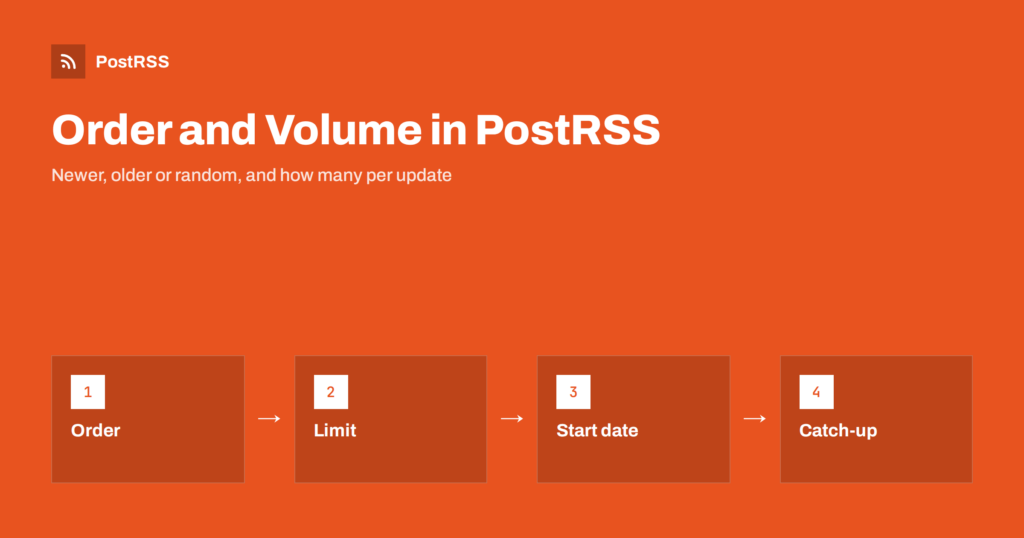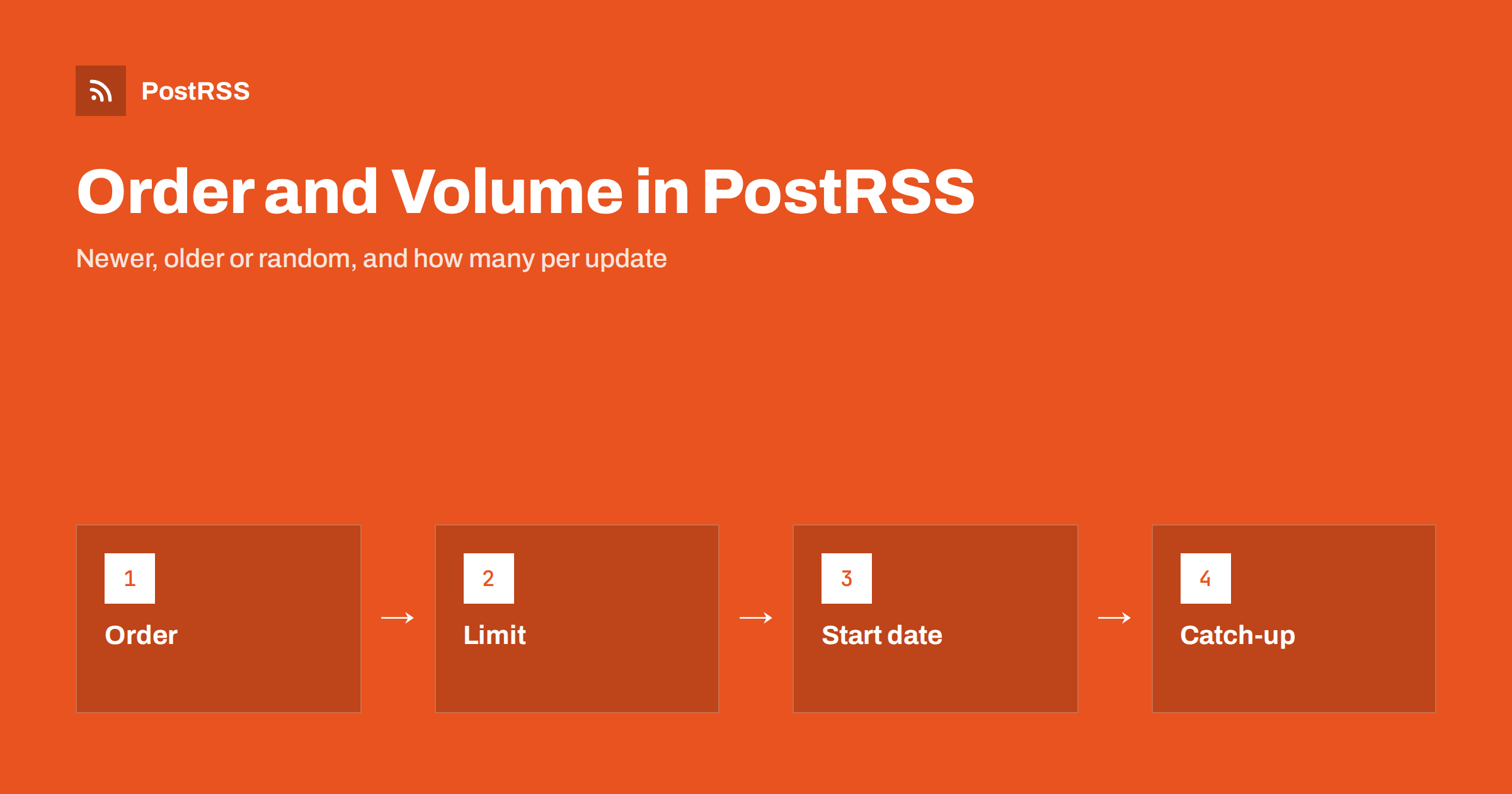
Short answer: In PostRSS you control the order and the volume of posts for every source with three settings: the publishing order (newer items first, older items first or random), the maximum number of posts per update, and the date to post from with the option to catch up older items that were never published. Newer first suits news, older first suits a story told in sequence, and random suits evergreen archives. A small maximum per update keeps a busy feed from flooding your followers, and items that exceed it are reported with their own status instead of disappearing.
When a feed contains one new item, the order does not matter. The questions begin when a feed contains twenty. You may have connected a feed that already holds a year of articles. A publisher may release a batch of pieces at once. A shop may import a hundred products in the morning. A source may have been paused for a week and now has a backlog. In each case the auto-poster has to decide which items go out first, how many go out at once and what happens to the rest. PostRSS gives you direct control over these decisions for each source, so the same feed can behave very differently on a news channel and on an archive account. This guide explains each setting, how they work together, which combinations suit common situations and how to read the report to confirm what happened. All settings and values mentioned here are the ones shown in the PostRSS web app and its API documentation.
Every target in PostRSS, such as a Facebook Page, a Telegram channel or a Bluesky account, has one or more sources. A source is an RSS or Atom feed, or a CSV file on plans that include it. The order and volume settings belong to the source, not to the account, which means you can connect two different feeds to the same channel and give each its own behavior. The same settings appear in the REST API as publishing_order, maximum_posts_per_update, post_from_date और catch_up_older. If you change a source later, the new rules apply from the next check, and items that were already posted are not posted again.
The publishing order decides which items are chosen first when more than one is waiting.
| Order | What goes out first | Best for |
|---|---|---|
| Newer first | The most recent items | News, blogs, announcements and anything where freshness matters |
| Older first | The oldest waiting items | Series, tutorials and archives that should be read in sequence |
| Random | Items in a random order | Evergreen content that you want to keep circulating |
Newer first is the natural default, because it puts the latest article at the top of your page. Older first reads like a story: the first chapter appears before the second. Random avoids a predictable pattern and lets an archive of equally useful guides share the spotlight. The order only applies to items that are eligible, so items removed by a keyword filter or already posted are not part of the choice.
Each time PostRSS checks a source it finds the items that are new or eligible and then posts up to a limit. The maximum number of posts per update sets that limit. If you leave it at the maximum allowed by your plan, every eligible item is posted in the same run. If you set a small number, such as one or two, only that many go out each time, and the remaining items wait for the next check. This works together with the check frequency: a source checked often with a limit of one produces a steady drip of single posts, while a source checked once a day with a limit of five produces a small daily batch.
The report shows what happened to the items that did not fit. They appear with the status that tells you the maximum number of posts per update was reached, and they are considered again at the next check. Nothing is lost, and the limit only spreads the posting over time.
A new source often points to a feed with years of history. You rarely want all of it to appear in a day. The date to post from tells PostRSS where to start: only items published on or after that date are eligible. If you want the older items from that date onward to be published as well, turn on catch-up, and PostRSS also posts older feed items that were never published, back to the chosen date. If catch-up is off, the source only posts items that appear from now on. The FAQ on the PostRSS features page describes the same behavior: set the date to post from and turn on catch-up to post older items that were never published.
Combine the date with the order to control a backlog. Set the date to the start of the year, choose older first and a small maximum per update, and the feed replays the year gently in order of publication.
A news or blog source should show the newest stories. Choose newer first, leave catch-up off and set a modest maximum per update, such as three. If an editor publishes five stories in a short burst, the three newest go out at the next check and the others follow at the next ones, in the same order. Followers see a lively page and not a wall of posts. If your plan allows frequent checks, a short interval keeps the delay small.
If you have written a course in twelve parts, you want part one to go out before part two. Choose older first, set the date to the day the first part was published, turn on catch-up and set the maximum per update to one. With a check once a day, one lesson appears each day in order. New parts that you add later join the end of the queue, because they are the newest waiting items. This recipe also works for a podcast archive or a long guide split into chapters.
Some content stays useful for years: checklists, how-to guides and explainers. Choose random order, turn on catch-up with a date far enough back to include the archive and set a small maximum per update. PostRSS then picks items from the pool, so followers see a varied mix. Keep an eye on the report: if you want to avoid old items with outdated facts, remove them from the feed or use a keyword filter to exclude their category, as described in the guide to include and exclude keyword filters.
An online shop may add dozens of products in one import. If each product were posted immediately, followers would see a flood. Choose newer first or older first depending on your preference, set the maximum per update to a small number and let the batch be spread across the day. You can also use posting windows, available on paid plans, to confine posts to the hours when your customers are online. The scheduling options are explained in the guide to custom time zones in PostRSS.
If you pause a source for a week and resume it, PostRSS sees the items published in the meantime. Decide whether you want them all. For a news source the answer is usually no, so set the date to post from to today before you resume. For a shop or a blog with timeless content the answer may be yes, and a small maximum per update lets the backlog drain gradually. The behavior of backdated items and feeds that change order is covered in feed order and backdated posts.
The report of a target lists every run with the date, the number of items seen and the number of posts made. Open a run to see each item and its status. Items posted successfully show as processed. Items seen before show as already posted. Items skipped by a keyword filter show as filtered and are not counted against your plan. Items held back by the limit show that the maximum number of posts per update was reached. A failed item includes a reason. After you change the order or the maximum, look at the next two or three runs and check that the sequence is what you intended. The same data is available through the REST API for teams that want to check it automatically.
The number of posts you can make each month and the number of targets depend on your plan, and the available networks differ as well. A small maximum per update also helps you stay within the monthly limit, because a backlog is spread over a longer period and you can see its size before it uses your quota. The current limits are on the pricing page, and the features page lists every option, including posting windows, exact times and keyword filters.
A feed is not read the same way everywhere. Followers of a messaging channel tolerate several short posts a day, while followers of a professional page may prefer one considered post. A Telegram channel for a news site can use newer first with a limit of three, while the LinkedIn page of the same company can use a limit of one and a different feed that carries only longer articles. Because the settings belong to the source, you can connect the same feed to several targets and give each its own order, limit and posting hours. Start cautiously: a low limit is easy to raise after a week, while an unwanted burst of posts cannot be undone. Review the report each week at first and ask yourself whether the pace feels natural for the audience on that channel.
Order and volume turn the same feed into very different posting habits. Choose newer first for fresh news, older first for stories told in sequence and random for evergreen archives. Set a small maximum per update to spread a backlog, pick a start date and use catch-up only when you really want older items. Then read the report for a few runs to confirm, and adjust each source to suit the channel it feeds.
Newer items first, older items first or random order. The choice is made for each source, so one feed can behave differently on different accounts.
They are not posted in that run and are reported with a status that shows the limit was reached. They are considered again at the next check.
Set the date to post from and turn on catch-up. PostRSS then also posts older feed items that were never published, back to that date.
Yes. Set a small maximum per update and choose a start date. The backlog is then spread over several checks.
No. Filtered items are not posted, do not count towards the maximum posts per update or the plan quota and appear in the report with the filtered status.
What changed in the networks, what broke, and how to fix it before it costs you reach.
PostRSS बनाने वाली टीम Internet Solutions की ओर से। हर प्रोडक्ट आपका समय अपने तरीके से बचाता है।
 English
 Lietuviškai
 Deutsch
 Français
 Русский
 Español
 Polski
 Italiano
 Українська
 Čeština
 Português
 日本語
 Latviešu valoda
 Eesti
 Magyar
 Bahasa Indonesia
 Türkçe
 हिन्दी
 Ελληνικά
 العربية
 ไทย
 Tiếng Việt
 Română
 Bahasa Melayu
 বাংলা