RSS 66 sotsiaalvõrgustikku: Facebook, Instagram, X, LinkedIn, Telegram ja teised Blogi Partnerprogramm Kontaktid
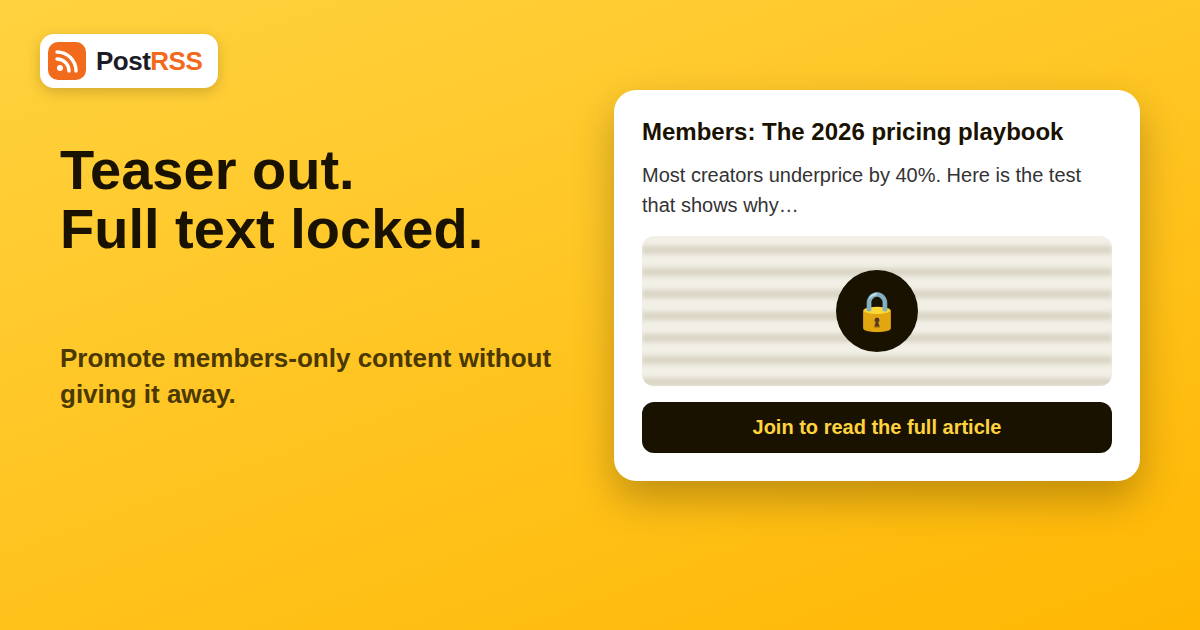
You run a site where some articles are free and others are for paying members. You connect your feed to your social accounts so that every new piece is announced automatically. A week later a member emails to say that they saw the whole premium article, word for word, in a public post. This is the classic failure of paywalled content in RSS: the website hides the text behind a login, but the feed, which is a separate door into the same building, was left open.
This guide explains what a feed actually exposes, how popular platforms behave, how to promote members-only work without giving it away, and how to test your setup before it costs you subscribers. It complements our overview of full-text versus excerpt feeds and belongs to the wider RSS feed troubleshooting archive. If you are new to the tool, start at the PostRSS homepage.
A paywall is a rule applied by your website when a visitor requests a page: no valid login, no full text. An RSS feed is generated by the same software, but it is a different request with a different URL, and many paywall setups do not apply their rule to it. The feed is built from the post content in the database, and if the feed is set to show the full text, the full text goes out to anyone who requests the address. That includes feed readers, scrapers and any tool you connect, including an auto-poster.
There are two distinct leaks, and it helps to keep them separate:
Fixing only the second while ignoring the first is a common mistake. Fix the feed and the post problem disappears with it.
Behaviour depends on your software and settings, so treat this table as a checklist of questions rather than a promise. Open your own feed and look.
| Setup | What the public feed usually contains | What to check |
|---|---|---|
| WordPress, password-protected post | A notice that the post is protected instead of the text | Confirm with a logged-out request |
| WordPress with a membership plugin | Depends on the plugin; some cut the feed to an excerpt, others do not | Read the plugin’s feed settings |
| WordPress “full text” feed setting | Complete text of every published post | Switch to summary for public feeds |
| Newsletter platforms (paid tiers) | Usually a preview of paid issues, with full text for free ones | Check a paid issue in the public feed |
| Custom or headless site | Whatever your code emits | Audit the feed template |
| Private, tokenised feeds | Full text for anyone holding the token | Never connect these to public networks |
Our guide to the Beehiiv RSS feed shows one example of a newsletter feed and how to promote issues; other platforms have similar settings.
curl so no cookies are sent.<description> ja <content:encoded>. Is it a teaser or the whole article? Our article on RSS namespaces explains what content:encoded is.If any of these steps reveals premium text, stop the connection to public networks first and fix the feed second.
The goal is not to hide premium work. You want people to know it exists, want it and pay for it. The right feed for that job is a promotion feed: a feed that contains just enough to make someone click.
Set public feeds to show a summary. On WordPress this is a reading setting. A short summary is enough for the auto-poster to build a good post, and a link brings the reader to your site, where the paywall or signup page does its job.
Automatic truncation cuts the text at a fixed length, often in an awkward place. A hand-written excerpt is better: two sentences that state the problem and the payoff. See our guide to custom RSS feed excerpts for how the field is used.
Add a prefix or label such as “Members:” or “Premium:” to titles of paid posts. Free readers then know what they are clicking on, and you avoid disappointment. It also lets you filter by category if you want separate accounts or separate posting cadences.
The link in the post should lead to a page where a visitor understands what the article is and how to get access. A bare login screen wastes the click. Configure the paywall so that a non-member landing on the article sees the teaser, the benefits and a clear signup path.
Add campaign parameters to feed links and measure how many social visitors become members. Our guide to tracking the ROI of RSS automation with UTM parameters shows how.
Many publishers benefit from three feeds:
Keep the member feed behind authentication, and never paste its address into an auto-poster. Our article on auto-posting a password-protected or private feed explains why that is a deliberate choice rather than a default. Category filtering is the practical way to build the promotion feed from one site; see how to filter your RSS feed by category before auto-posting.
If search engines are allowed to see the full text of premium articles, your paywall must tell them so, or they may treat it as cloaking. Google documents how to mark paywalled content in its guide to paywalled content structured data. That is a separate topic from feeds, but it is worth reviewing at the same time, because both concern what strangers can see without paying.
Every network suits teasers when the post carries a strong hook and a link. Facebook Pages are a natural home for creators and local publishers, and they work on every PostRSS plan, including the free one (10 posts a month) and Start ($5 for 500 posts). If you want to auto-post RSS to Facebook for a membership audience, remember it covers Pages, not personal profiles or groups. LinkedIn (Professional Plus, $20 per month) suits professional newsletters. X, Threads, Bluesky, Mastodon and Telegram channels are part of Ultimate at $40 per month. The supported networks page lists them, and the pricing page has the limits. New posts appear within about five minutes of the feed changing, so a leak is public quickly. On Enterprise, the feed is checked every minute, which makes it even faster.
Not every paywall is the same, and the model you use changes how you should build the feed.
A photographer runs a WordPress site with a membership plugin. Tutorials are free; long-form location guides and presets are members-only. Originally the site’s feed was set to full text, and the photographer connected it to a Facebook Page. Every members-only guide appeared in full in the feed, and the Page posts contained the opening paragraphs plus a link. Nobody noticed until a competitor quoted a guide almost verbatim.
The clean-up was straightforward. The photographer switched the feed setting to summary, wrote a two-sentence teaser for every premium guide, added a “Members:” prefix, and created a category called “Premium”. The social feed now includes free tutorials in full-summary form and premium guides as teasers. The link points to a landing page that shows the teaser and a join button. Within a month the Page’s premium posts were sending more sign-ups than free tutorials, because the teasers named a specific benefit rather than repeating the first paragraph.
“Full text in the feed gets more shares.” It gets more copies, not more customers. If people can read everything for free, they have no reason to pay.
“Nobody knows my feed URL.” Feed addresses follow predictable patterns, and search engines, scrapers and browser extensions find them easily. Assume it is public.
“I will only post the first paragraph.” The auto-poster posts whatever the feed contains, up to the network’s limits. If the feed has the full text, you are one setting away from publishing all of it. Control the source, not the destination.
“Teasers will reduce my traffic.” They reduce low-value traffic and improve conversions. A visitor who wanted a free copy leaves; a visitor who wants the content joins.
Plugins update, themes change and staff turn over. Put the leak test on a quarterly calendar entry, and repeat it after any major change to your membership plugin, feed settings or theme. Write down which feed goes to which target, and who may change it. If several people edit content, add a line to your editorial guide: premium posts need a teaser excerpt before they are published, because an empty excerpt may fall back to automatic truncation of the article body.
Finally, remember that policy applies as much as technology. If your terms of service promise members exclusive access, a leak is a breach of that promise. Treat the feed with the same care you give the payment system.
Not automatically. A paywall applies to page requests, and the feed is a separate request. If your feed is set to full text, it can expose premium articles to anyone who requests the feed address.
Set public feeds to summaries, write a hand-crafted teaser, label premium items and link to a page that explains how to get access.
No. A member feed with full text should stay behind authentication. Connect only a public promotion feed that contains summaries.
Request the feed while logged out and search the XML for your newest premium post. Check the description and content:encoded elements, then repeat for category and comment feeds.
Disconnect the feed, delete the posts on each network, switch the feed to summaries and confirm with a logged-out test.
That depends on your setup. Google recommends structured data for paywalled content so that it does not treat gated text as cloaking.
A Facebook Page works on every plan, including Free. Other networks need higher plans, such as Professional Plus for LinkedIn and Ultimate for X, Telegram, Bluesky and Mastodon.
Paywalls protect pages, not feeds. If you charge for content, treat the feed as a second front door and lock it deliberately: use summaries for every public feed, write teasers by hand, label premium posts, keep the member feed behind authentication and never connect it to a public network. Test with a logged-out request every time you change plugins or themes. Done properly, automation becomes a sales channel for your premium work instead of a giveaway. When you are ready, connect a promotion feed at PostRSS and let the teasers do their job.
What changed in the networks, what broke, and how to fix it before it costs you reach.
 English
 Lietuviškai
 Deutsch
 Français
 Русский
 Español
 Polski
 Italiano
 Українська
 Čeština
 Português
 日本語
日本語 Latviešu valoda
 Eesti
Eesti Magyar
 Bahasa Indonesia
 Türkçe
 हिन्दी
 Ελληνικά
 العربية
 ไทย
ไทย Tiếng Việt
 Română
 Bahasa Melayu
 বাংলা
বাংলা