RSS 66 sotsiaalvõrgustikku: Facebook, Instagram, X, LinkedIn, Telegram ja teised Blogi Partnerprogramm Kontaktid
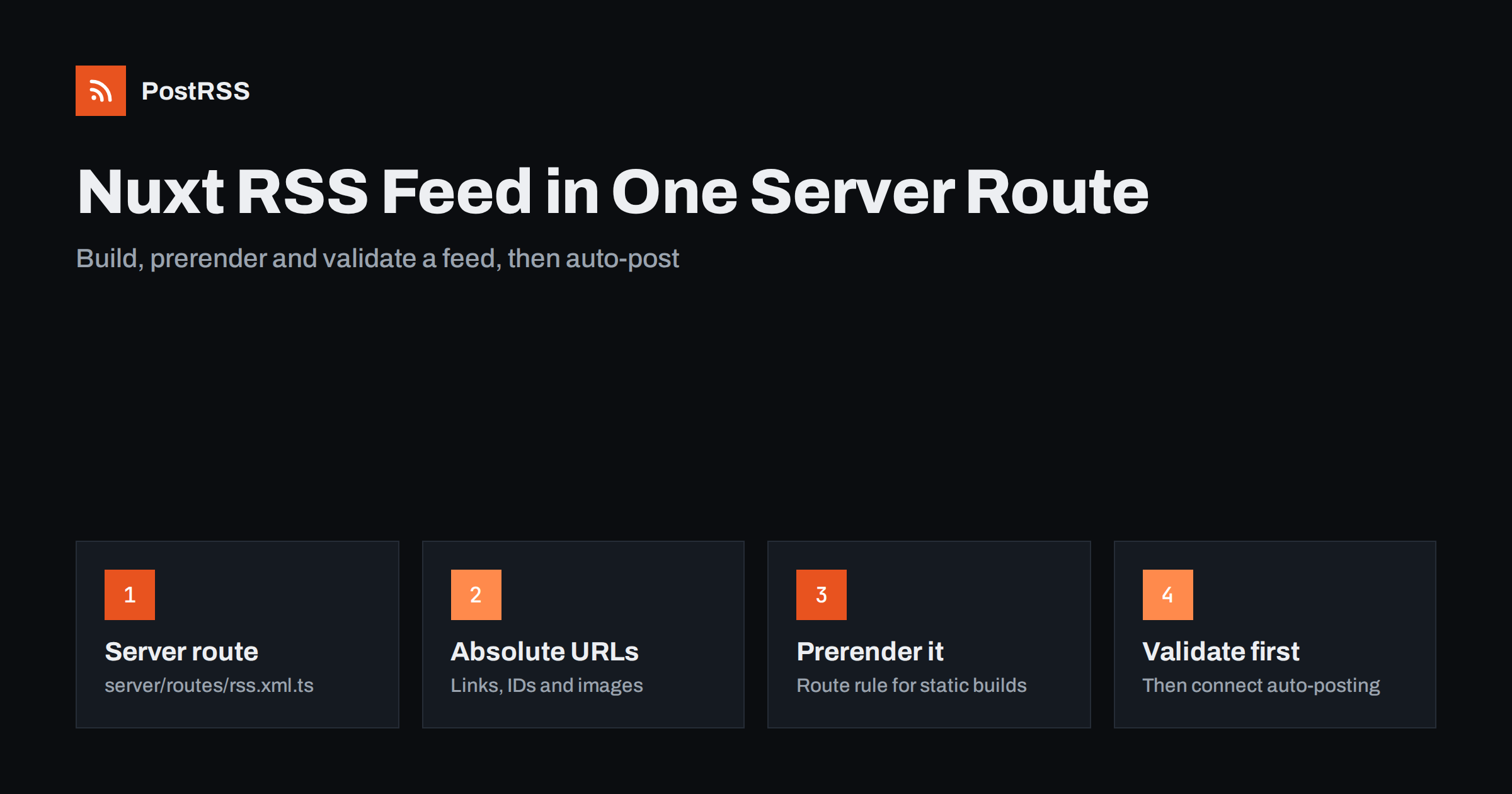
Short answer: Nuxt does not ship an RSS feed out of the box, but adding one takes a single server route. Create server/routes/rss.xml.ts, query your articles, build the XML with the feed package, send it with an RSS content type and prerender it if your site is static. Once the feed validates, any RSS auto-poster can read it and share each new article on your social channels.
Nuxt is a popular choice for content sites, documentation and company blogs because it combines Vue components with server rendering and static generation. What it does not give you is a ready-made feed. WordPress creates /feed/ automatically; a Nuxt site only has the routes you write. That is good news for control and bad news for anyone who assumed the feed was already there. This guide walks through a clean, production-ready Nuxt RSS feed, the mistakes that break it, and how to connect it to automatic social posting.
An RSS feed is a small, machine-readable list of your latest content. It is not only for feed readers. Several things depend on it quietly:
/rss.xml või /feed.xml to exist on a technical or content site.Because Nuxt can render pages on a server, on the edge or as fully static files, the feed has to work in the mode you deploy. A route that runs perfectly in npm run dev can be missing after a static build if you forget to prerender it. Planning for that from the start saves a confusing afternoon later.
Before writing any code, decide which source of truth the feed reads from. The feed should list exactly the items that have public URLs on your site, in the same order a reader would expect.
queryCollection(event, 'blog'); older v2 projects used serverQueryContent(event). Check which major version your project runs before copying examples.Whatever the source, filter out drafts, scheduled items and anything marked private. A feed that leaks an unpublished article is worse than no feed, because auto-posting tools will happily share the link the moment it appears.
Nuxt runs its server through Nitro, and any file inside server/routes/ becomes a route without the /api prefix. A file named rss.xml.ts therefore answers at /rss.xml. The feed package from npm handles the XML escaping and the RSS 2.0 structure, which is the part people most often get wrong when they build strings by hand.
Install it first:
npm install feedThen create the route. The example below assumes Nuxt Content v3 with a collection named blog whose items have title, description, date, path and an optional image:
// server/routes/rss.xml.ts
import { Feed } from 'feed'

export default defineEventHandler(async (event) => {
  const site = useRuntimeConfig().public.siteUrl // e.g. https://example.com
  const posts = await queryCollection(event, 'blog')
    .order('date', 'DESC')
    .limit(30)
    .all()

  const feed = new Feed({
    title: 'Example Blog',
    description: 'New articles from Example',
    id: site + '/',
    link: site + '/',
    language: 'en',
    copyright: 'Example Ltd',
    updated: posts[0] ? new Date(posts[0].date) : new Date(),
    feedLinks: { rss: site + '/rss.xml' }
  })

  for (const p of posts) {
    const url = site + p.path
    feed.addItem({
      title: p.title,
      id: url,
      link: url,
      description: p.description,
      date: new Date(p.date),
      image: p.image ? site + p.image : undefined
    })
  }

  setHeader(event, 'content-type', 'application/rss+xml; charset=utf-8')
  return feed.rss2()
})
Three details in that route matter more than they look:
<guid>. Use the permanent article URL and never change it, or tools will treat an old article as new and post it again.Hard-coding the domain is the most common reason a feed points to localhost after deployment. Put the public URL in runtime config instead, so you can set it per environment:
// nuxt.config.ts
export default defineNuxtConfig({
  runtimeConfig: {
    public: { siteUrl: 'https://example.com' }
  },
  routeRules: {
    '/rss.xml': { prerender: true }
  }
})
The routeRules entry tells Nitro to render the feed to a static file at build time. That is essential when you deploy with nuxt generate or to static hosting, because the crawler that discovers pages to prerender follows links between pages and does not find /rss.xml on its own. If your site runs as a live server instead, you can drop the prerender rule or replace it with a short cache rule so the feed stays fresh without being rebuilt on every request.
Remember the trade-off: a prerendered feed only changes when you rebuild and deploy. If your publishing workflow already triggers a build for every new article, that is perfect. If editors publish through a CMS without a rebuild, a server-rendered or cached feed is the safer choice.
Tools and browsers find a feed through a <link rel="alternate"> tag in the page head. Add it once for the whole site in nuxt.config.ts under app.head.link, or in app.vue with useHead:
useHead({
  link: [{
    rel: 'alternate',
    type: 'application/rss+xml',
    title: 'Example Blog',
    href: 'https://example.com/rss.xml'
  }]
})
It also helps to link the feed visibly in the footer or on the blog index. People who want to subscribe look there first, and some auto-posting tools let you paste the homepage address and try to detect the feed from this tag.
A bare feed with titles and links works, but richer items produce better social posts. Consider these additions:
image. The feed package writes it as an enclosure, which many tools use as the post picture. Keep images reasonably sized and publicly reachable.category: [{ name: 'Tutorials' }] to each item. Some auto-posters can turn categories into hashtags or filter by them.content field adds a content:encoded element with HTML. Feed readers love it; for social posting the description is usually enough.Also make sure every article page has Open Graph tags. When a tool cannot find an image in the feed item, it often falls back to og:image on the article itself, so good page metadata is a second safety net. Nuxt’s useSeoMeta composable makes that straightforward.
Never connect a feed to automation before you have looked at it. A five-minute check prevents a burst of broken posts:
/rss.xml, not just the dev server version.curl -I https://example.com/rss.xml: status 200, an RSS or XML content type, no redirect chain.feed package formats them correctly as long as you pass valid Date objects.The RSS 2.0 specification is short and worth a skim if a validator message is unclear. Most problems come down to a relative URL, an invalid date or an unescaped character in a title.
| Symptom | Likely cause | Fix |
|---|---|---|
| 404 at /rss.xml after deploy | Static build without prerendering the route | Add a prerender: true route rule or list the route in Nitro prerender settings |
| Links point to localhost | Hard-coded or missing site URL | Read the domain from runtime config and set it per environment |
| Old posts reshared | Item ID or link changed | Use the permanent URL as the ID and keep slugs stable |
| Feed never updates | Prerendered feed with no rebuild on publish | Rebuild on publish, or serve the feed from the server with a short cache |
| Drafts appear in the feed | Query does not filter unpublished items | Filter by a published flag and a date not in the future |
| No images in social posts | Relative or missing image URLs | Pass absolute image URLs and add Open Graph tags to articles |
One more subtle issue: if you change the route from /rss.xml to /feed.xml later, redirect the old address. Subscribers and tools that saved the old URL will otherwise stop receiving updates without anyone noticing.
Once the feed validates, sharing becomes a configuration task instead of a daily chore. The usual flow is the same in most tools: add the feed URL as a source, connect the accounts you want to post to, choose how each post is built from the item, then let the tool check the feed on a schedule. Each new item that appears is posted once; items already seen are skipped based on their GUID.
A few practical tips for developer-run blogs:
For more feed set-ups and fixes like this one, the technical guides collection covers other frameworks and common validator errors.
PostRSS reads any RSS or Atom feed, including one generated by a Nuxt route, and publishes each new item to the networks you connect. It checks feeds every 5 minutes on all plans and every minute on Enterprise plans, takes the image from the feed item or from the page’s Open Graph tags, and lets you build each post from the title, the description or your own text. You can add UTM parameters, set posting windows on paid plans, filter items by keywords and turn item categories into hashtags. The features page lists all supported networks, and the pricing page shows which networks each plan includes.
A Nuxt RSS feed is one server route, one npm package and two lines of configuration. Read from the same source as your pages, use absolute URLs and stable IDs, set the RSS content type and prerender the route on static deployments. Validate it once, add the discovery tag, and the feed becomes the backbone for newsletters, readers and RSS-voog automation that shares every new article without manual work.
No. Nuxt only serves the routes and pages you define. You add a feed yourself, usually as a server route such as server/routes/rss.xml.ts that returns RSS XML.
The static build only prerenders routes it can discover or that you list. Add a prerender route rule for /rss.xml in nuxt.config.ts so Nitro writes the feed as a static file during the build.
Either works with most readers and auto-posting tools. RSS 2.0 is the most widely expected format, and the feed package can output both, so you can publish RSS and add Atom later if you need it.
Twenty to fifty recent items is typical. Auto-posting tools only need new items, while a longer feed makes every request heavier without adding much value for readers.
Yes. Once the feed is public and valid, an RSS auto-posting service can check it on a schedule and publish each new item to the social accounts you connect.
What changed in the networks, what broke, and how to fix it before it costs you reach.
Loonud Internet Solutions, PostRSS-i taga olev meeskond. Iga toode säästab aega omal moel.
 English
 Lietuviškai
 Deutsch
 Français
 Русский
 Español
 Polski
 Italiano
 Українська
 Čeština
 Português
 日本語
日本語 Latviešu valoda
 Eesti
Eesti Magyar
 Bahasa Indonesia
 Türkçe
 हिन्दी
 Ελληνικά
 العربية
 ไทย
ไทย Tiếng Việt
 Română
 Bahasa Melayu
 বাংলা
বাংলা