RSS 66 sotsiaalvõrgustikku: Facebook, Instagram, X, LinkedIn, Telegram ja teised Blogi Partnerprogramm Kontaktid
Every social network compresses, re-encodes, or outright rejects images that don’t meet its technical requirements, and that process happens automatically the moment an RSS automation tool pulls a featured image from your feed and pushes it to Facebook, X, LinkedIn, or Pinterest. If the source image is a bloated 4MB PNG or a format a platform doesn’t fully support, you either get a slow, ugly preview or no image at all. This guide covers exactly what image specs matter for auto-posting, how WebP fits into the picture, and how to make sure every post your feed generates looks sharp and loads fast.
Most publishers never think about this until they notice their auto-posted links show a blank gray box instead of a thumbnail, or their Pinterest pins look pixelated next to competitors’. The fix isn’t complicated, but it does require understanding how each platform actually processes the image URL sitting inside your feed’s <enclosure> või <media:content> tag.
When a tool reads your RSS-voog and detects a new item, it extracts the featured image URL and hands it to the target platform’s publishing API. Most platforms then do one of three things: fetch and re-host the image themselves, request it at publish time and cache a compressed copy, or simply link to the original URL and let their crawler render a preview on demand. In every case, an oversized or badly formatted source image causes real problems:
Yes, for the vast majority of destinations — with one caveat. WebP is now well supported for crawling and preview generation across Facebook, LinkedIn, and X, since their scrapers request the URL directly and their servers handle the decode. The caveat is Pinterest: Pinterest’s Rich Pin validator and its own crawler have historically been inconsistent with WebP, occasionally falling back to a generic placeholder image when a WebP source can’t be parsed correctly on their end. If Pinterest is a primary channel for your feed, the safer default is still JPEG for photographic featured images and PNG for graphics with transparency or text, with WebP reserved for platforms where you’ve confirmed it renders correctly.
| Format | X (Twitter) | Instagram (via API) | |||
|---|---|---|---|---|---|
| JPEG | Full support | Full support | Full support | Full support | Full support |
| PNG | Full support | Full support | Full support | Full support | Full support |
| WebP | Supported | Supported | Supported | Inconsistent | Not accepted (auto-converted upstream) |
| AVIF | Inconsistent | Not supported | Not supported | Not supported | Not supported |
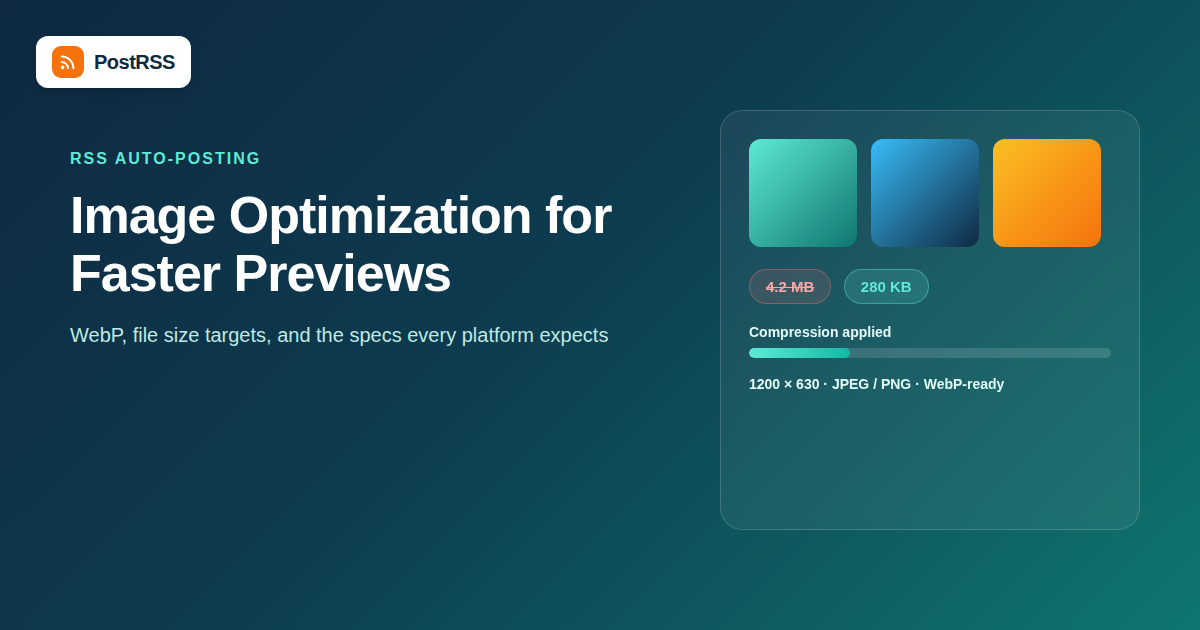
Since your RSS feed usually carries one featured image per item, the practical approach is picking dimensions that survive cropping everywhere rather than trying to serve five different sizes. A 1200×630px image (roughly a 1.91:1 ratio) is the closest thing to a universal default: it’s the Open Graph standard Facebook and LinkedIn expect, it displays cleanly on X, and it crops acceptably to Instagram’s 1:1 or 4:5 feed formats without losing the subject.
If Pinterest is a genuinely important channel and not just a secondary one, it’s worth maintaining a second, taller image specifically for that feed item rather than forcing a single 1.91:1 image to work everywhere.
Dimensions matter less than raw file size when it comes to crawl reliability. As a working target:
There are two places this optimization can happen, and understanding the difference matters:
WordPress plugins like Smush, ShortPixel, and Imagify compress and convert images at upload time, before they ever reach your RSS feed. This is the best long-term fix because it also speeds up your actual site, not just your social previews. Most of these plugins can auto-generate WebP versions while keeping a JPEG/PNG fallback URL, which resolves the Pinterest inconsistency issue by letting you point your feed’s enclosure at the fallback specifically.
If you don’t control the source CMS, or the feed is aggregated from multiple sources with inconsistent image quality, the auto-posting tool itself needs to handle normalization — resizing, re-compressing, and choosing an appropriate format per destination before publishing. This is less common among simple RSS-to-social connectors, so it’s worth checking specifically whether a tool re-processes images or just passes the source URL through unchanged; passing it through unchanged means every optimization problem above lands directly on your published posts.
A subtlety that trips up a lot of publishers: most auto-posting tools don’t just grab “the image” from a feed item — they follow a priority order, and knowing that order explains a lot of unexplained thumbnail problems. The typical lookup sequence is:
<enclosure> või <media:content> tag in the RSS/Atom item, if present<img> tag found inside the item’s <content:encoded> or description HTMLog:image meta tag directly from the HTML <head>If your CMS sets a properly optimized featured image but a stray, oversized image from earlier in the post body gets picked up first by step 2, that’s the image that goes out — not the one you optimized. This is a common, invisible cause of “why is my auto-posted image wrong” tickets. The fix is making sure your feed always populates an explicit enclosure or media tag pointing at the correct, already-optimized featured image, rather than relying on a tool to guess from body content.
No, and this is worth checking before you assume a problem is on your end. Three broad approaches exist across the market:
| Approach | What Happens | Risk |
|---|---|---|
| Pass-through (no processing) | The original image URL from your feed is sent as-is to each platform’s API | Every optimization issue above lands directly on the published post; no safety net |
| Re-host without resizing | The tool downloads and re-serves the image from its own CDN, but keeps original dimensions/format | Improves reliability of the fetch itself but doesn’t fix oversized or wrong-format files |
| Full normalization | The tool resizes, re-compresses, and standardizes format per destination before publishing | Best outcome, but fewer tools do this thoroughly across every platform |
If you’re evaluating or troubleshooting a social media automation tool, ask specifically which of these three it does — the answer determines how much manual image cleanup you’ll still need to do on your own.
Optimizing a file for size and format doesn’t help if the image has no descriptive alt text — several platforms use missing alt text as a signal that hurts organic reach in their algorithm, separate from any technical loading issue. Every image in your feed should carry alt text that describes the actual content, not just the post title repeated verbatim, since accessibility tools and platform algorithms both read that field.
| Symptom | Likely Cause | Fix |
|---|---|---|
| Blank gray box instead of image on Facebook/LinkedIn | Crawler timeout on an oversized file, or a relative image URL instead of an absolute one | Compress under 300KB; confirm the feed uses full absolute URLs |
| Pinterest shows a generic placeholder | WebP source image not parsed by Pinterest’s crawler | Point the feed’s image enclosure at a JPEG/PNG fallback |
| Image looks cropped oddly on Instagram | Source image aspect ratio far from 1:1 or 4:5 | Use a 1200×630 or squarer source and let the platform’s own crop logic handle the rest |
| Visible compression artifacts / blockiness | Image already heavily compressed before the platform re-compresses it again | Start from a higher-quality source at 75-85% JPEG quality, not a pre-crushed file |
Getting this right once, at the CMS level, means every future post that goes out through your auto-posting workflow inherits clean, fast-loading images without any extra manual step.
Usually the post itself still publishes even if the image fails to load, but it publishes as a text-only link with no thumbnail — which meaningfully lowers click-through rate on visual platforms like Facebook and Pinterest. So while it’s not a hard failure, it’s a real performance cost.
For your website’s own performance, yes — WebP files are typically 25-35% smaller than equivalent-quality JPEGs, which helps page speed and Core Web Vitals. For social auto-posting specifically, keep a JPEG or PNG fallback available for Pinterest.
Pixels matter more than megapixel count here. A 1200×630px image is roughly 0.76 megapixels, which is more than enough resolution for any social preview — going larger just adds file size without a visible quality benefit at typical display sizes.
Support is inconsistent. Some platforms render the first frame as a static image, others don’t support animated previews from a feed enclosure at all. If animation matters, it’s safer to link to a video or native platform upload rather than relying on GIF auto-posting.
Most standard RSS feeds only carry one featured image per item, so a single feed generally sends the same image everywhere. Some auto-posting tools allow platform-specific image overrides in their own settings layer, which is worth checking if you need a taller Pinterest-specific version.
This is almost always Facebook’s own re-compression combined with an already-compressed source. Starting from a higher-quality, properly-sized original before Facebook applies its own compression pass usually resolves it.
A quarterly spot-check is usually enough — pull up your last 10-15 auto-posted items across each platform and confirm thumbnails are loading, sized correctly, and not visibly degraded. Anything that reveals a systemic problem (like a CMS update that reset image quality settings) is worth catching early.
Image optimization for auto-posting comes down to three numbers: keep files under 300KB, keep dimensions around 1200×630px (or a dedicated vertical version for Pinterest), and stick to JPEG or PNG unless you’ve verified WebP renders cleanly on every destination you care about. Solve it once at the CMS or feed level, and every article your RSS automation publishes from that point forward will carry a clean, fast-loading preview image with no extra manual work.
What changed in the networks, what broke, and how to fix it before it costs you reach.
Loonud Internet Solutions, PostRSS-i taga olev meeskond. Iga toode säästab aega omal moel.
 English
 Lietuviškai
 Deutsch
 Français
 Русский
 Español
 Polski
 Italiano
 Українська
 Čeština
 Português
 日本語
日本語 Latviešu valoda
 Eesti
Eesti Magyar
 Bahasa Indonesia
 Türkçe
 हिन्दी
 Ελληνικά
 العربية
 ไทย
ไทย Tiếng Việt
 Română
 Bahasa Melayu
 বাংলা
বাংলা