RSS to 66 social networks: Facebook, Instagram, X, LinkedIn, Telegram and more Бλογ Συνεργατικό Πρόγραμμα Επικοινωνία
Updated: 2026-09-28
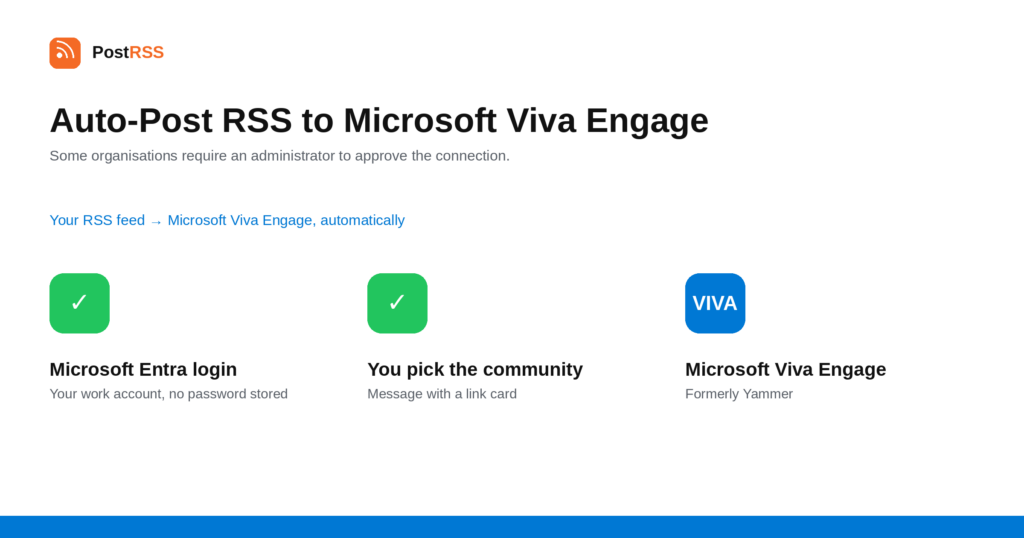
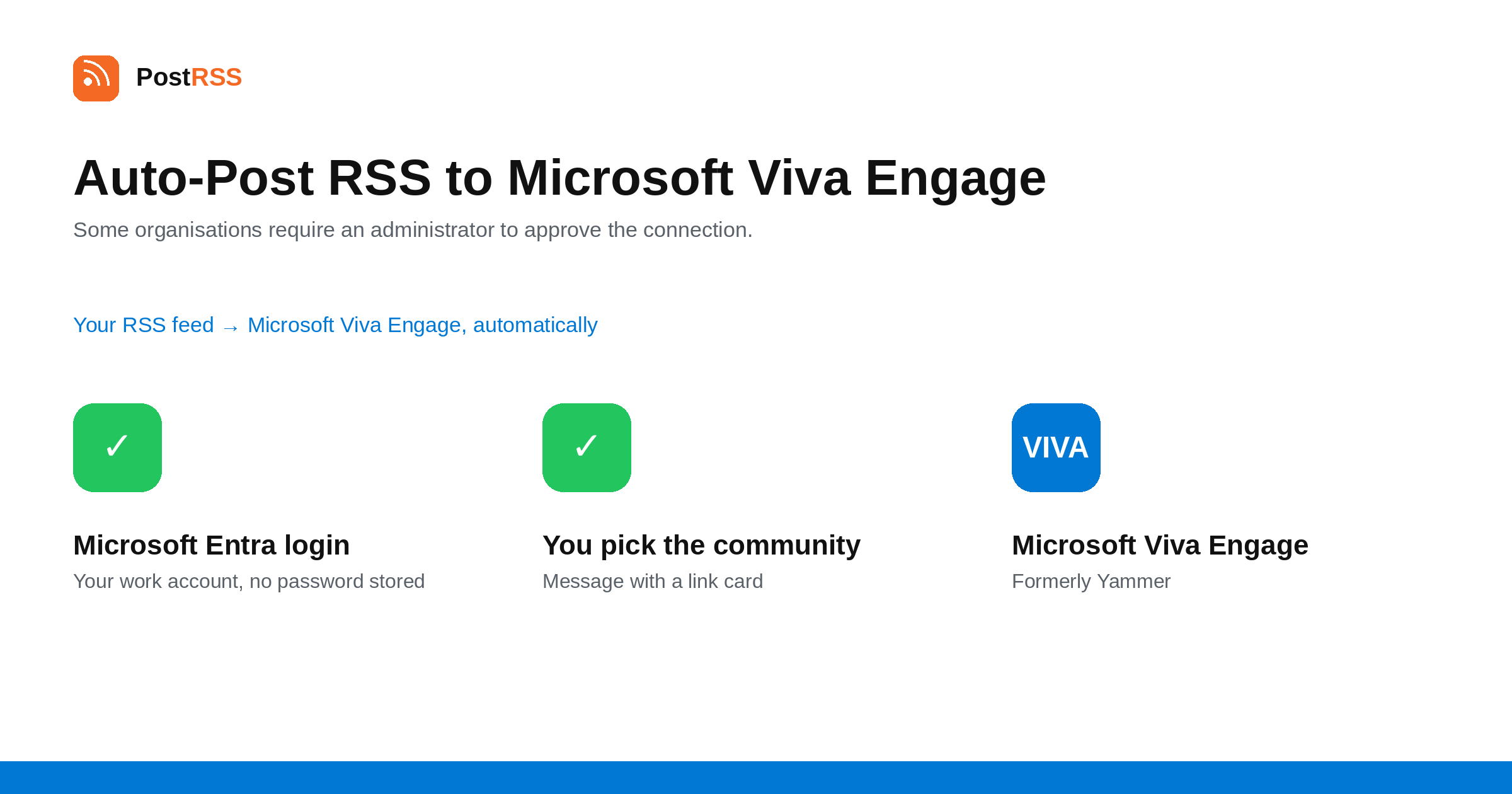
Short answer: sign in with your Microsoft work account under Accounts → Add new Microsoft Viva Engage account — the connection goes through the official Microsoft Entra login and PostRSS never sees your password. Then open Στόχοι → Add feed, choose Microsoft Viva Engage in Target settings, pick the community, and add your feed under Add source (Type = RSS feed, Link = your feed address). Each new item is posted as a message with a link card to the article. Some organisations require a one-time consent from their Microsoft 365 administrator. Viva Engage is included from the Professional plan.
Microsoft Viva Engage is what Yammer became. It is the internal social network inside Microsoft 365, and in large organisations it is where company-wide announcements actually land — the place employees scroll rather than the intranet page nobody opens. This guide is the long version; the auto-post RSS to Microsoft Viva Engage page has the short one.
Connecting goes through Microsoft Entra, the same sign-in your colleagues use for everything else in Microsoft 365. In many organisations that is the whole story: you sign in, you approve, you are connected.
In others, Microsoft will tell you that an administrator has to consent first. That is a tenant-level setting: the organisation has decided that individual employees cannot grant third-party applications access to company data on their own. It is a sensible policy, and it means one request to whoever administers your Microsoft 365 tenant — a one-time consent, after which anyone in the organisation can connect.
Worth knowing before you start, because it is the difference between a five-minute setup and a two-day one, and it is not something any third-party tool can bypass.
Viva Engage is organised into communities, and the community is a Target setting rather than part of the credential. One connected account can therefore feed several communities with different feeds.
That maps onto how large organisations use it. An All Company community wants the corporate blog and major announcements; an engineering community wants release notes; a regional community wants the feed in its own language if you publish one. Pointing everything at All Company is the quickest way to have people mute it.
Each new item is posted as a message with its text and a link card to the article — the preview format Viva Engage renders for URLs, which reads as a deliberate share rather than a pasted link.
This makes it a good destination for internal news, company blogs and newsletters: the things an organisation publishes anyway and then struggles to get anyone to read.
Most organisations already push internal news through three or four channels at once: email, an intranet page, a Teams channel and, increasingly, Viva Engage. The honest observation is that they perform very differently. Email gets opened and deleted; an intranet page gets visited when somebody is sent a link; a Teams channel gets read by the team it belongs to. Viva Engage is the one that behaves like a feed people scroll.
That makes it complementary rather than competing. The same source feed can go to a Viva Engage community and to a Teams channel through the generic webhook destination, and reach two different reading habits without anyone writing the announcement twice. Both are Targets, and the marginal cost of the second is a minute of setup.
PostRSS publishes items that appear in the feed after the Target starts running. It does not import the back catalogue — the alternative would be a destination flooded with years of archive on its first day.
When a destination goes quiet, the feed is usually the cause. Open the feed URL in a browser first.
All four are fixed in your content system.
Microsoft Viva Engage is included from the Professional plan. Each destination you connect counts as one Target, and your plan decides how many Targets and how many posts a month you get. An annual subscription is cheaper than paying monthly. Current limits per tier are on the pricing page, and the full lineup of 66 networks is on the supported networks page. The Microsoft Viva Engage page has the short version of the setup.
Yes. Microsoft Viva Engage is the current name for what was Yammer, and communities, posts and accounts carried over. Only the branding changed.
No. The connection goes through the official Microsoft Entra login, where you sign in and approve it. PostRSS receives a token, never a password.
Because many Microsoft 365 tenants are configured so that employees cannot grant third-party applications access on their own. It is a one-time consent from a Microsoft 365 administrator, after which the connection works normally.
Yes. The community is a Target setting, so one connected account can serve different communities with different feeds.
A message with the item's text and a link card to the article, which is the preview format Viva Engage renders for URLs.
No. Only items appearing after the Target starts running are published.
The Professional plan, alongside the other team and community destinations.
Microsoft Viva Engage is the internal network most Microsoft 365 organisations already have, and feeding it turns the company blog from something people are emailed into something they scroll past. Sign in with a work account, settle the admin-consent question early, and point each community at the feed it actually wants. It is included from the Professional plan.
What changed in the networks, what broke, and how to fix it before it costs you reach.
 English
 Lietuviškai
 Deutsch
 Français
 Русский
 Español
 Polski
 Italiano
 Українська
 Čeština
 Português
 日本語
日本語 Latviešu valoda
 Eesti
Eesti Magyar
 Bahasa Indonesia
 Türkçe
 हिन्दी
 Ελληνικά
 العربية
 ไทย
ไทย Tiếng Việt
 Română
 Bahasa Melayu
 বাংলা
বাংলা