RSS σε 66 κοινωνικά δίκτυα: Facebook, Instagram, X, LinkedIn, Telegram και άλλα Blog Συνεργατικό Πρόγραμμα Επικοινωνία
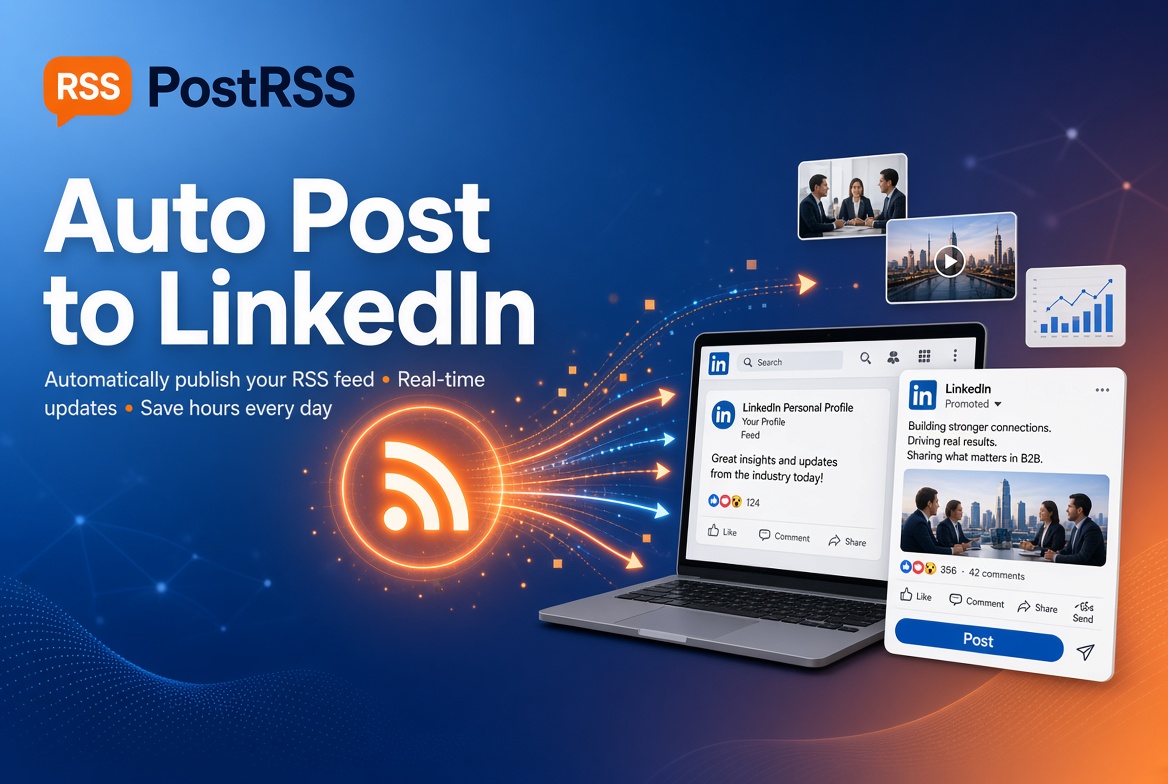
LinkedIn is the leading network for professional networking, industry thought leadership, and personal brand building. PostRSS lets you automate your professional presence by sharing your articles, industry insights, and updates directly to your personal LinkedIn profile the moment they're published on your website.
For the configuration details, our RSS to LinkedIn page covers them in full.
Maintain a consistent professional presence online while focusing your time on the work that actually needs you.
LinkedIn automation is available starting on PostRSS's Professional Plus plan ($20/month) and above — it isn't included on Free, Start, or Professional tiers.
Automate your professional content pipeline in a few steps:
If you're building your own professional brand — sharing your perspective as an individual, not speaking for a company — a personal profile connection is what you want here. If instead you're managing updates on behalf of a business, see our dedicated guide for auto-posting to a LinkedIn Company Page, which covers the distinct setup and admin permissions that involves.
Every new item in your feed becomes one LinkedIn post on your profile. PostRSS builds the text from the parts of the item you choose: the item title, the item description, the page title or your own static text. There are nine message formats in total, so you can keep it short (title and link only) or add a line of context from the article summary. The link carries the real image, taken from the feed item itself or from the Open Graph tags of the linked page, so the post looks like something you shared by hand rather than a bare URL.
If you want your network to know why you are sharing the piece, a short static line such as “New on my blog:” in front of the title works well. It stays the same on every post, which keeps the updates recognisable without making them repetitive.
A personal profile is read by colleagues, clients and recruiters, so it pays to be selective. PostRSS gives you several controls per source:
Automation handles the delivery, but the quality of the profile still depends on what goes into the feed. A few habits make a big difference:
For timing ideas, see our guide to the best times to post on LinkedIn and combine it with posting windows in PostRSS.
PostRSS can add your own query parameters, such as utm_source=postrss, to every link it posts. With a separate tag for LinkedIn, your analytics shows exactly how many visits and sign-ups came from your profile, and which articles earned them. That makes it easy to see which topics your professional network responds to and to write more of them. Our article on tracking RSS automation with UTM parameters walks through the setup.
Yes — each is set up as a separate PostRSS Target with its own authorization, so you can automate both from the same or different feeds.
No — PostRSS pulls your actual content’s title, image, and summary from your feed, producing the same kind of link preview LinkedIn generates for any manually-shared link.
No — personal profile authorization only requires you to log in as yourself through LinkedIn’s official flow; admin rights are only relevant for Company Pages.
PostRSS checks your feed every 5 minutes, or every minute on Enterprise plans, so a new article usually appears on your profile within minutes of being published on your site.
Yes. Use keyword filters to include or exclude items by words in their title and description, or connect a category feed that contains only the topics you want your professional network to see.
What changed in the networks, what broke, and how to fix it before it costs you reach.
 English
 Lietuviškai
 Deutsch
 Français
 Русский
 Español
 Polski
 Italiano
 Українська
 Čeština
 Português
 日本語
日本語 Latviešu valoda
 Eesti
Eesti Magyar
 Bahasa Indonesia
 Türkçe
 हिन्दी
 Ελληνικά
 العربية
 ไทย
ไทย Tiếng Việt
 Română
 Bahasa Melayu
 বাংলা
বাংলা
